[Part 49] What records remain after changing a single order?
November 13, 2026
After changing a value in a production database, saying ‘I changed it’ is often not enough. The reason for the change, who reviewed it, and which values actually changed all help establish what happened.
In earlier posts, I tried SQL approval, DML Snapshot, and audit log export separately. This time I combined them into a single order correction, following the same order from the change justification through approval, execution, before-and-after verification, and downloading the audit file.
1. Prepare an order whose status needs correcting
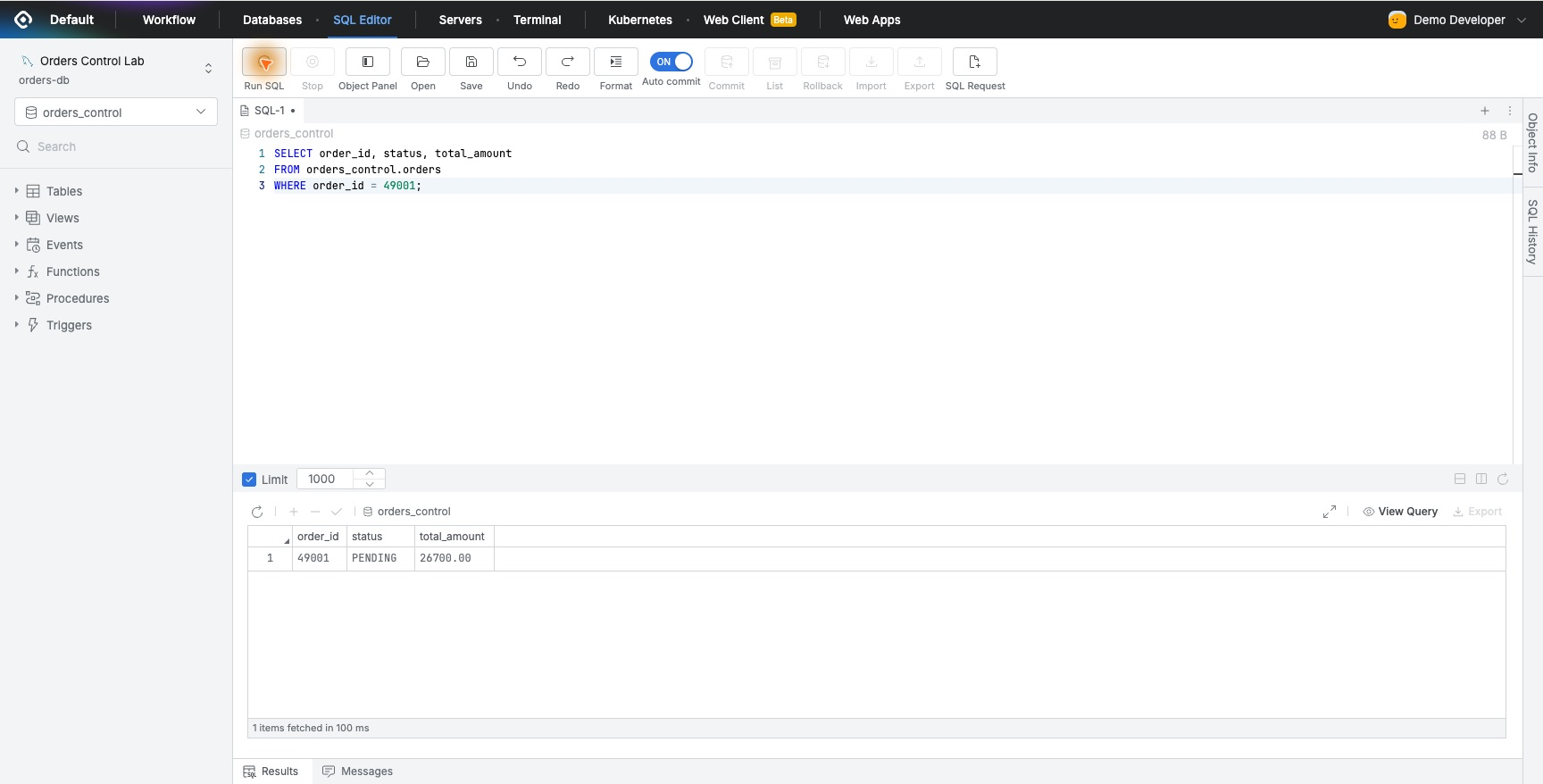
I created a new test order, 49001, with status PENDING and an amount of KRW 26,700. The scenario was that delivery had been confirmed but the order status had not been updated. I left the other existing test orders untouched.
I kept the operator’s direct connection permission at Read-Only. The plan was to check the current status in SQL Editor and obtain approval for the actual UPDATE through a separate SQL Request.
2. Submit the reason and SQL for approval together
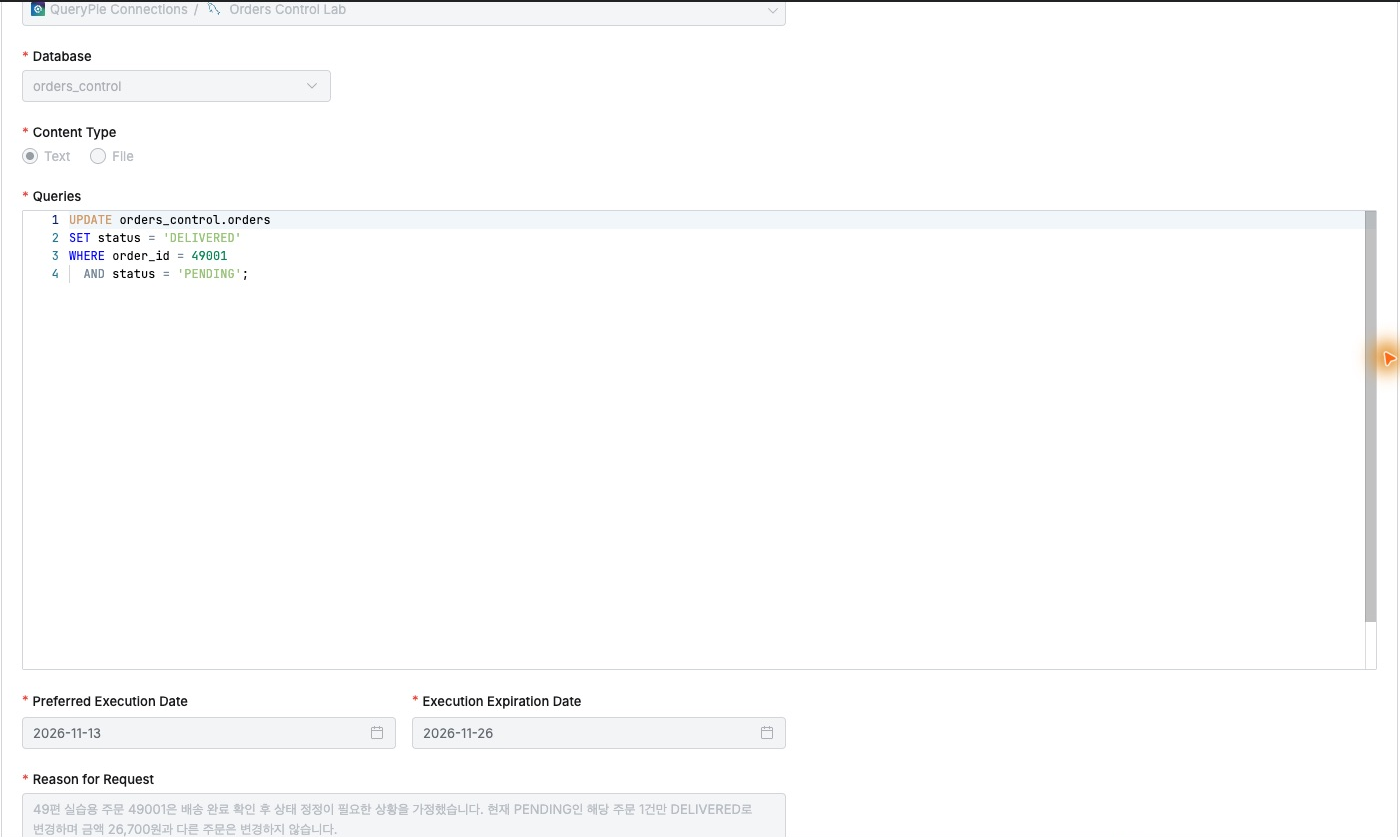
I titled the request ‘Correct order 49001 to delivered.’ In the reason, I specified that only the status of this order, whose delivery had been confirmed, would change; its amount and all other orders would remain unchanged.
The SQL reflected the same scope. Its WHERE clause would change the status to DELIVERED only when the order number was 49001 and the current status was PENDING. The approver could review both the description and the SQL that would actually run.
I opened the request as the designated approver, Demo Approver, and checked its target and conditions. After leaving a comment confirming that the scope was limited to correcting one order without changing its amount or other orders, I approved it. The request changed to Approved.
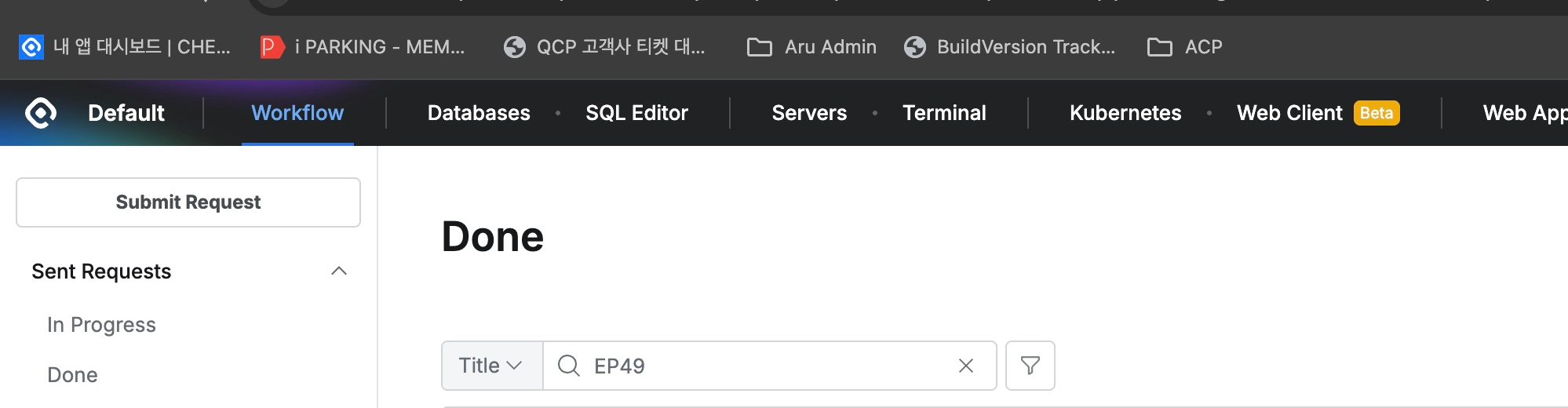
Back in the operator account’s execution list, I opened the approved request and clicked Execute. The result was ‘1 Rows updated.’ One order changed at 13:56:27. I also checked the source database: its status was now DELIVERED, while its amount and the other orders were unchanged.
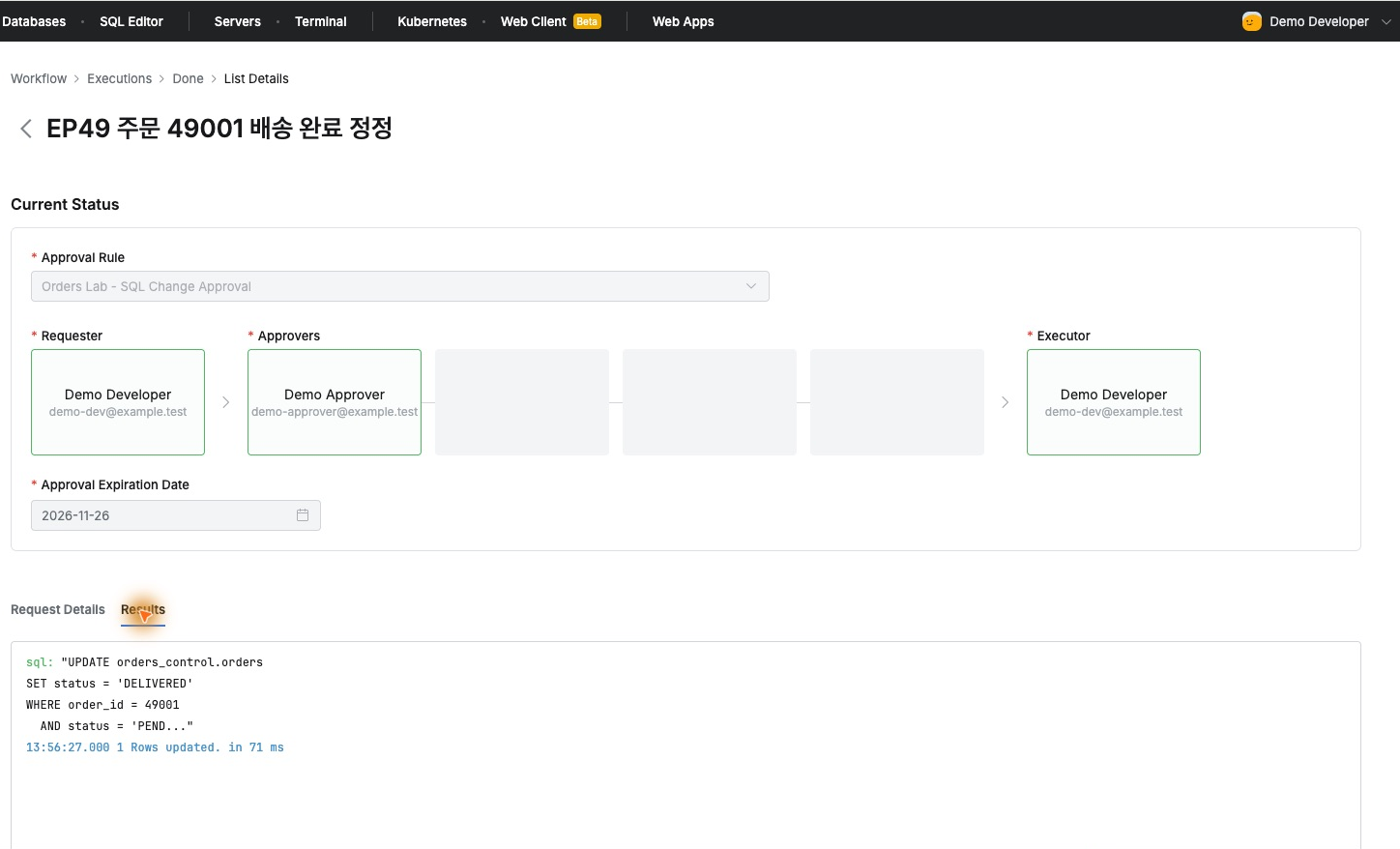
What I found convenient was that I did not have to broaden the operator’s everyday connection privileges to allow changes. Direct access remained read-only, while the reviewed change SQL could run through the approval process.
3. Find the original value immediately
DML Snapshot was enabled for this connection. When I opened DML Snapshots in the admin audit screen, the UPDATE I had just run appeared as a new record. It showed 13:56:27, Orders Control Lab, and one changed row.
Clicking Before in the details showed order 49001 with status PENDING. Clicking After showed the same order with status DELIVERED. I could check both the SQL that ran and how it changed the status in one screen.
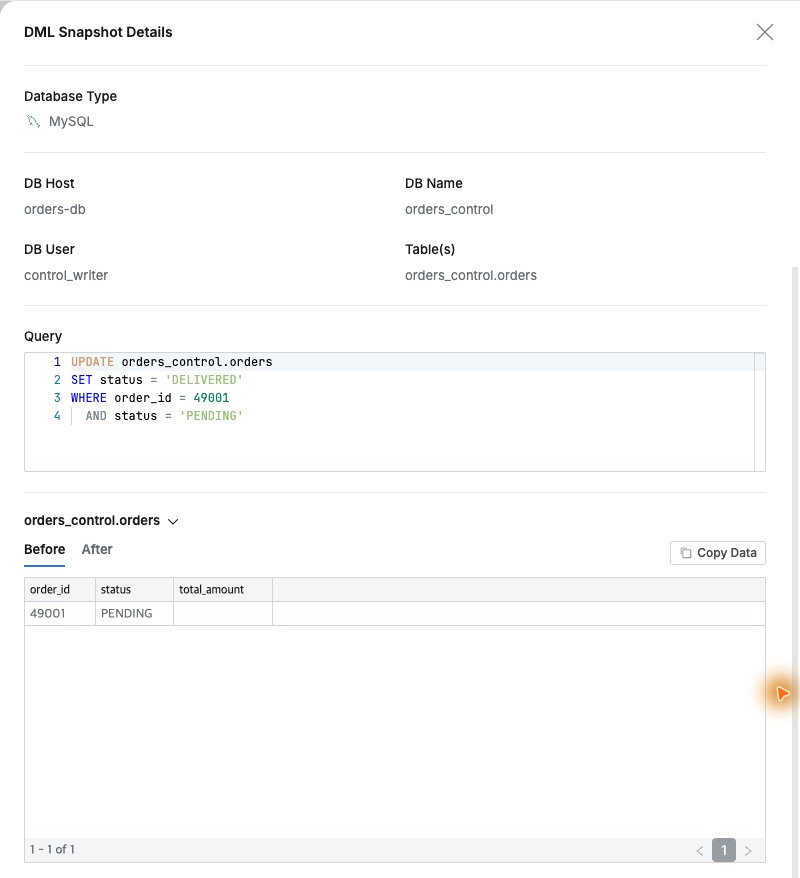
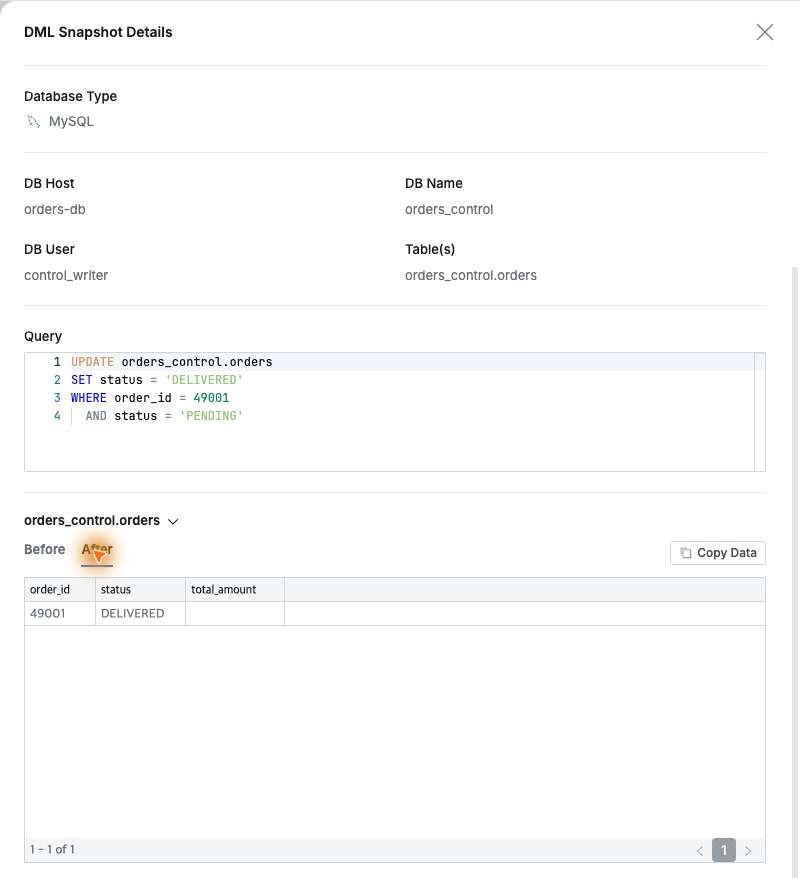
If someone later asks what state this order was originally in, there is no need to rely solely on the operator’s memory. Being able to compare the actual status values, as in this exercise, felt particularly useful for operations work.
4. Verify in the audit trail that the operation was approved
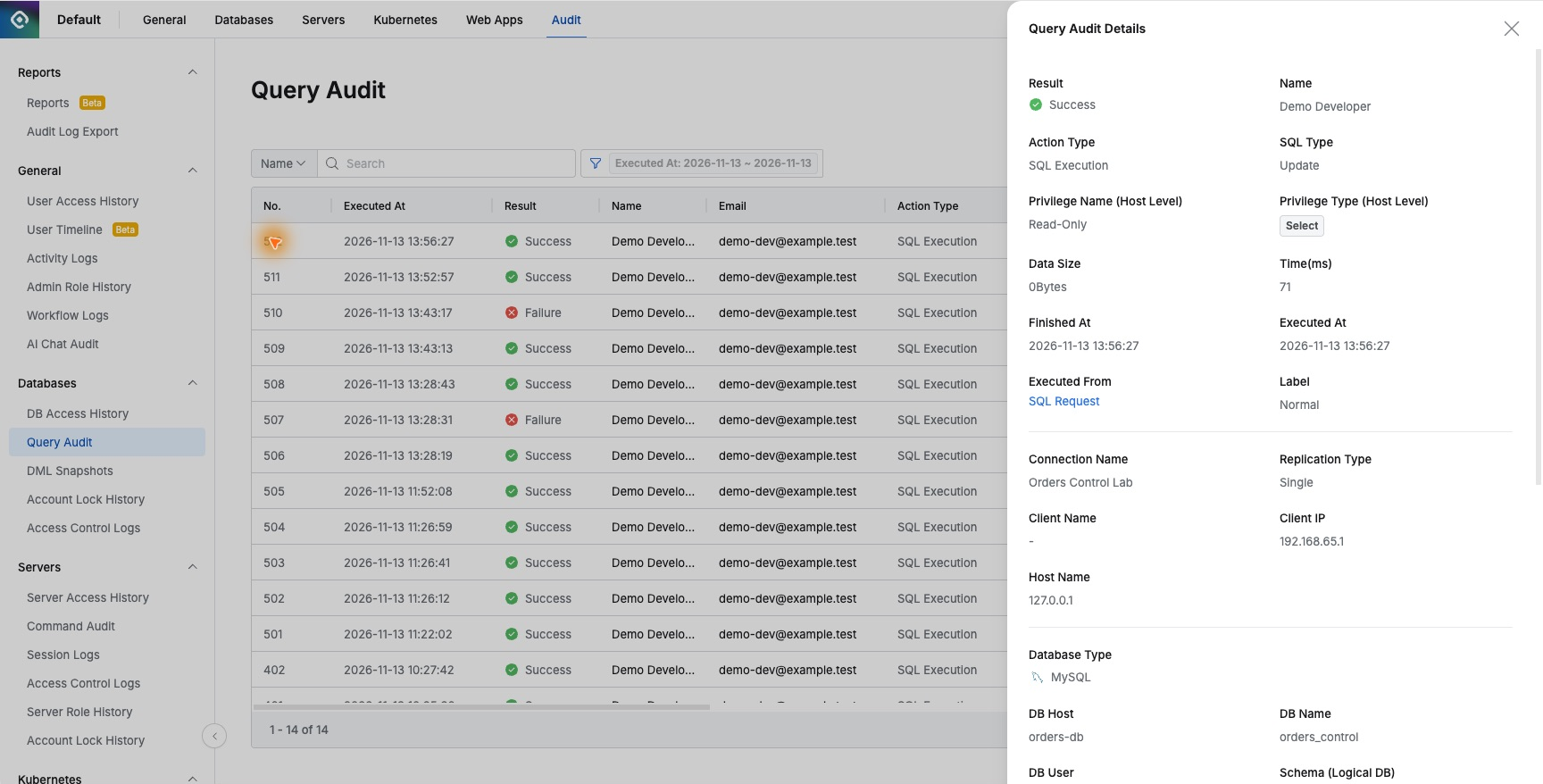
I looked up the same operation in Query Audit. Its record number was 512 and the result was Success. The user, Demo Developer, the UPDATE operation, and the execution time matched the DML Snapshot.
In particular, Executed From showed SQL Request. The record distinguished this approved change from direct access, which still had Read-Only permission. It showed not only who executed the SQL but also the process used to execute it.
5. Export the records for the same operation
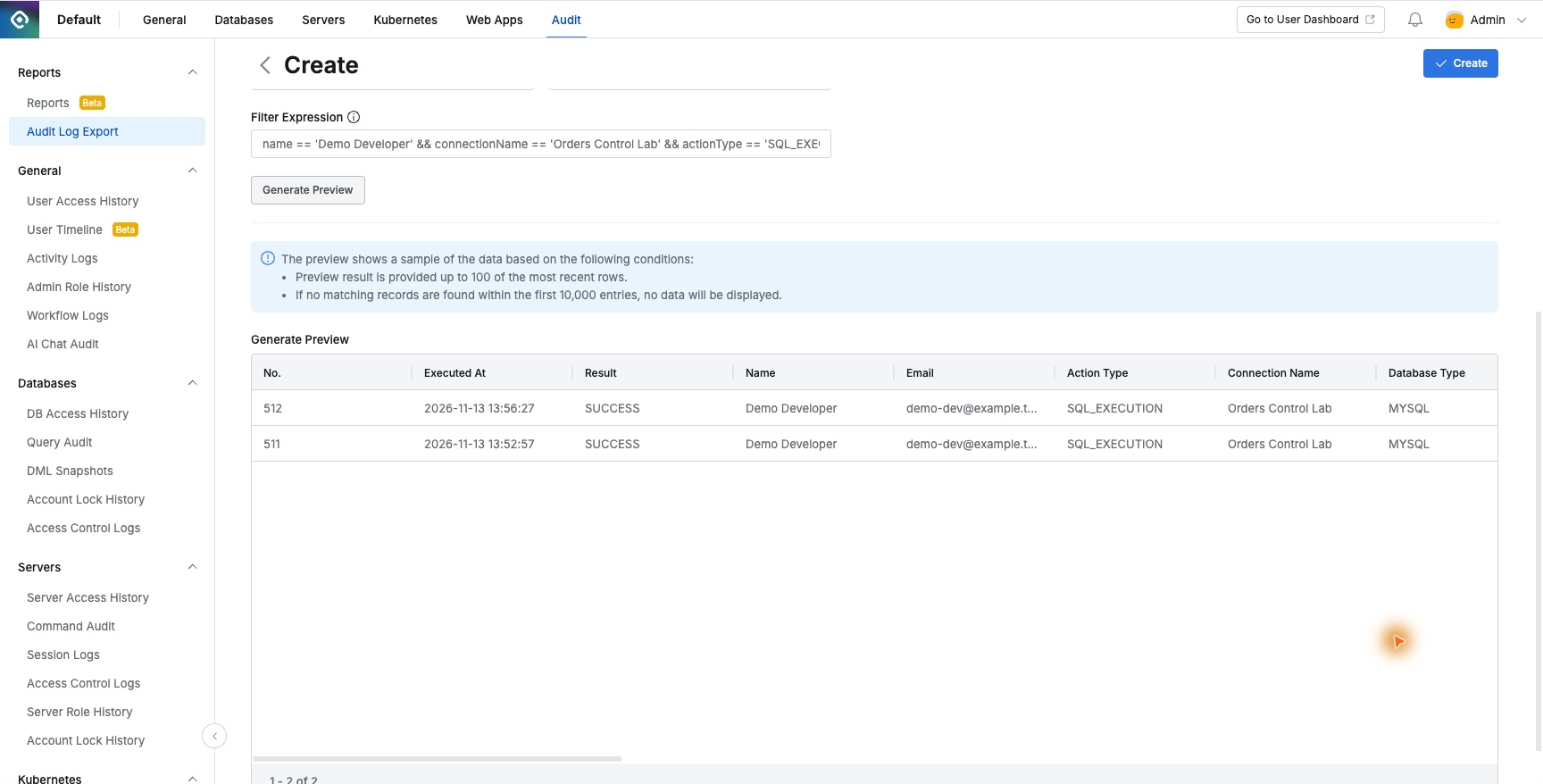
Finally, I generated audit evidence in Audit Log Export. I selected Query Audit as the log type and CSV as the file format, set the date range to the day of the exercise, and filtered by user and database connection.
The preview returned two records: the SELECT used to inspect the order before the change and the approved UPDATE. The sequence of checking and correcting one order was recorded in execution-time order.
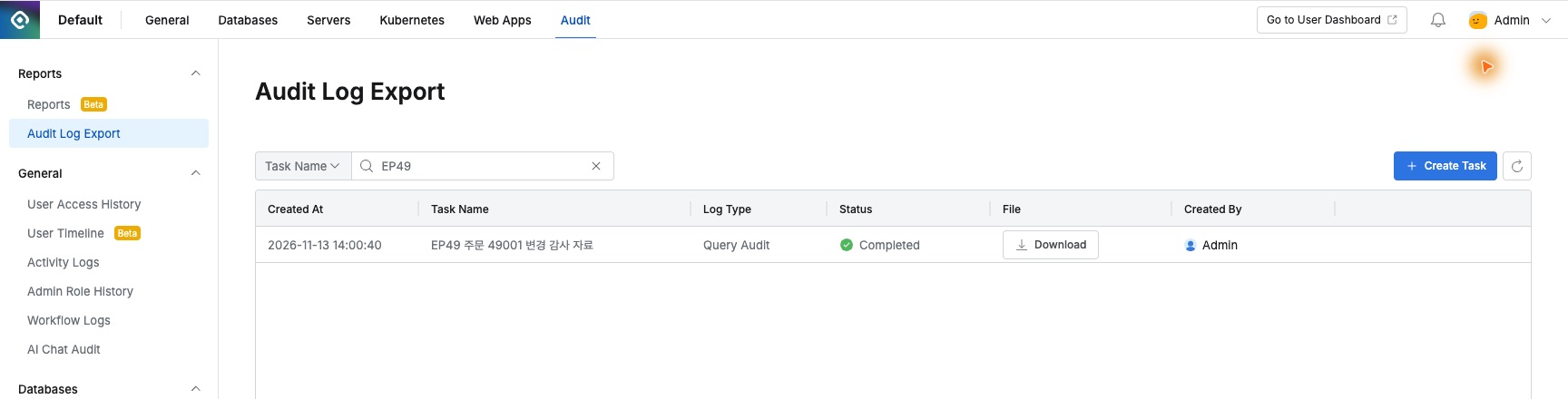
Once the job changed to Completed, I downloaded and extracted the file. The CSV contained the user, original SQL, execution time, result, changed row count, and execution source.
The UPDATE row’s Workflow Request UUID also matched the ID of the request I originally submitted. Audit number 512, the 13:56:27 execution time, and the one-row update result all matched what I had seen on screen. This provided evidence linking the request and the actual execution to the same operation.
Although I changed only one order status, the resulting records were quite detailed. The request retained the reason and approver, the execution result retained the time and row count, and DML Snapshot retained the original and updated states. The audit file also included an ID pointing to the same approval request.
For someone evaluating the product, this continuity is welcome. When the approval process and actual work records are scattered, explaining a change requires reconciling the evidence each time. Here I could establish how one order changed within QueryPie and then save the required execution records to a file.