[Part 20] Selecting the Records an Audit Needs — QueryPie Audit Log Export
November 9, 2026
Part 19 inspected before/after order values with DML Snapshot. This time I exported those work records, imagining an audit requiring evidence of a user’s activity on a specific database.
With period and user set in Audit Log Export, I found both reads and approved changes. The file contained SQL, outcomes, and the UUID identifying the related approval request.
Inspecting Available Export Fields
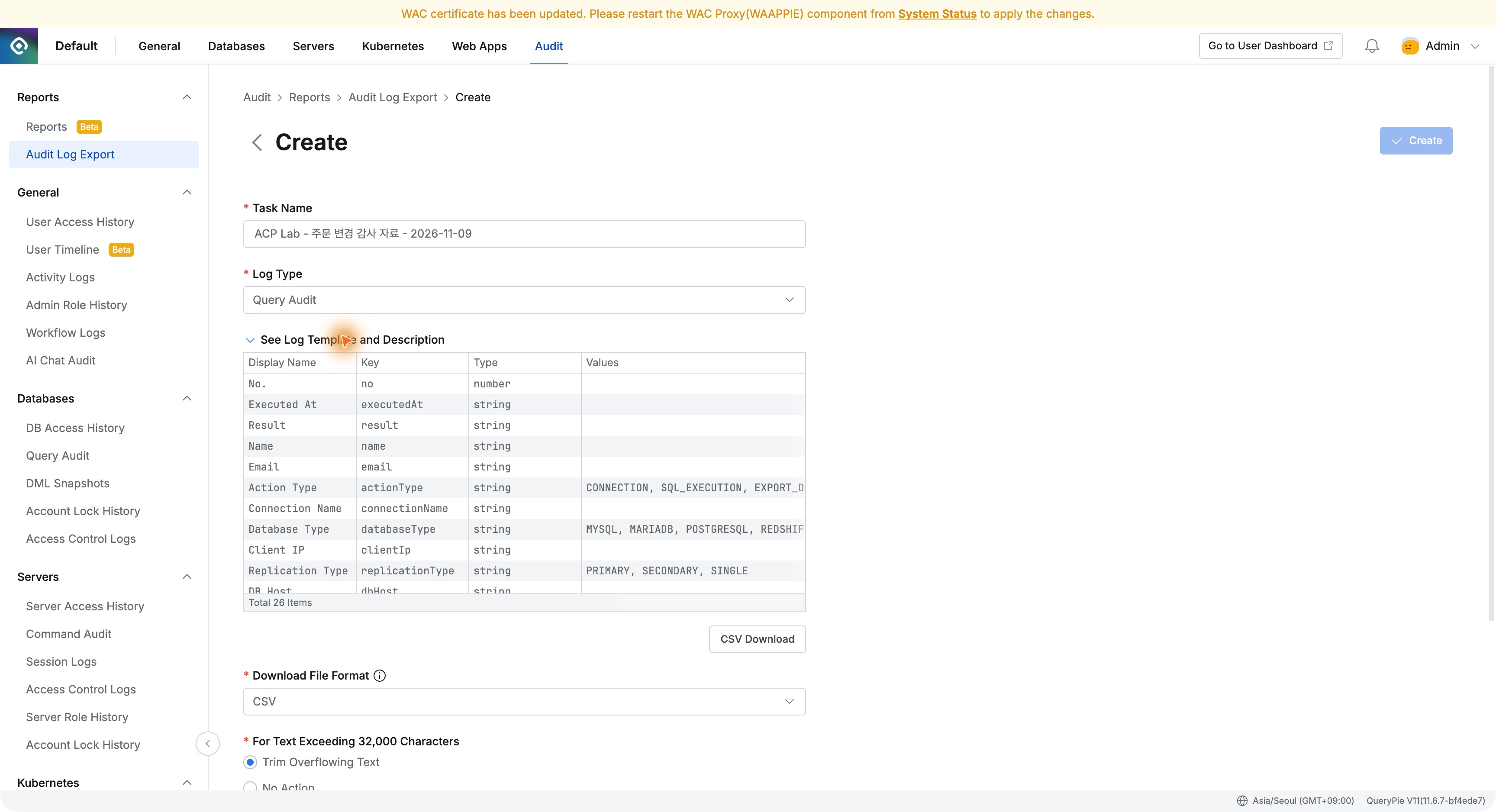
In Audit → Reports → Audit Log Export, I clicked Create Task, named it ‘ACP Lab - Order change audit - 2026-11-09,’ and selected Query Audit.
See Log Template and Description lists file fields and filter keys: name for user, connectionName for connection, actionType for operation. I could build filters while checking the definitions.
Selecting One Developer’s Order-Database Work for the Day
I selected November 9, 2026, and only SQL executed by Demo Developer on Orders Control Lab. Filter Expression was as follows.
name == 'Demo Developer'&& connectionName == 'Orders Control Lab'&& actionType == 'SQL_EXECUTION'
I chose CSV and No Action for long text, preserving content over 32,000 characters instead of truncating it.
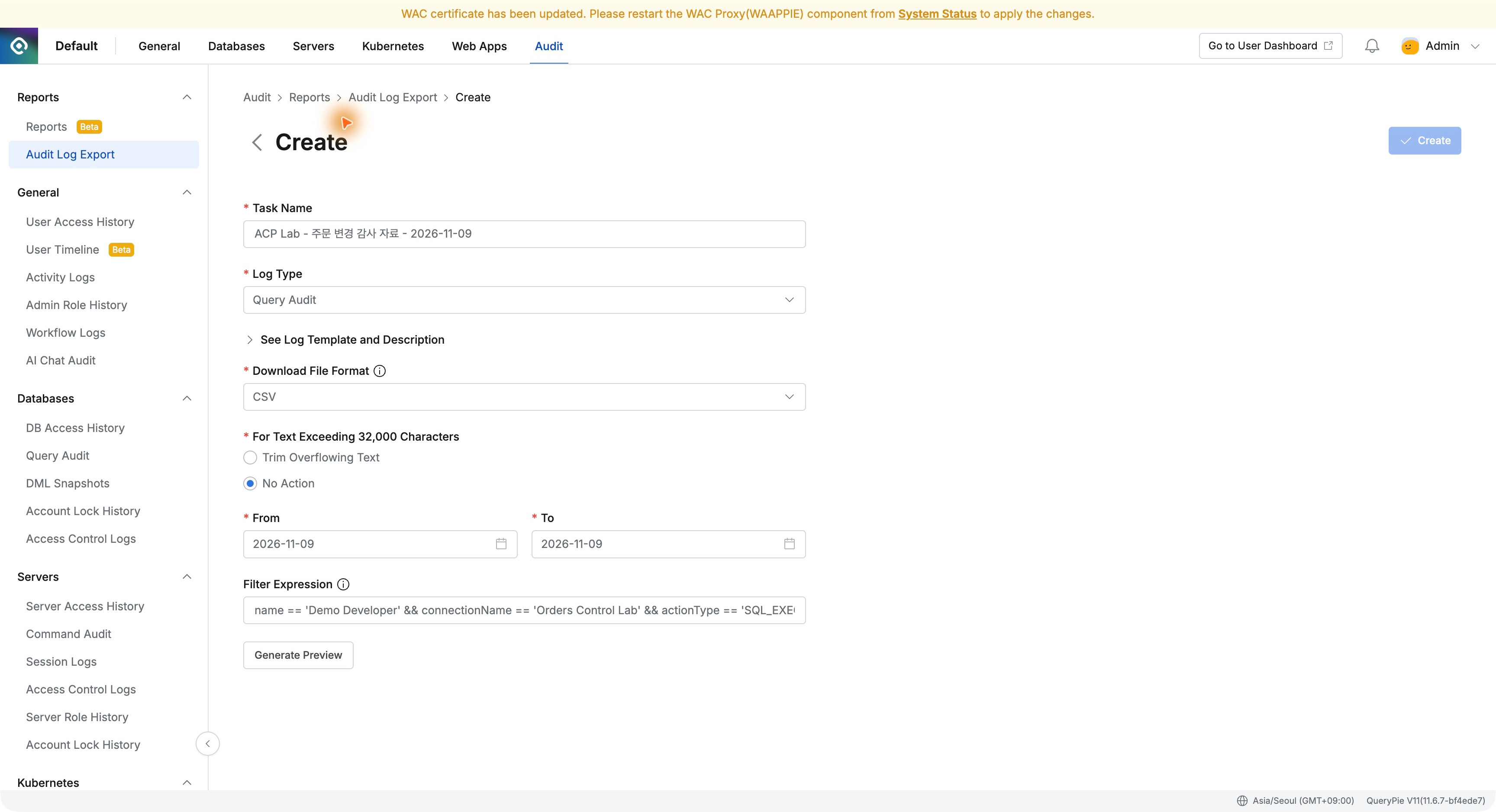
Defining scope during extraction simplifies review: for a specific task, only relevant records need to be collected.
Previewing Before Creating the File
Generate Preview returned two records: SELECT of order 4003 at 00:05:47 and UPDATE at 00:17:13. Both were Demo Developer, Orders Control Lab, and SUCCESS.
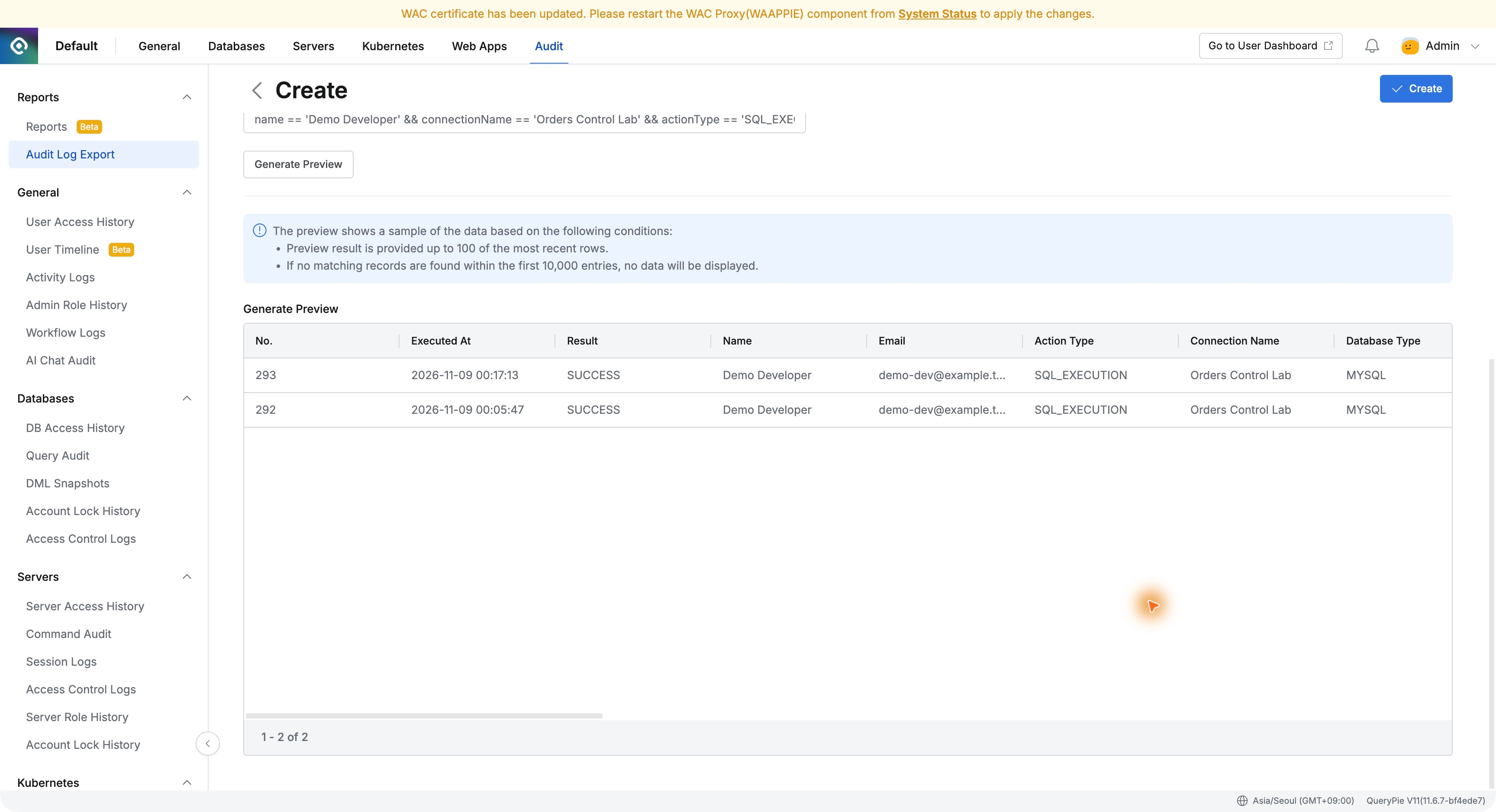
I recognized the times and content from Part 19. Preview verifies the filters before download; with the intended scope, I clicked Create.
Downloading the Completed Audit File
The task list showed name, log type, creator, and progress. Once Completed, I clicked Download.
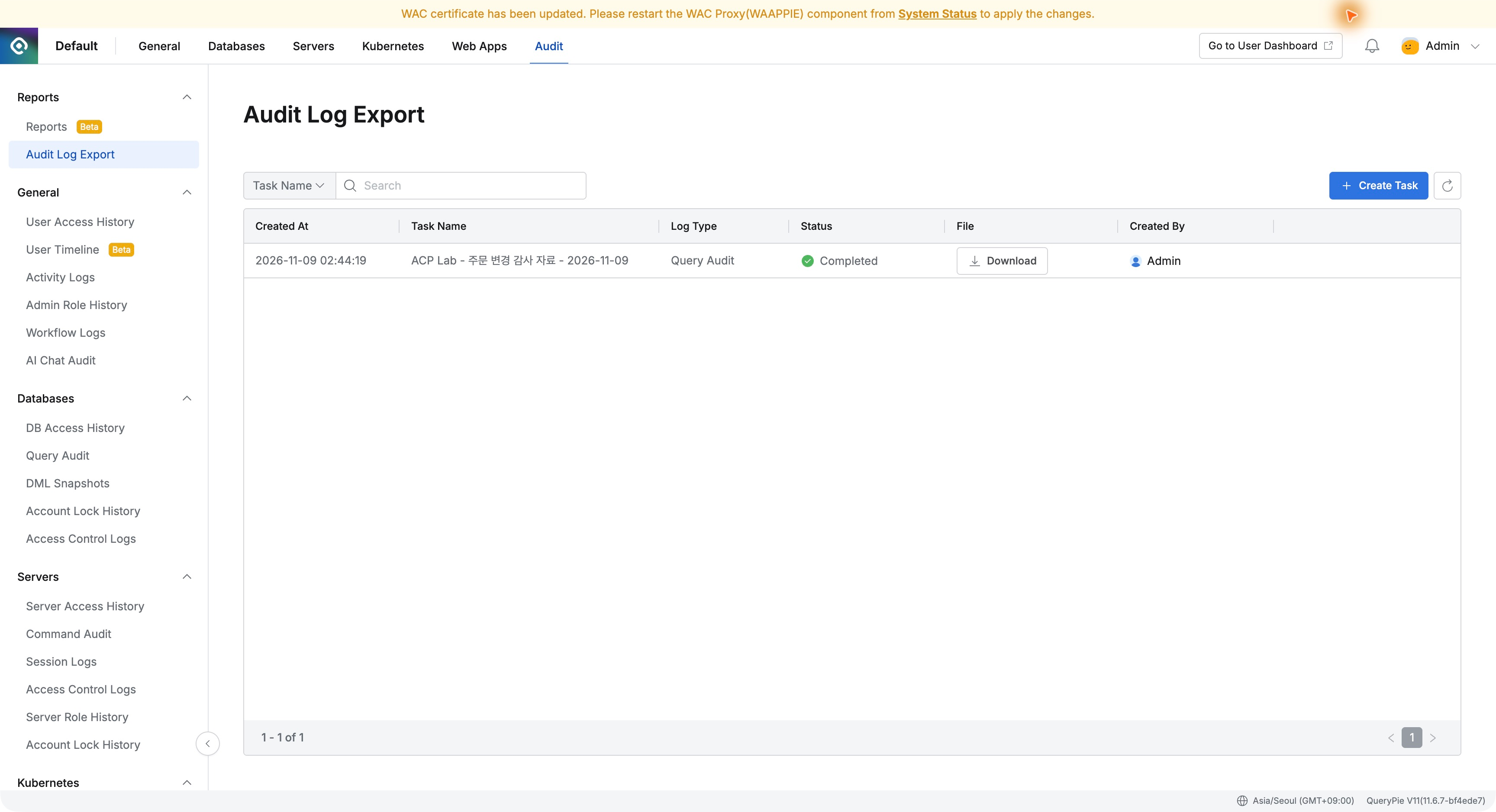
Audit.zip contained a CSV named after the task. Purposeful task and file names made the materials easy to organize.
The CSV Identifies the Related Approval Request
The CSV contained both previewed records, including user, connection, time, original SQL, and outcome.
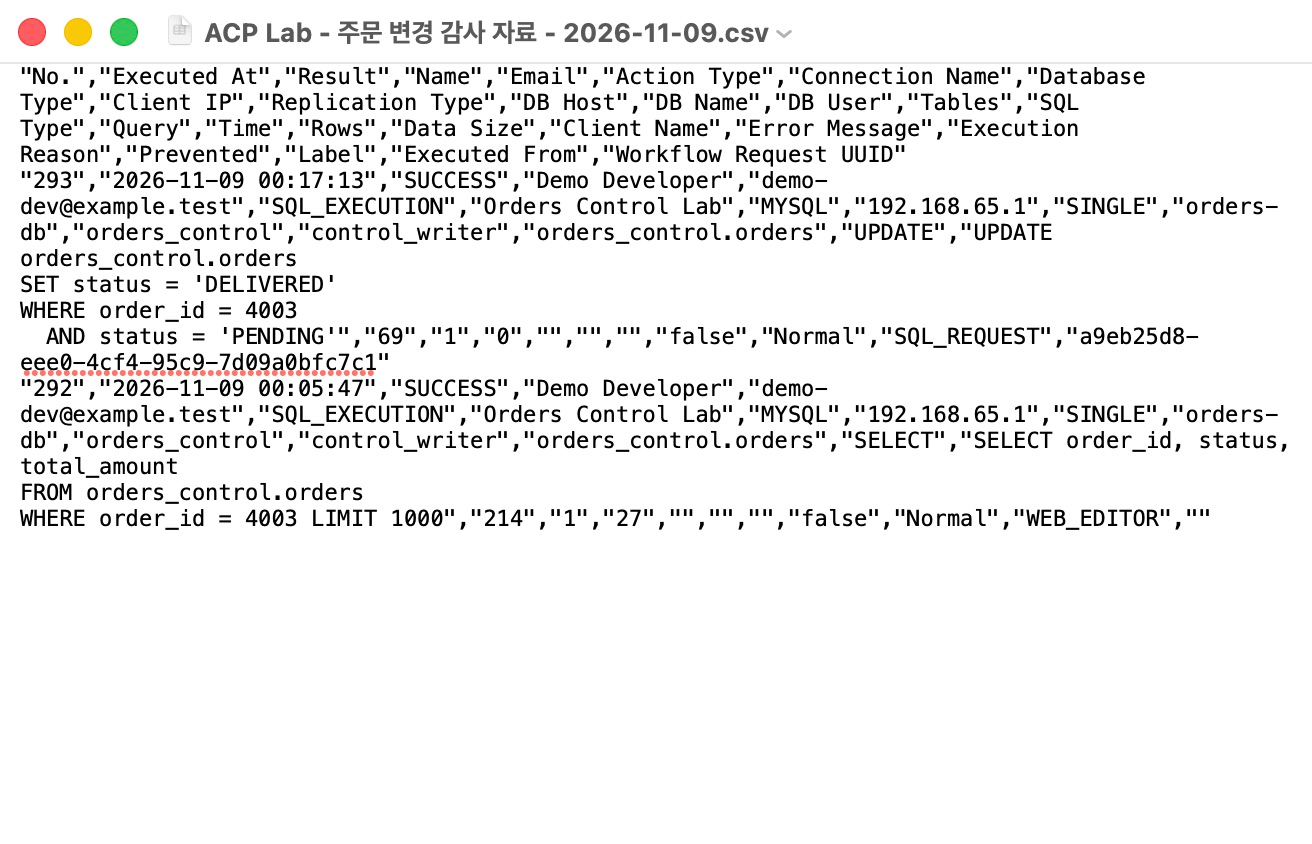
Change record No.293 ran at 2026-11-09 00:17:13, SUCCESS, 69 ms, one row. Executed From was SQL_REQUEST; Workflow Request UUID identified the approval request.
In the same file, SELECT was WEB_EDITOR and UPDATE SQL_REQUEST, distinguishing ordinary web reads from approved execution.
Using the Screen’s Evidence Directly as Audit Material
Query Audit No.293 matched the CSV’s user, time, 69 ms, and SQL Request route. The same work could be verified in the file.
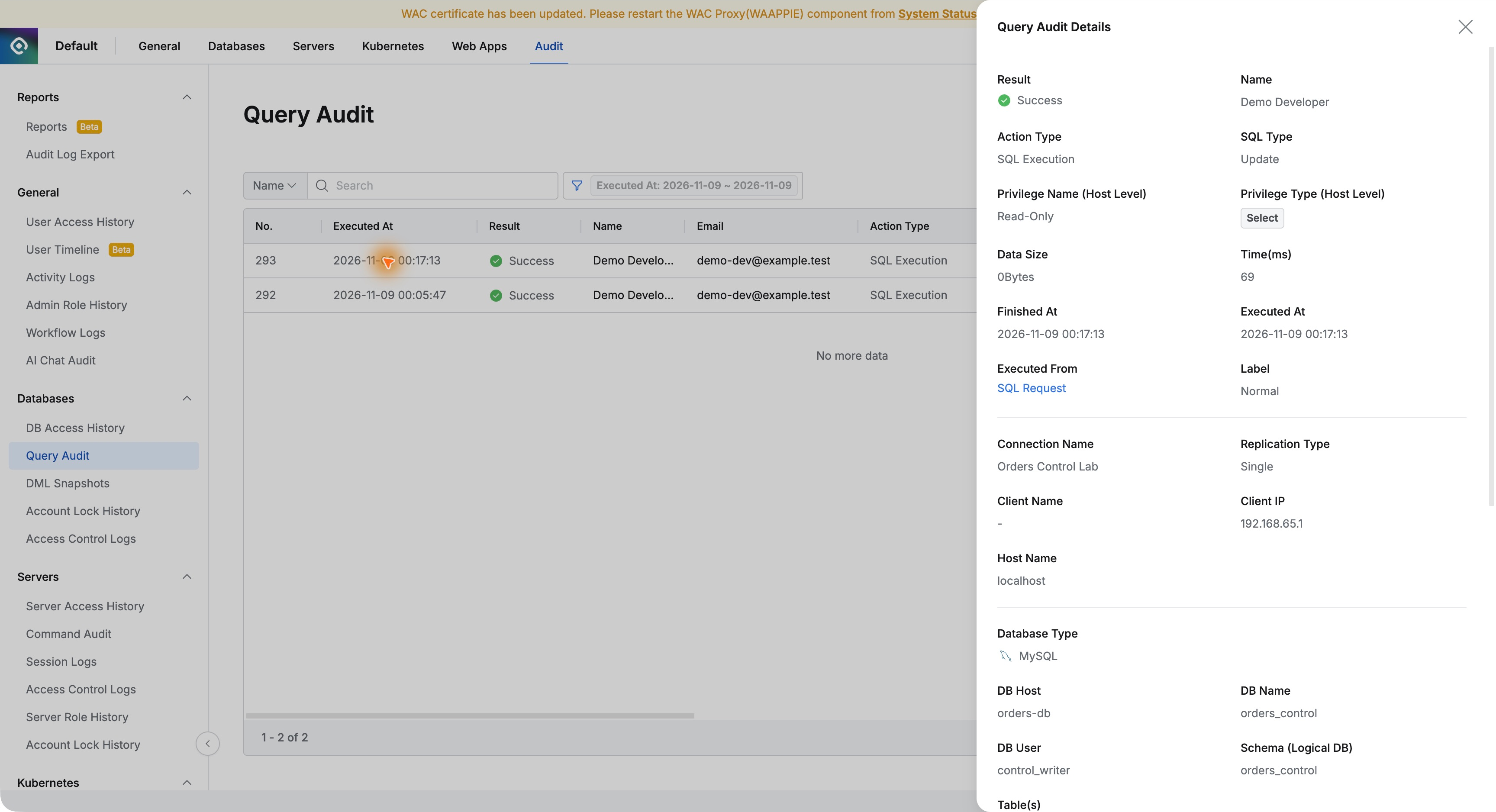
Preparing evidence was straightforward: select period and user, filter the database activity, preview, and download. I did not need to transcribe SQL or outcomes.
One file linked operator, database, SQL, outcome, and approval ID for the order correction, reducing the effort needed for internal reviews and audit requests.
This exercise used fictional order-database audit records in QueryPie Community 11.6.7.
Reference: QueryPie official Audit Log Export documentation