[Part 5] Requesting and Approving Database Access in QueryPie ACP — Through to Queries in DBeaver
November 8, 2026
‘I need to check order settlements. Could I have read access to the database until tomorrow?’
Database operators often receive requests like this. They establish which database is needed, whether reads alone suffice, and how long access should last. Messaging may work for a few requests, but as teams grow it becomes important to track who received privileges and why.
In Part 4, I verified read-only query restrictions and access blocking after revocation. Here, I tried a user-initiated request and approval workflow, then queried actual test orders in DBeaver.
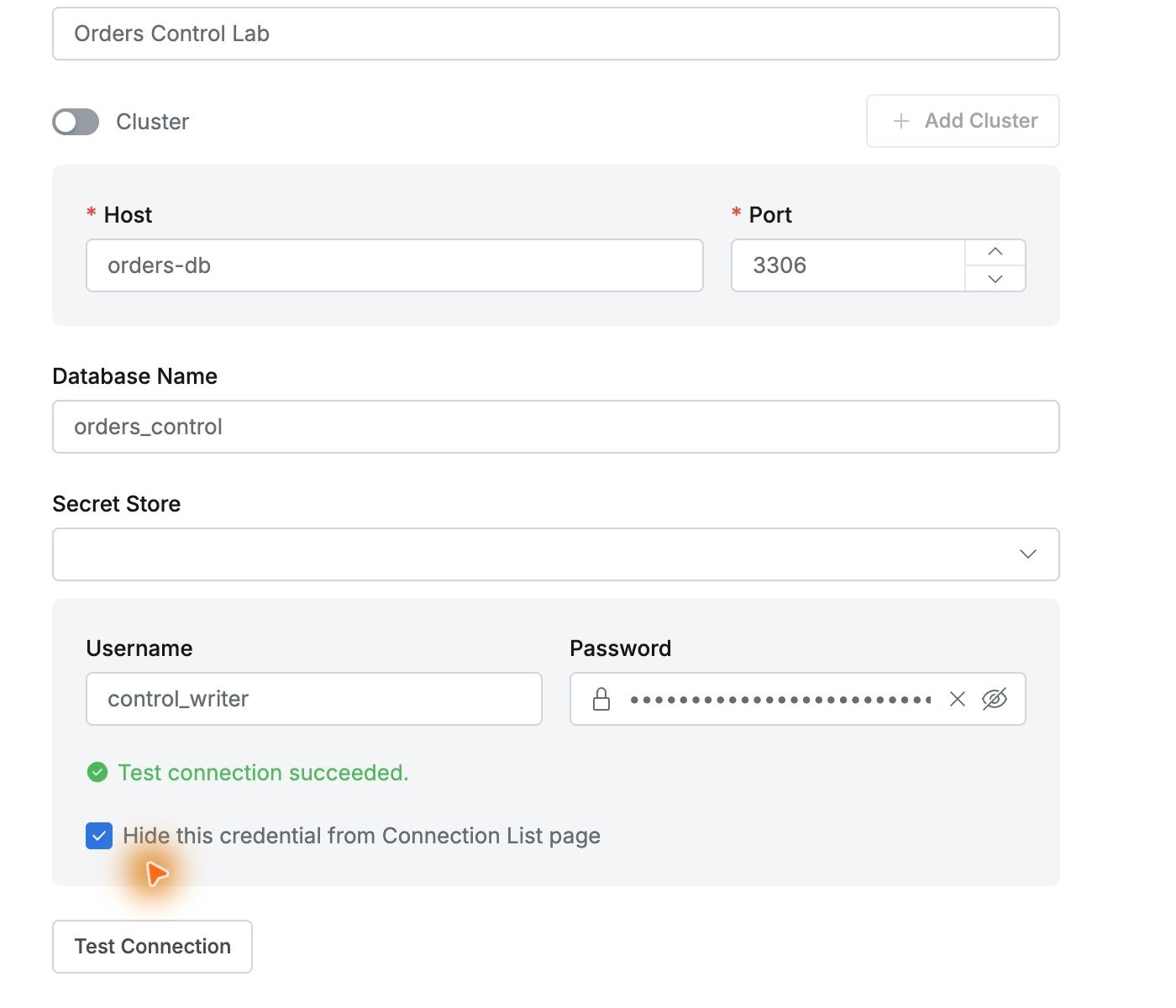
Again, I used QueryPie ACP Community 11.6.7 on my Mac and the lab MySQL. Demo Developer was the requester, and Demo Approver the approver.
1. Defining Who Approves Requests
In the administrator view, I created a database-access rule under Workflow Management → Approval Rules named Orders Lab - Read Access Approval and designated Demo Approver.
One approver was sufficient. Self-Approval was disabled, separating the person using the privilege from the person approving it.
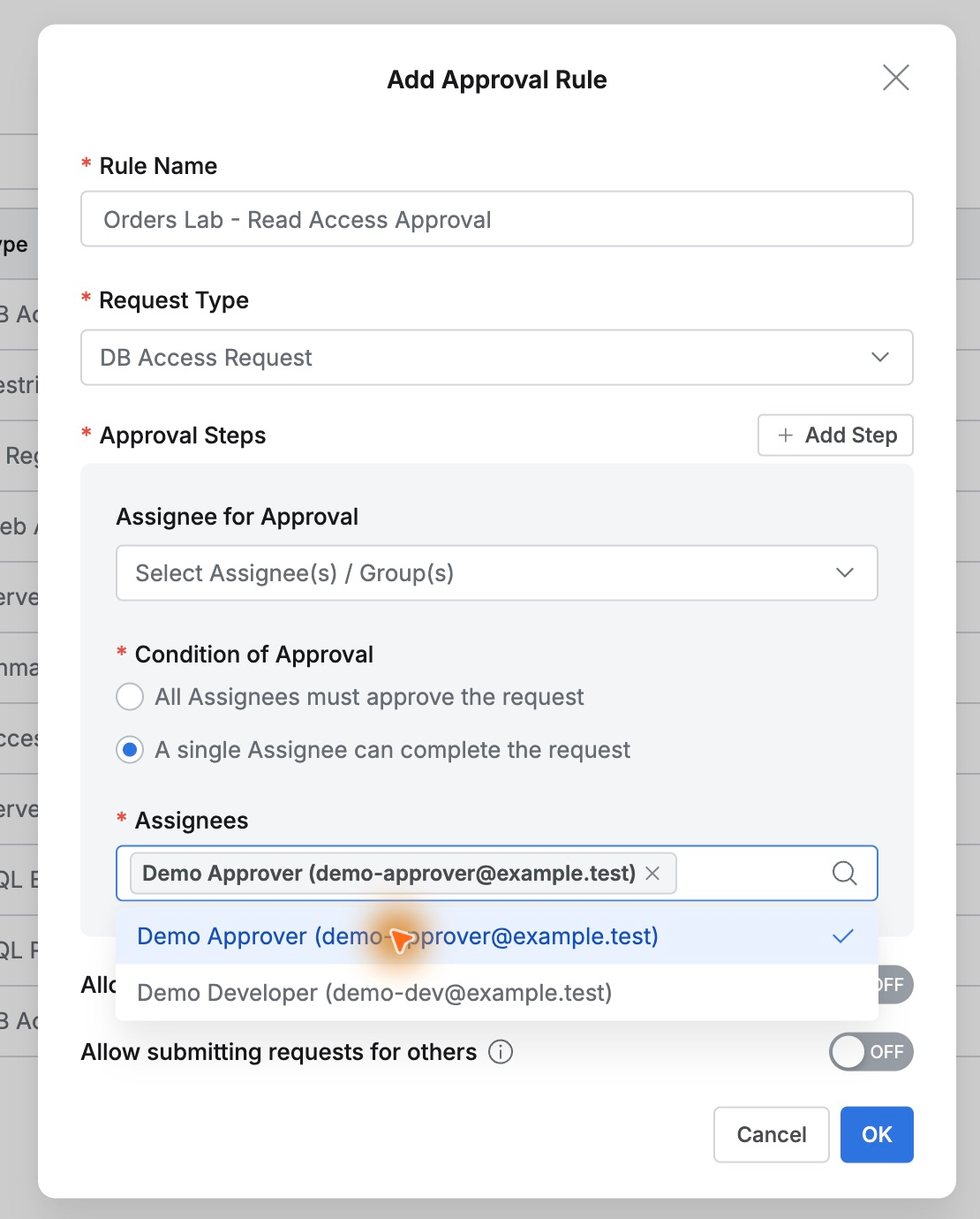
After saving, the developer’s request form displayed the rule and approver. Users could submit to a predefined person without searching each time; operations teams could establish a consistent process.
2. Requesting a Database, Privileges, and Expiration Together
Under Workflow → Submit Request → DB Access Request, I requested access to check order settlements and shipping status. No changes were needed, so I selected only Read-Only on Orders Control Lab.
I titled it ‘Read access request for order settlement verification.’ The reason specified the tables, purpose, read-only nature, and required period.
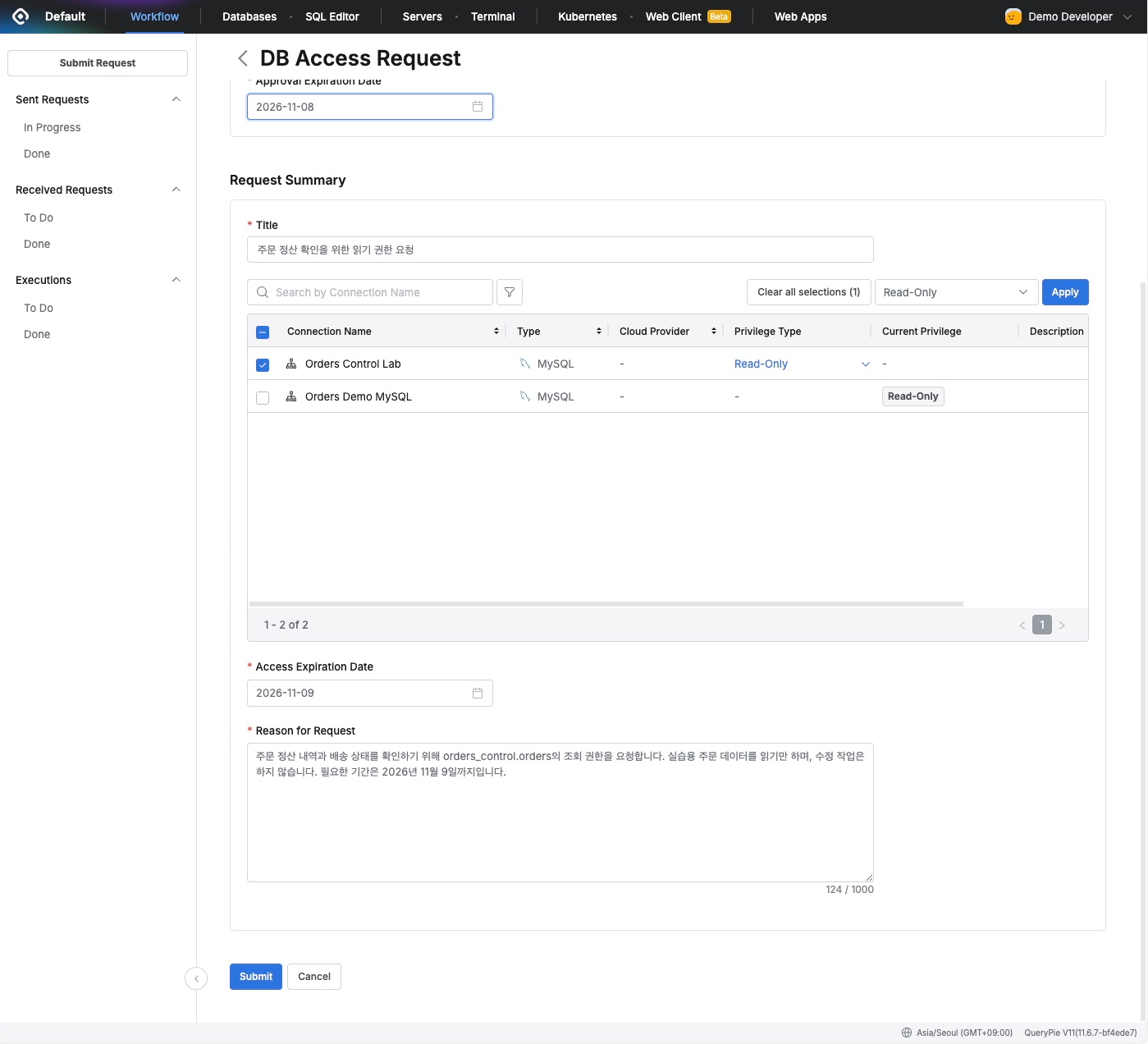
Two dates stood out: Approval Expiration Date is the approval deadline, while Access Expiration Date is when database access expires. I requested approval on November 8 with access through November 9.
Instead of just ‘Please give me database access,’ the form captured where, what privileges, and until when. This reduces follow-up questions for approvers. I particularly liked defining both read-only scope and duration for the task.
3. The Submitted Request Waited for Approval
Submit placed the request in Sent Requests → In Progress. Details showed requester and approver together, followed by the requested database and Read-Only privilege.
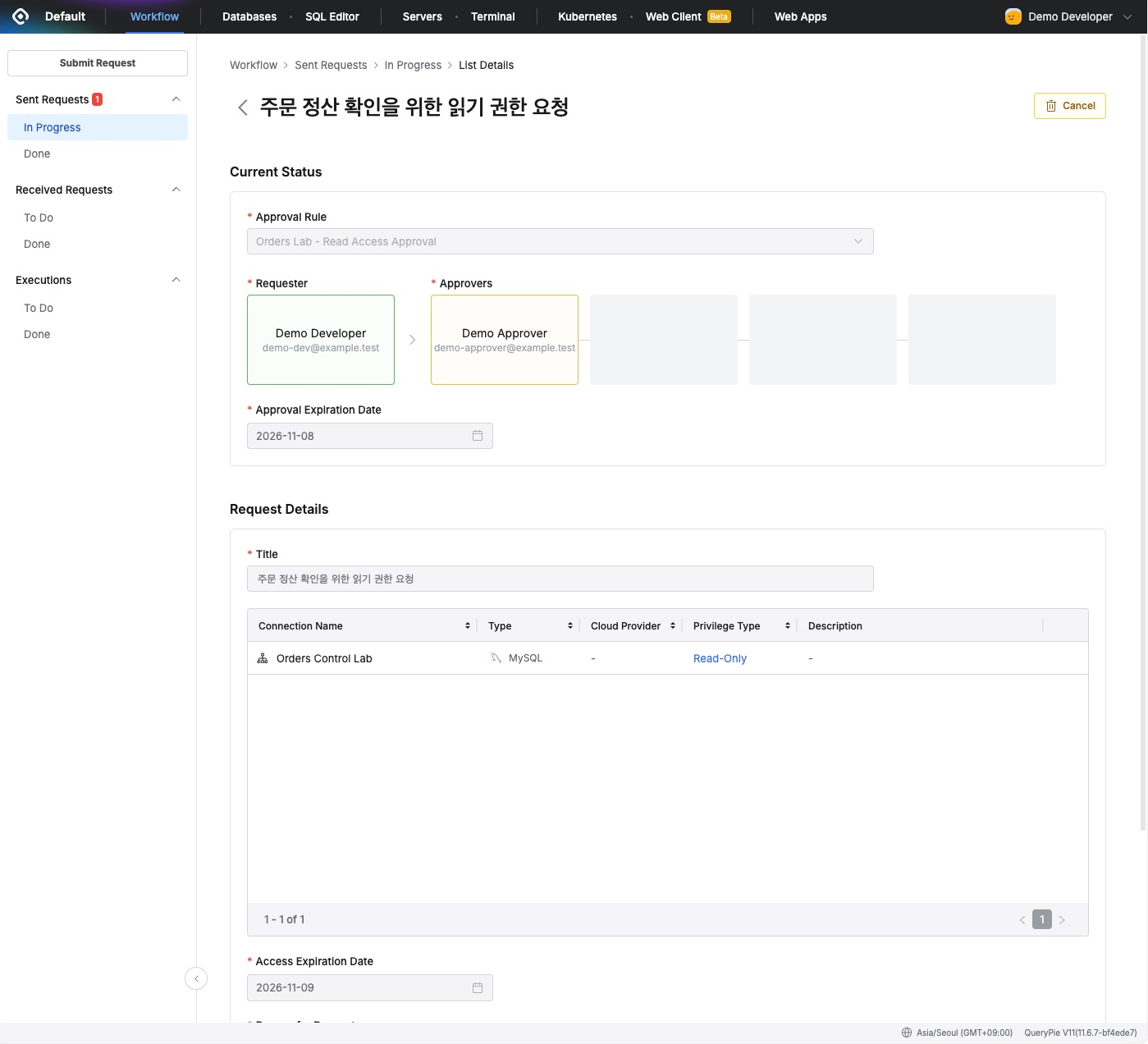
The requester could inspect progress directly. Without searching old messages, I could see what I had requested and whose approval was pending. This list would be useful with multiple requests.
4. Reviewing and Approving as the Designated Approver
I signed in as Demo Approver. The dashboard showed one item under Received Requests To Do. It included the developer’s title, reason, target database, read privileges, and access expiration.
After checking that the request matched a read-only task, I clicked Approve and added: ‘Read access approved for order settlement verification. Access expires on 2026-11-09.’
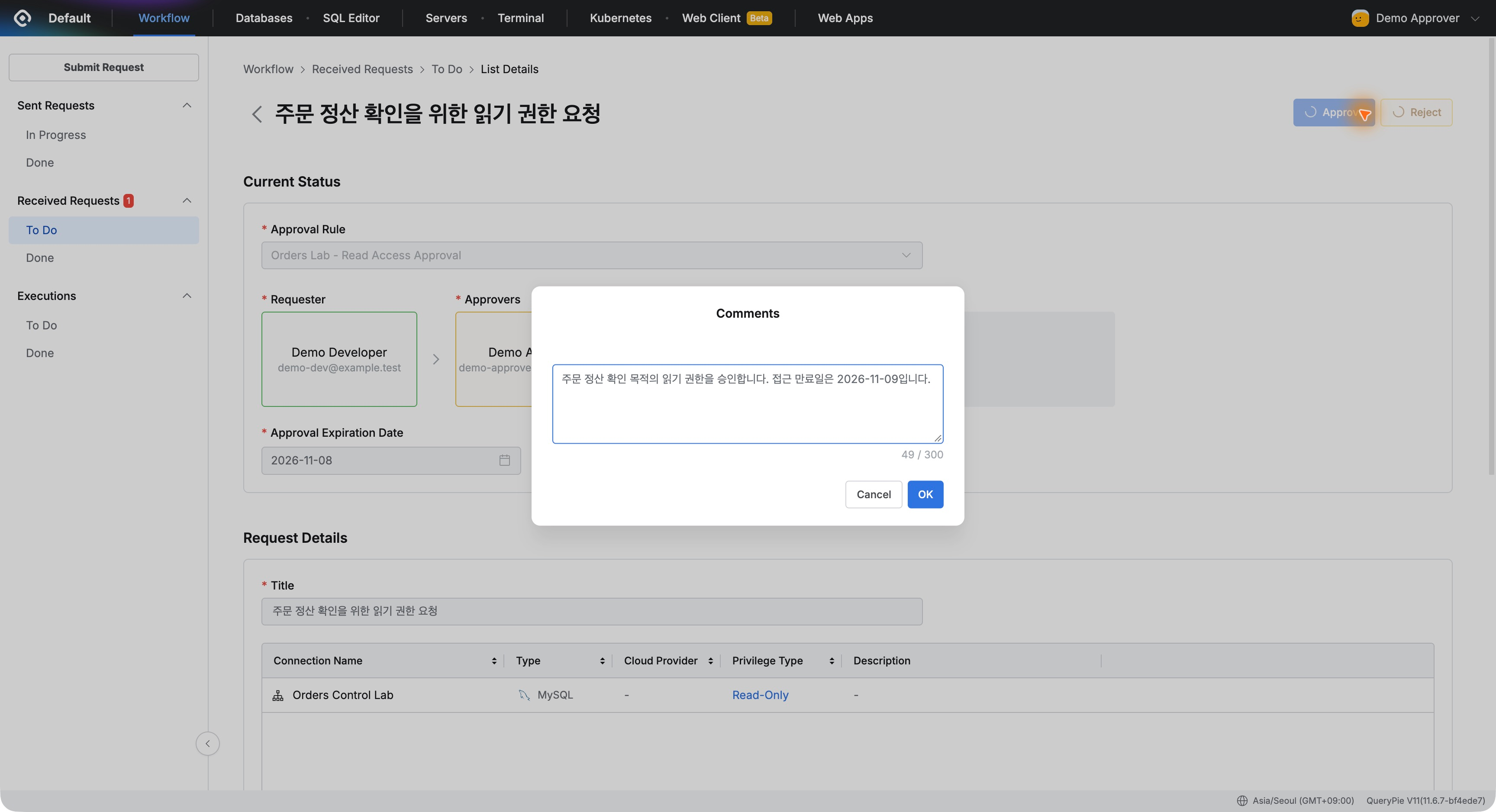
The request moved to Received Requests → Done, and the database status became Approved. Requester, approver, and approved privileges remained together in the same request.
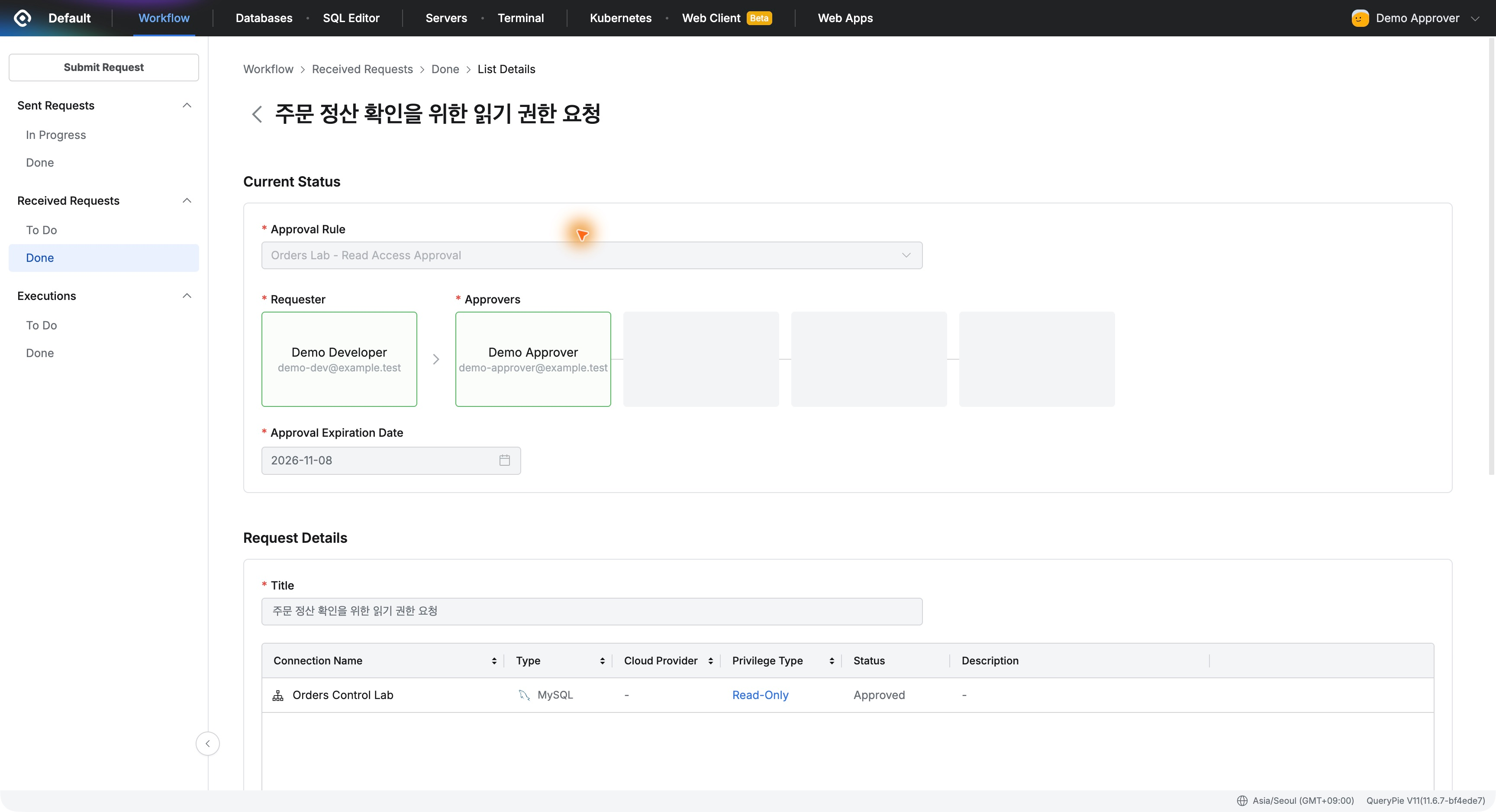
The record appealed to me as an evaluator. If someone later asks why a person has database access, the business reason and approval outcome are available, reducing guesswork from a privileges list alone.
5. Querying in DBeaver with the Approved Privilege
Back as the developer, I opened Orders Control Lab under Databases. It showed Read-Only (User), Select, Active, and expiration 2026-11-09 23:59:59, matching the request.
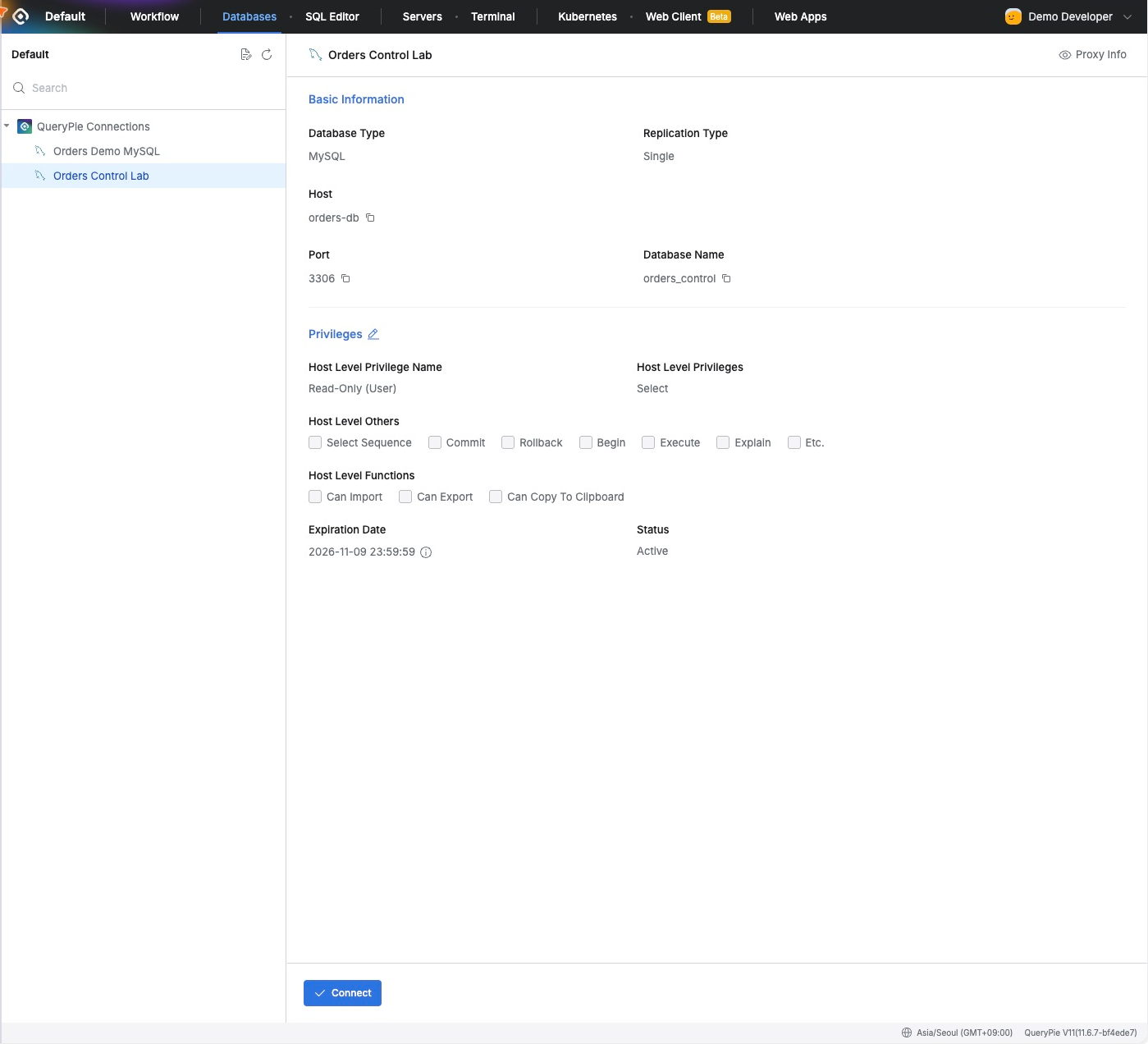
I did not manually add user privileges again in the administrator view. Approval flowed directly into usable access, avoiding duplicate entry by the administrator.
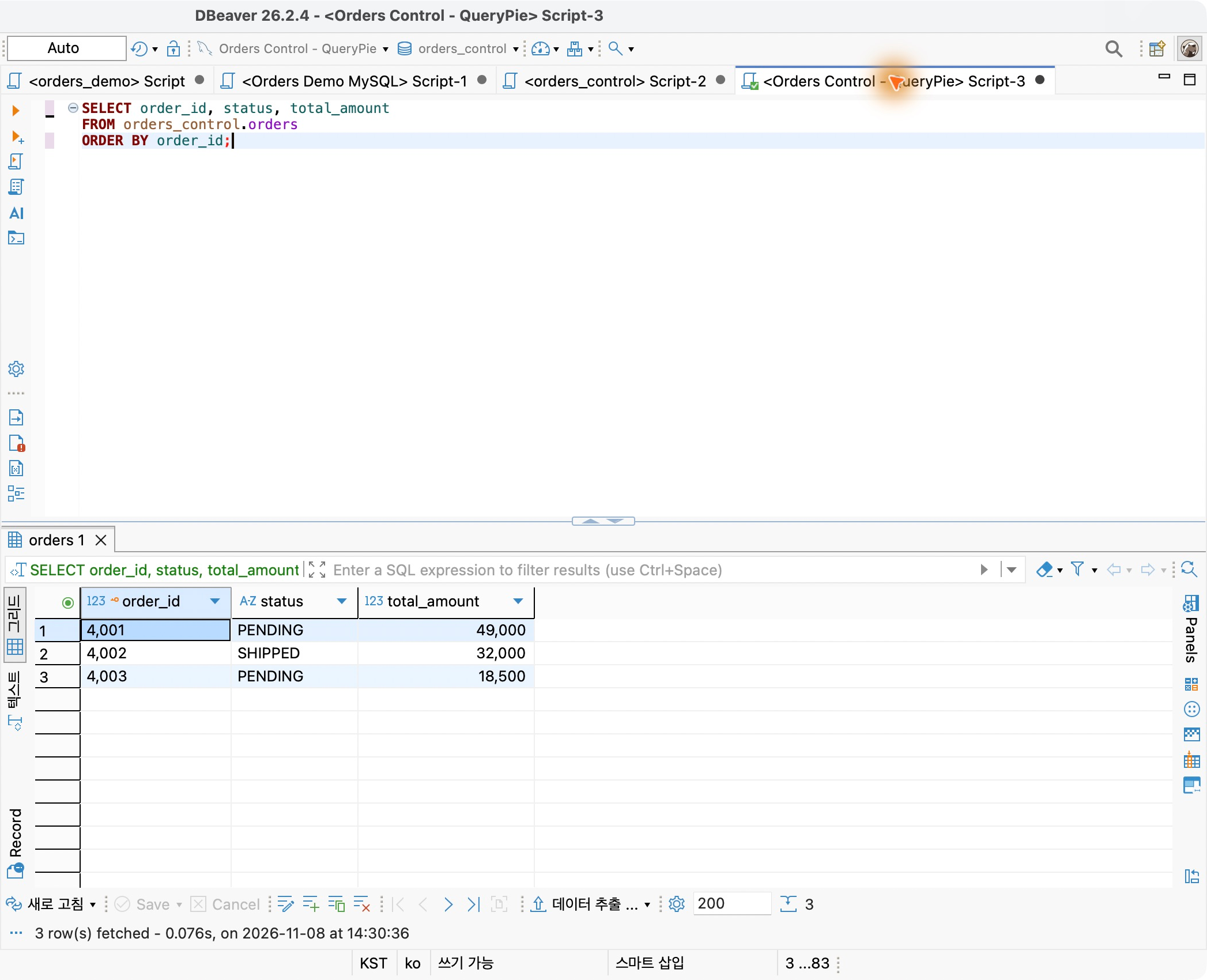
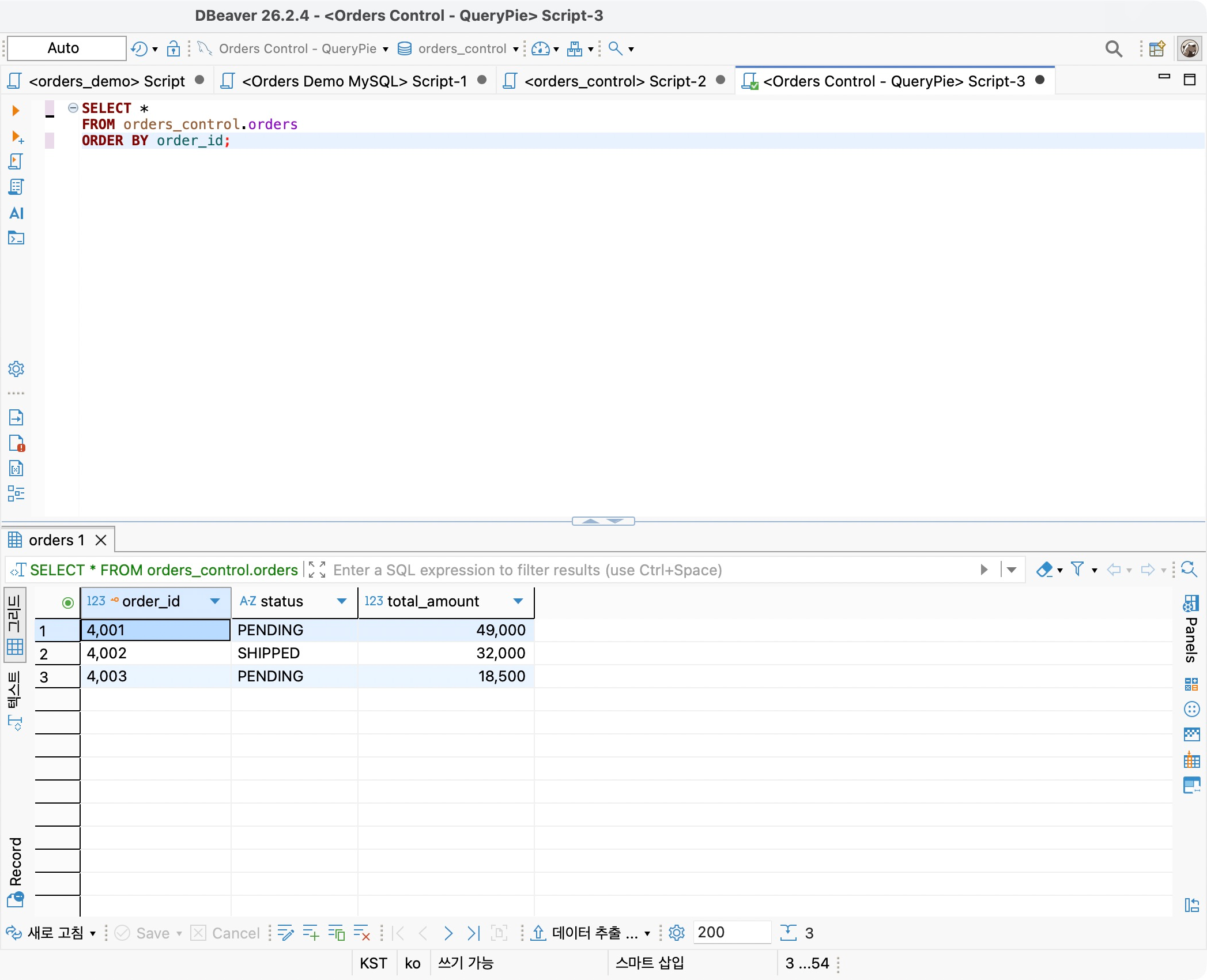
In DBeaver 26.2.4, I reused Orders Control - QueryPie, connected through the proxy, and ran the following SELECT.
SELECT *FROM orders_control.ordersORDER BY order_id;
Orders 4001, 4002, and 4003 returned their status and amount correctly. The full sequence—from requesting access to approval and checking data in a familiar tool—was complete.
Managing the Process of Granting Access
The request workflow fits operational work well. Developers specify the database, privilege, and period; approvers review the business reason. Approval becomes real access, and completed requests remain available for review.
This seems especially useful for short-term settlement checks. Defining read access and expiration at request time makes scope and duration explicit. Developers can continue using DBeaver.
The workflow adds requests and approvals to the query controls and revocation tested previously. What stayed with me was seeing not only who can connect, but why that person received access, within QueryPie.