[Part 4] Running UPDATE with QueryPie ACP Read-Only Access — Blocking Queries, Revoking Access, and Reviewing Audits
November 8, 2026
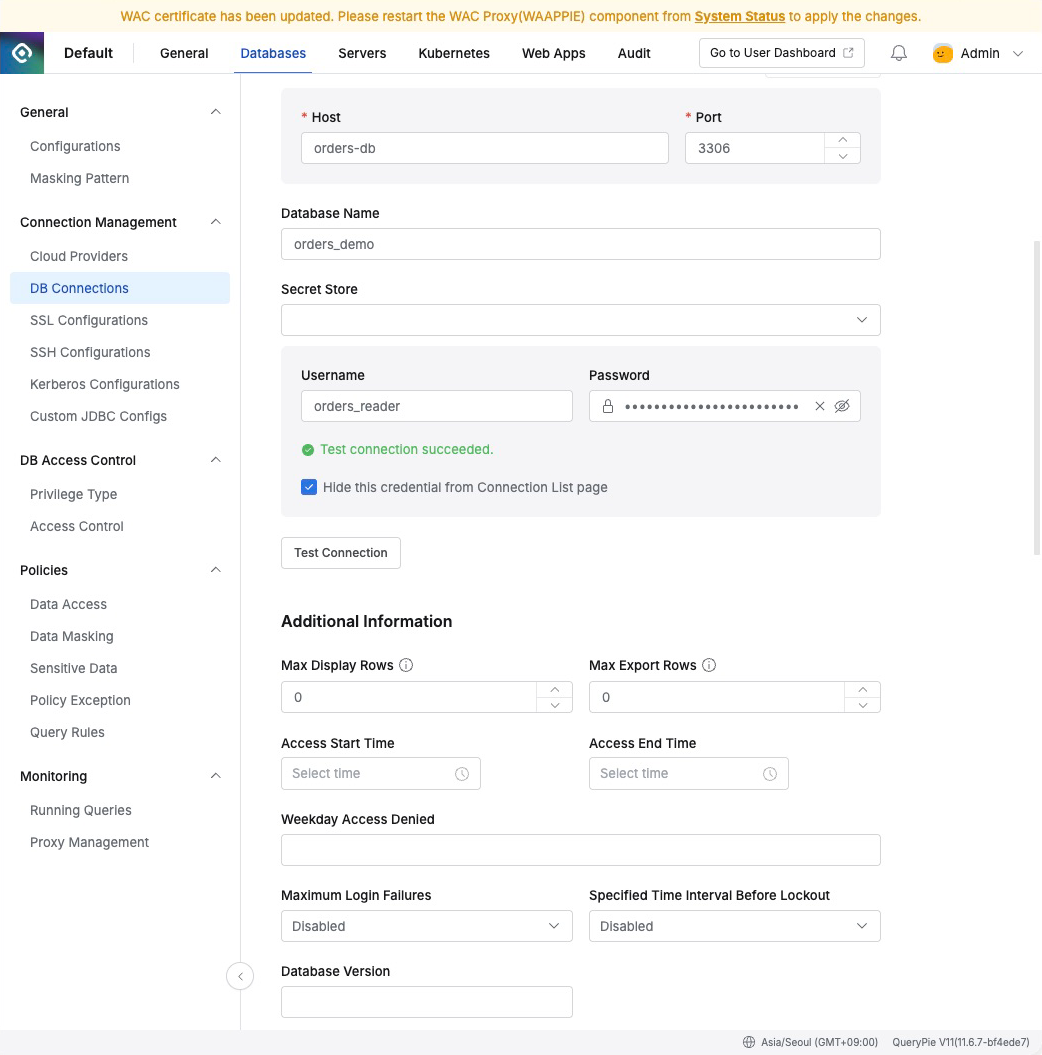
Previously, I registered a database in QueryPie and queried orders in DBeaver, both by entering connection details and by opening DBeaver through Multi Agent.
With reads working, I wanted to try the opposite. What happens when a developer with only read access runs UPDATE? If an administrator revokes access, does an already-open connection stop working too?
I tried modifying one test order, revoked access, and reviewed the administrator audit screens. The environment was QueryPie ACP Community 11.6.7, MySQL 8.0.42, and DBeaver 26.2.4. All data was created for the lab.
1. Preparing an Account That Can Modify Data in MySQL
The previous orders_reader account had only SELECT in MySQL too. If UPDATE failed with that account, the result alone would not tell us whether QueryPie or MySQL blocked it.
I therefore created a separate orders_control database with three fictional orders in orders. I granted control_writer only SELECT and UPDATE on that table, leaving orders_demo data and privileges unchanged.
Order 4001 is the test target: amount KRW 49,000 and initial status PENDING. I would run the same change to SHIPPED over a direct connection and a QueryPie connection.
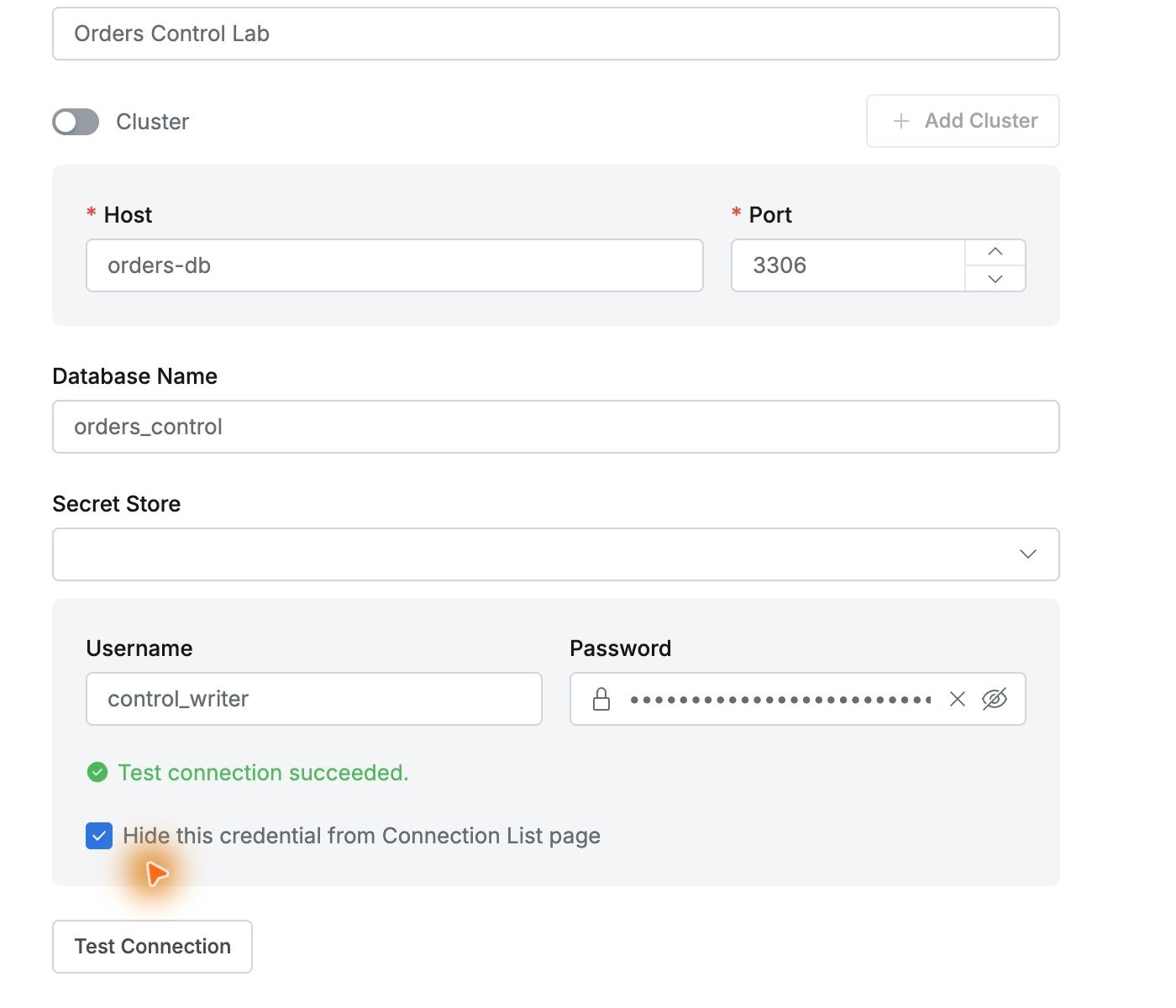
In QueryPie, I added Orders Control Lab using orders-db:3306, database orders_control, and account control_writer. I tested the connection and enabled hiding credentials from the user connection list.
Although the database account can modify data, the developer should only read. Under Databases → DB Access Control → Access Control, I selected Demo Developer and granted Read-Only on Orders Control Lab.
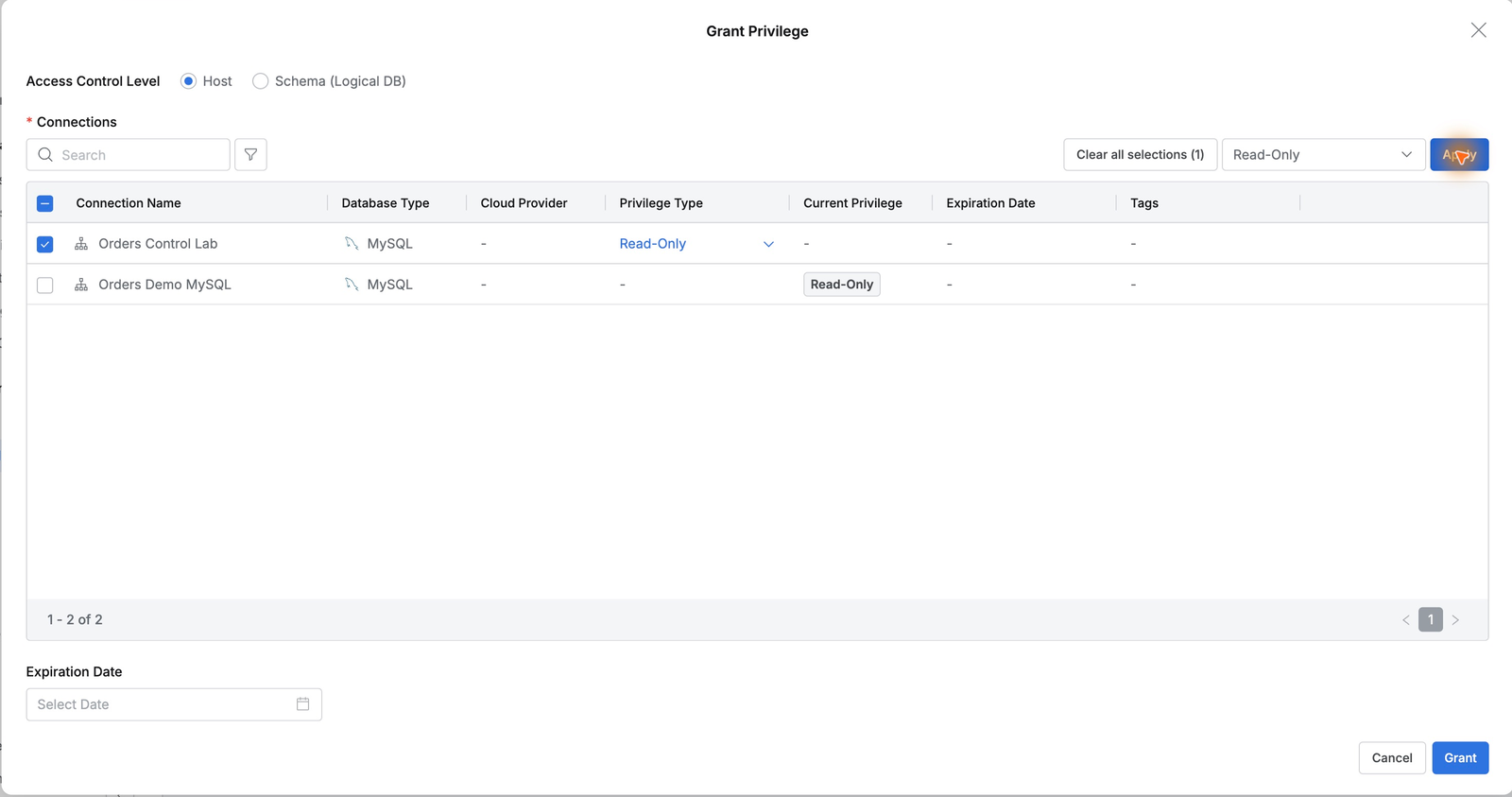
These separate settings make the distinction clear: privileges held by the MySQL account are not the same as operations QueryPie permits the person using it. I would test that difference with actual queries.
2. UPDATE Works on a Direct Connection
I first connected directly in DBeaver using control_writer at 127.0.0.1:13306, where the lab MySQL is exposed on the Mac. I named the connection orders_control.
I queried the active database account and order status together.
SELECT CURRENT_USER() AS db_account, order_id, status, total_amountFROM orders_control.ordersWHERE order_id = 4001;
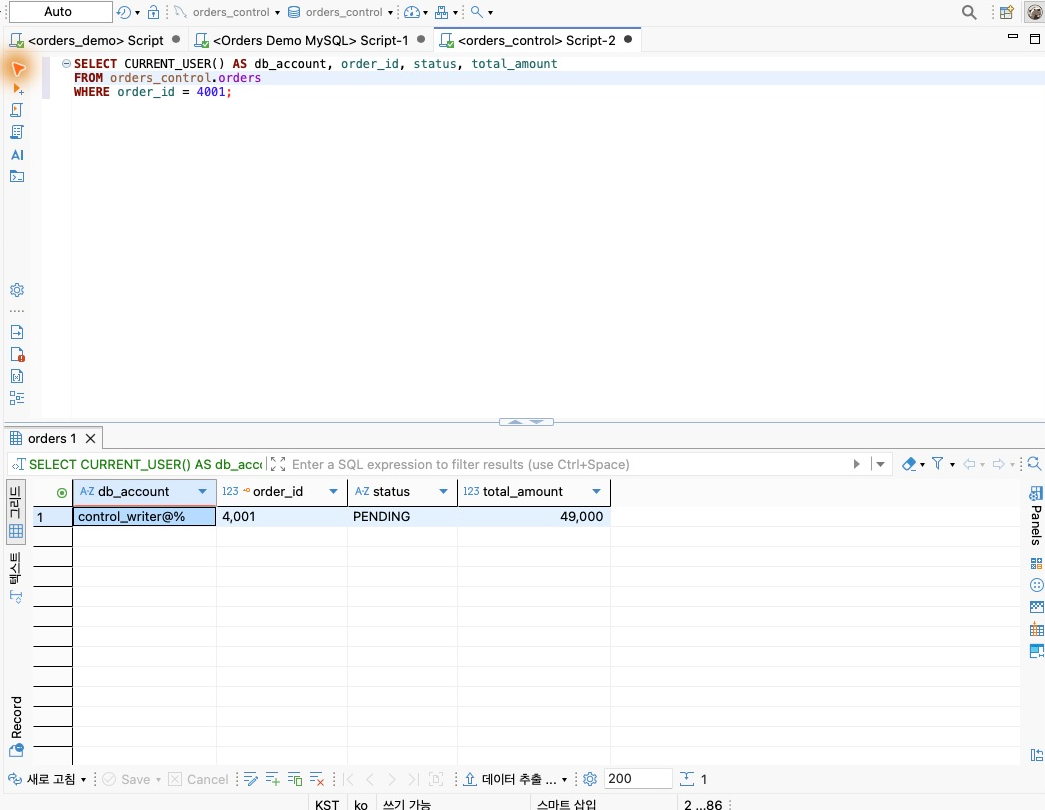
Then I changed the order status.
UPDATE orders_control.ordersSET status = 'SHIPPED'WHERE order_id = 4001;
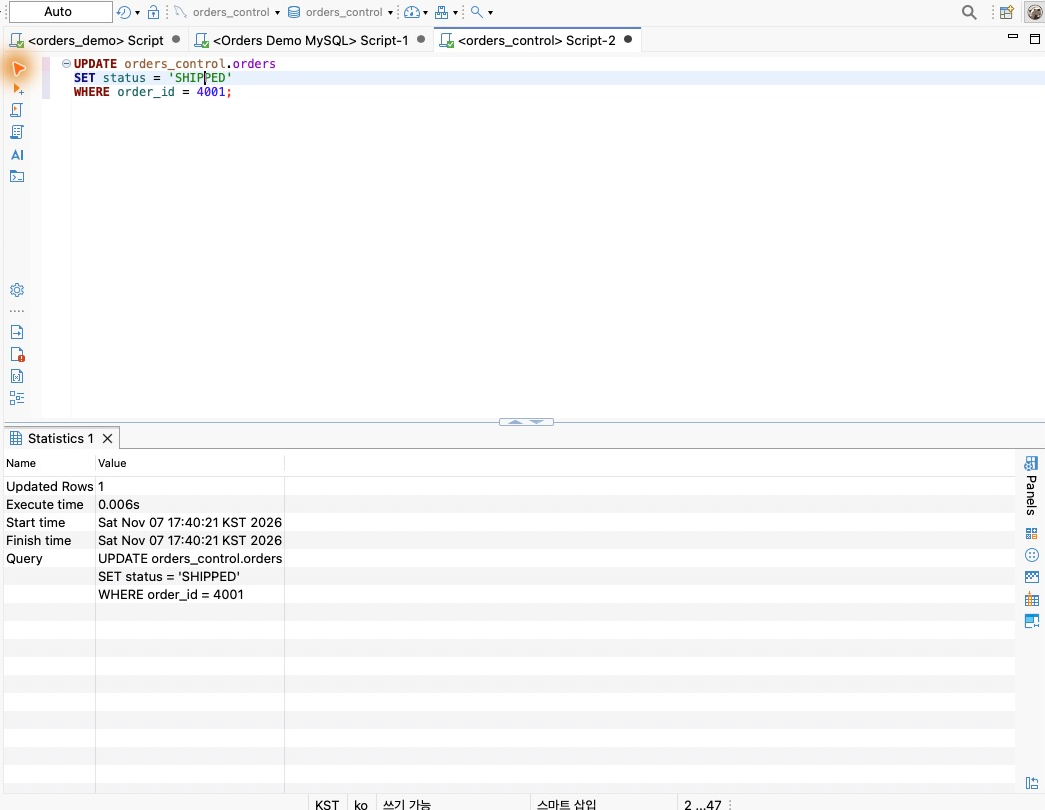
The update succeeded, and the database showed order 4001 as SHIPPED. This proves the account has UPDATE permission. I restored PENDING for the next comparison.
3. The Same UPDATE Is Blocked Through QueryPie
Next, I connected to the QueryPie proxy with demo-dev’s privileges using Agentless Proxy from Part 3. I enabled Proxy Usage with the registered database account and issued a token through the developer’s Proxy Info.
The assigned proxy was 127.0.0.1:40001. DBeaver used the token instead of the original database password. I named the connection Orders Control - QueryPie to distinguish it from the direct connection.
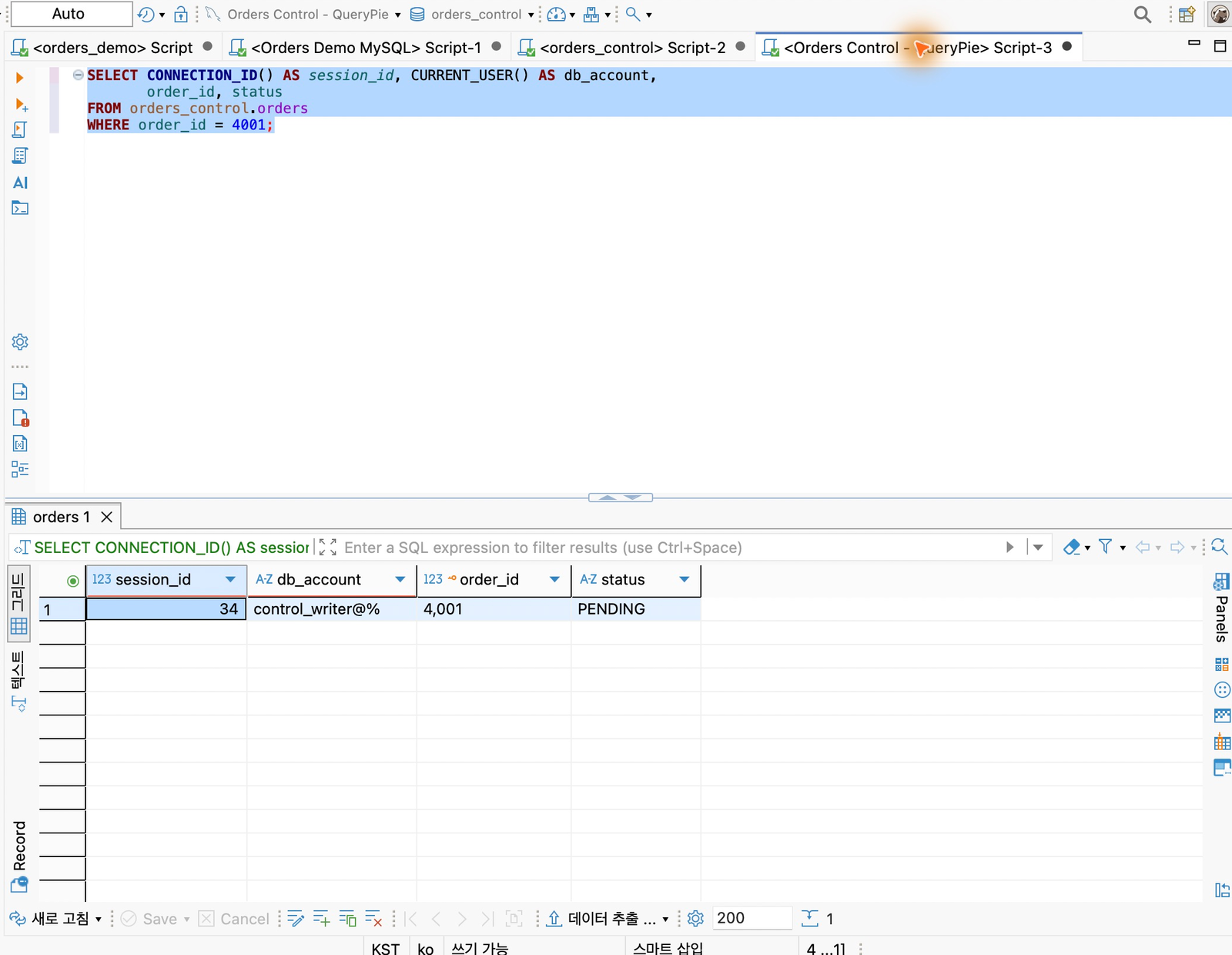
The earlier SELECT succeeded. CURRENT_USER() again returned control_writer@%, confirming that QueryPie connected with the registered database account.
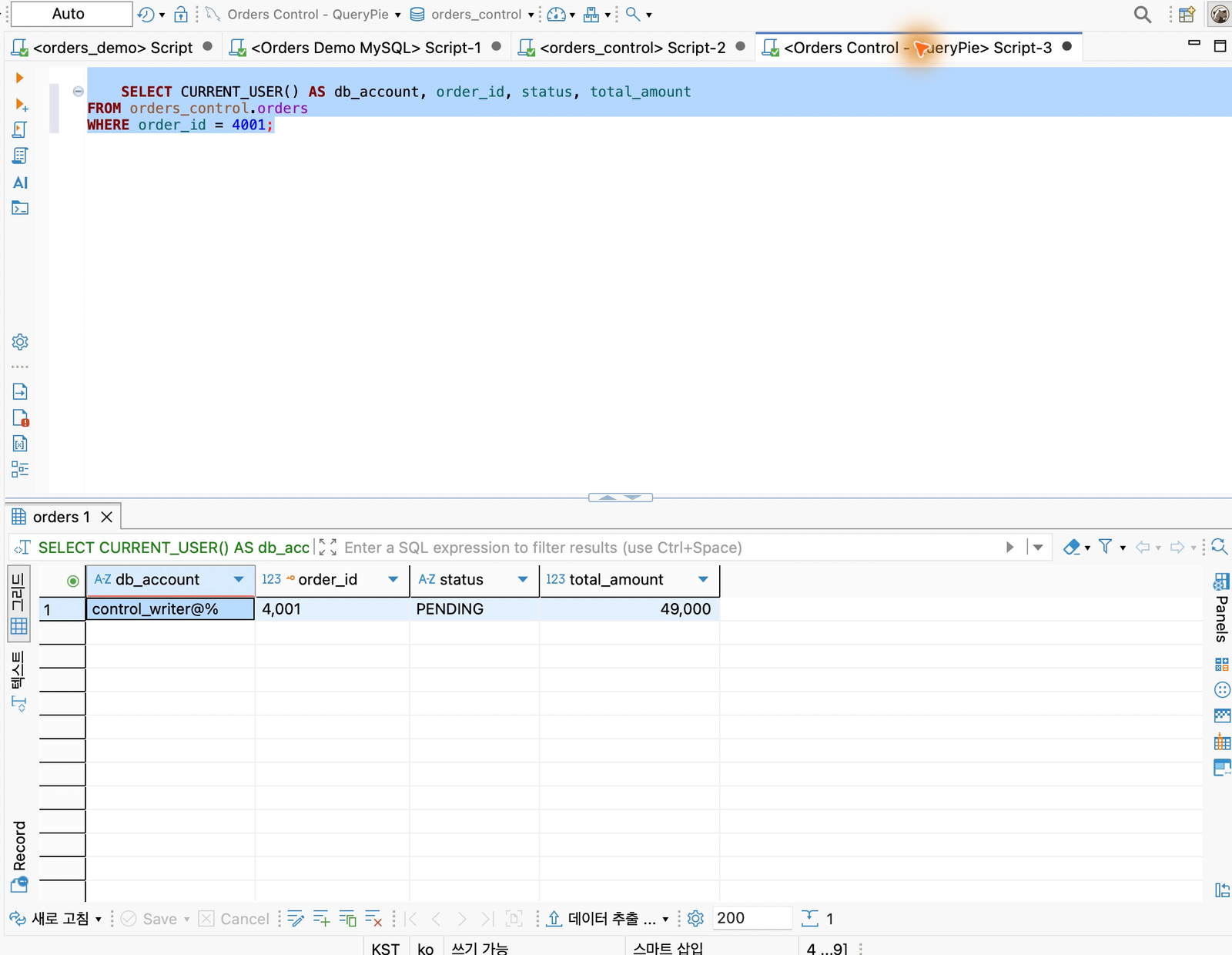
I then ran the exact UPDATE that had succeeded earlier. This time, the result differed.
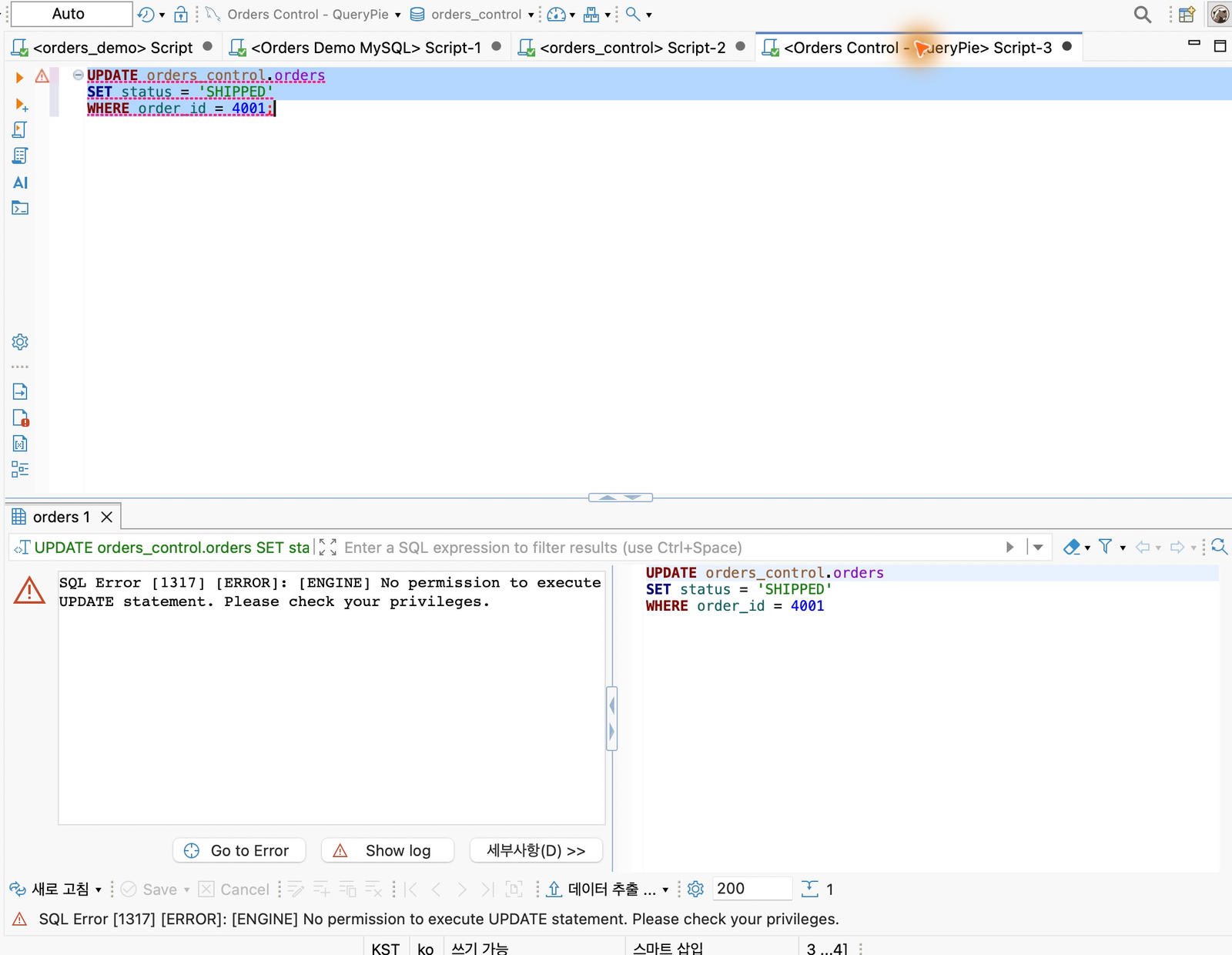
SQL Error [1317] [ERROR]: [ENGINE] No permission to execute UPDATE statement. Please check your privileges.
The message says UPDATE is not permitted. The MySQL account can modify data, but this developer has Read-Only in QueryPie. Verifying the direct update first lets us distinguish this block from missing database-account privileges.
I checked the data rather than stopping at the error. Order 4001 remained PENDING. I also recorded the connection ID, intending to revoke access while leaving that connection open.
4. What Happens When Access Is Revoked Mid-Connection?
Revoking access is as common as creating accounts. Projects end and responsibilities change. But what happens if someone already has DBeaver open and connected?
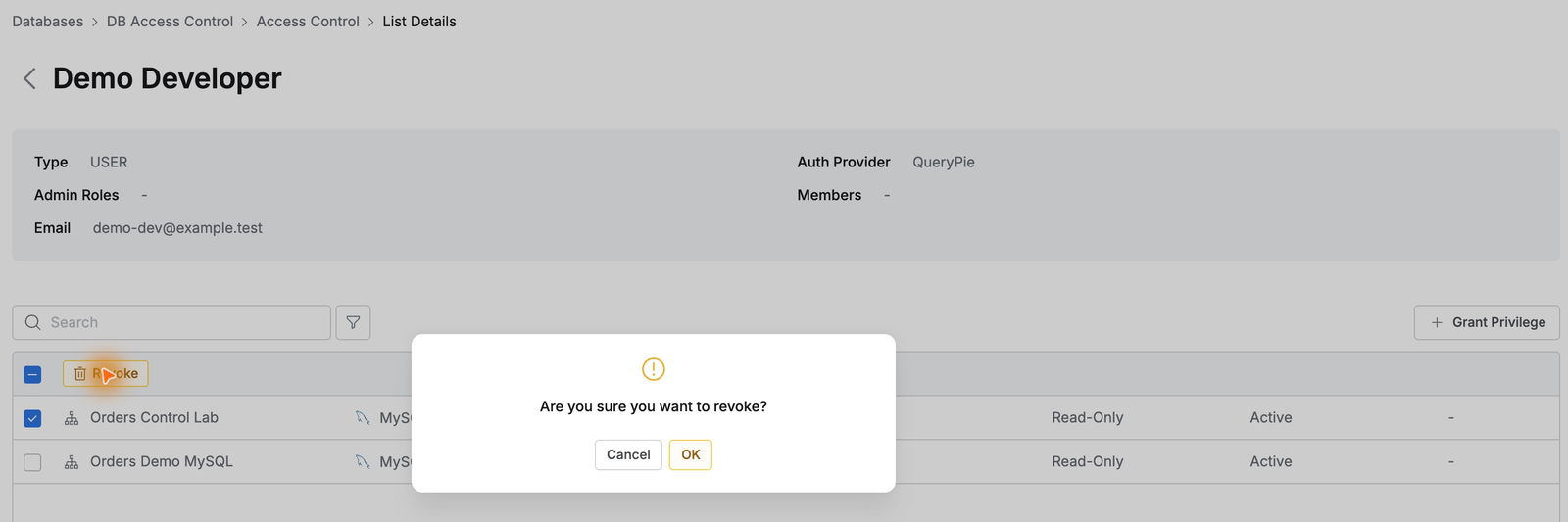
Leaving DBeaver open, I returned to the administrator view, selected only Orders Control Lab in Demo Developer’s access list, clicked Revoke, and confirmed OK. The connection disappeared from the privileges list.
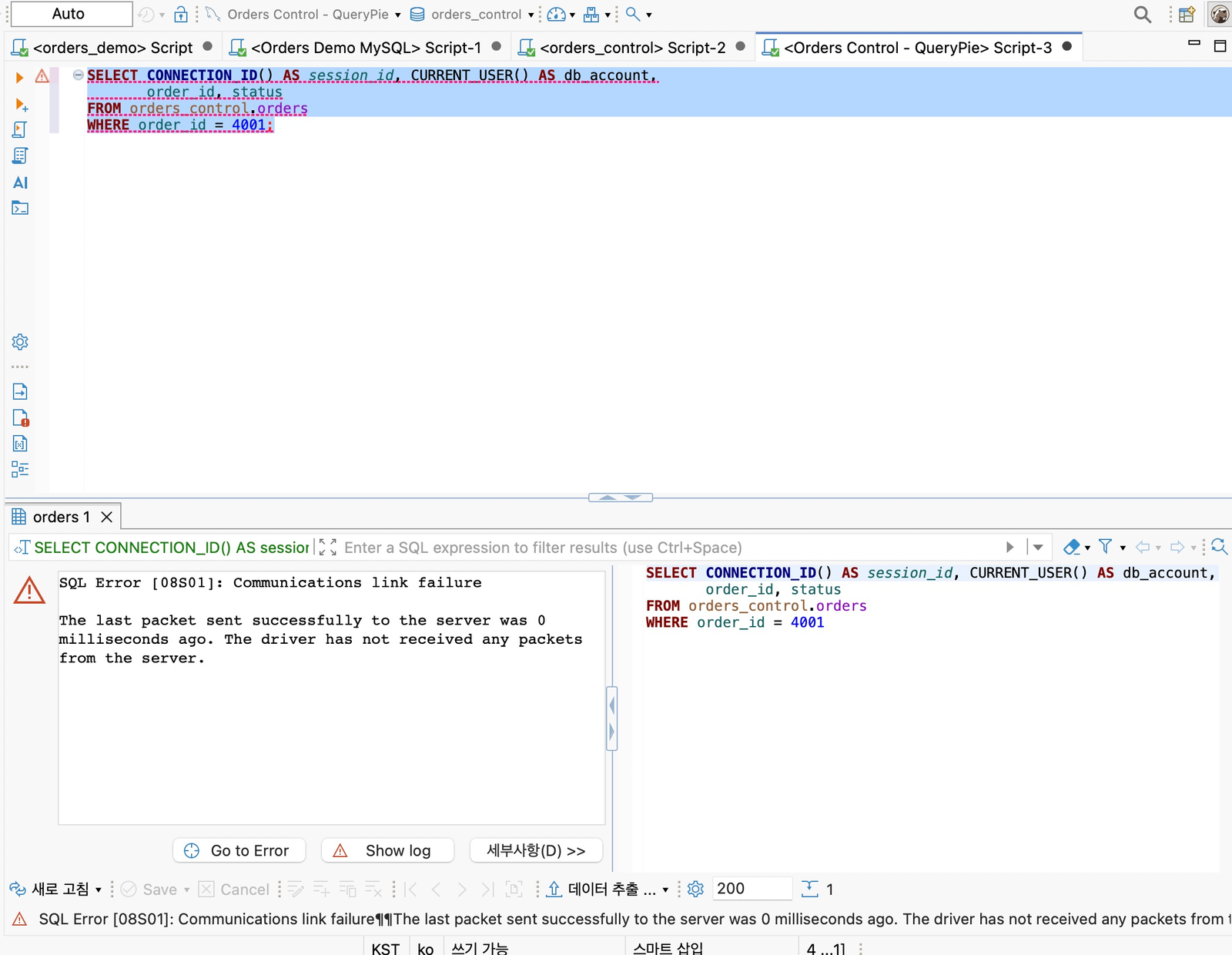
Back in the open DBeaver SQL editor, the same SELECT returned Communications link failure instead of orders.
I also disconnected and tried reconnecting. Cannot obtain session blocked access. Revocation applied both to the existing connection and to a new connection attempt.
What stood out was that revoking privileges alone controlled an open connection. I did not need a separate session-termination action. Administrators could clean up access after a project or staff change without waiting for users to close DBeaver.
In this test, revocation applied to both existing and new connections. Managing the full path from granting access to removing it in one place felt like a QueryPie strength.
5. DBeaver Queries Appear in the Audit View
Finally, I opened Audit → Databases → Query Audit and matched the execution time. Demo Developer’s successful SELECT and failed UPDATE were both present.
The UPDATE record showed Result: Failure and Prevented: Prevented. I opened the row for details.
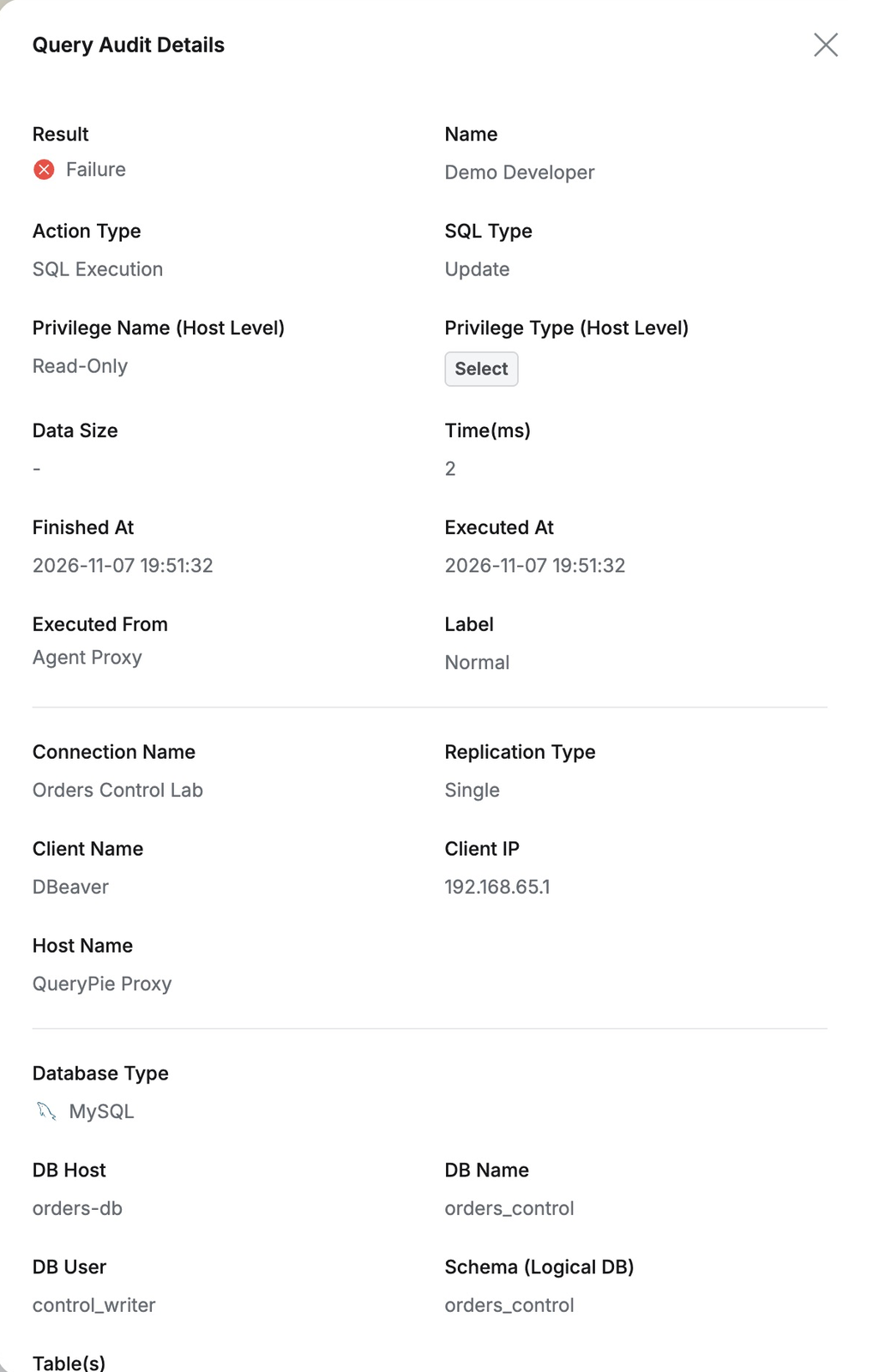
Details showed Demo Developer, Orders Control Lab, Read-Only and Select, database account control_writer, and Client Name DBeaver. They also included the actual UPDATE and ‘No permission to execute UPDATE statement. Please check your privileges.’
Although the database connection uses the shared control_writer account, QueryPie identifies the person as Demo Developer. Evaluators can use this test to check individual traceability in environments with shared database accounts.
Successful reads were also logged, alongside DBeaver’s automatic metadata queries. Finding relevant work records will require familiarity with filtering by user, time, and connection name.
6. What to Check After Configuring Privileges
The observed results were as follows.
Test / Observed result
Direct UPDATE with a database account allowed to modify data | One order updated successfully |
SELECT with QueryPie Read-Only | Read succeeded |
Same UPDATE with QueryPie Read-Only | Blocked by a permission error; order unchanged |
SELECT on an existing connection after revocation | Read failed with a connection error |
New connection after revocation | Connection failed: no session could be obtained |
Query Audit review | Successful SELECT and blocked UPDATE recorded |
Choosing Read-Only in a settings screen feels different from seeing a modification blocked in a real tool. DBeaver continued to work for reads while changes were denied.
Remember the direct UPDATE that succeeded. If direct database access and original credentials remain available, QueryPie user privileges do not govern that route. Production adoption requires restricting permitted connection sources and managing source accounts too.
Read-only does not itself prevent data leakage. Which data is visible, how much can be read, and whether results can be copied or exported require separate checks. This article tested reads, UPDATE, and revocation only.
When evaluating adoption, test with the development team’s actual tools rather than stopping at configuration. Check that prohibited queries are blocked, observe existing connections after revocation, and find those actions again in the audit view.
Next: Requesting the Privileges I Need
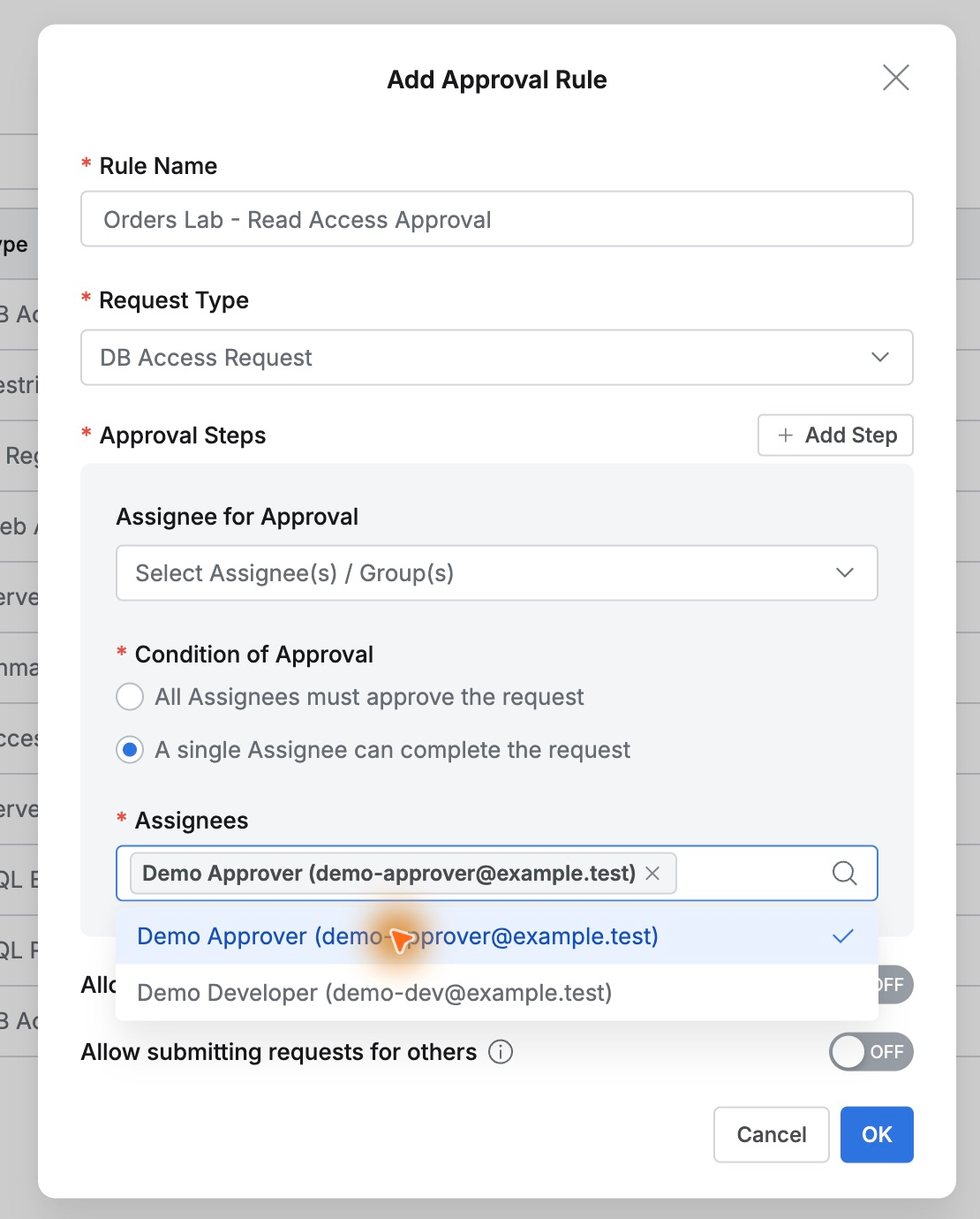
Here, the administrator granted and revoked privileges directly. A real company needs a workflow where users request access and a designated person approves it, rather than contacting an administrator ad hoc each time.
Next, I will follow a developer’s database access request through approval, including time-limited access and what changes in the user view after approval.