[Part 31] Downloading Server Files While Blocking Uploads
November 9, 2026
Server inspections may require downloading status files or evidence. Reviewing material does not necessarily require permission to upload too.
I separated these operations in web SFTP. After a baseline transfer with the same user and account, I blocked uploads and checked continued downloads.
Connecting to SFTP in the Browser
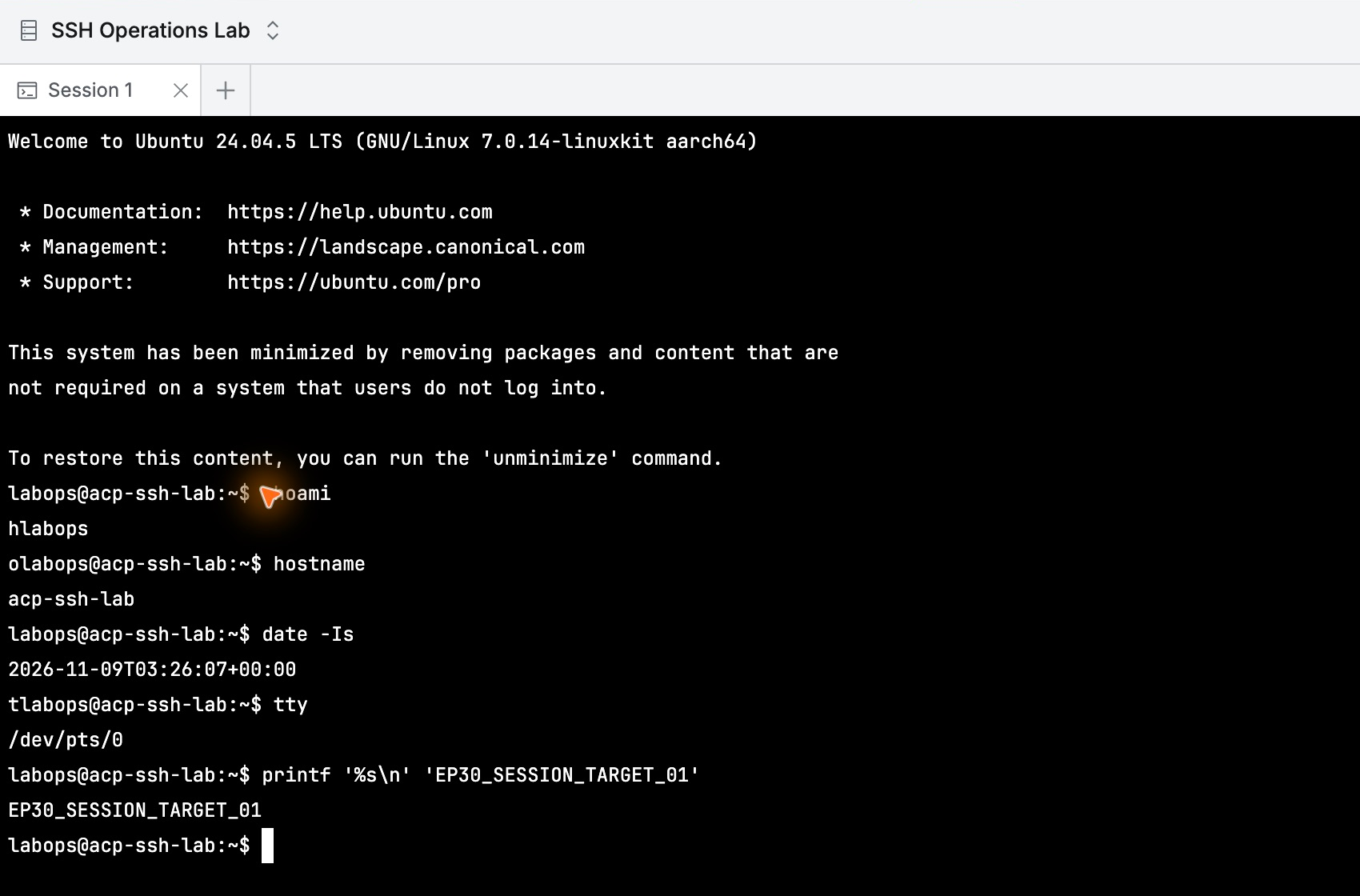
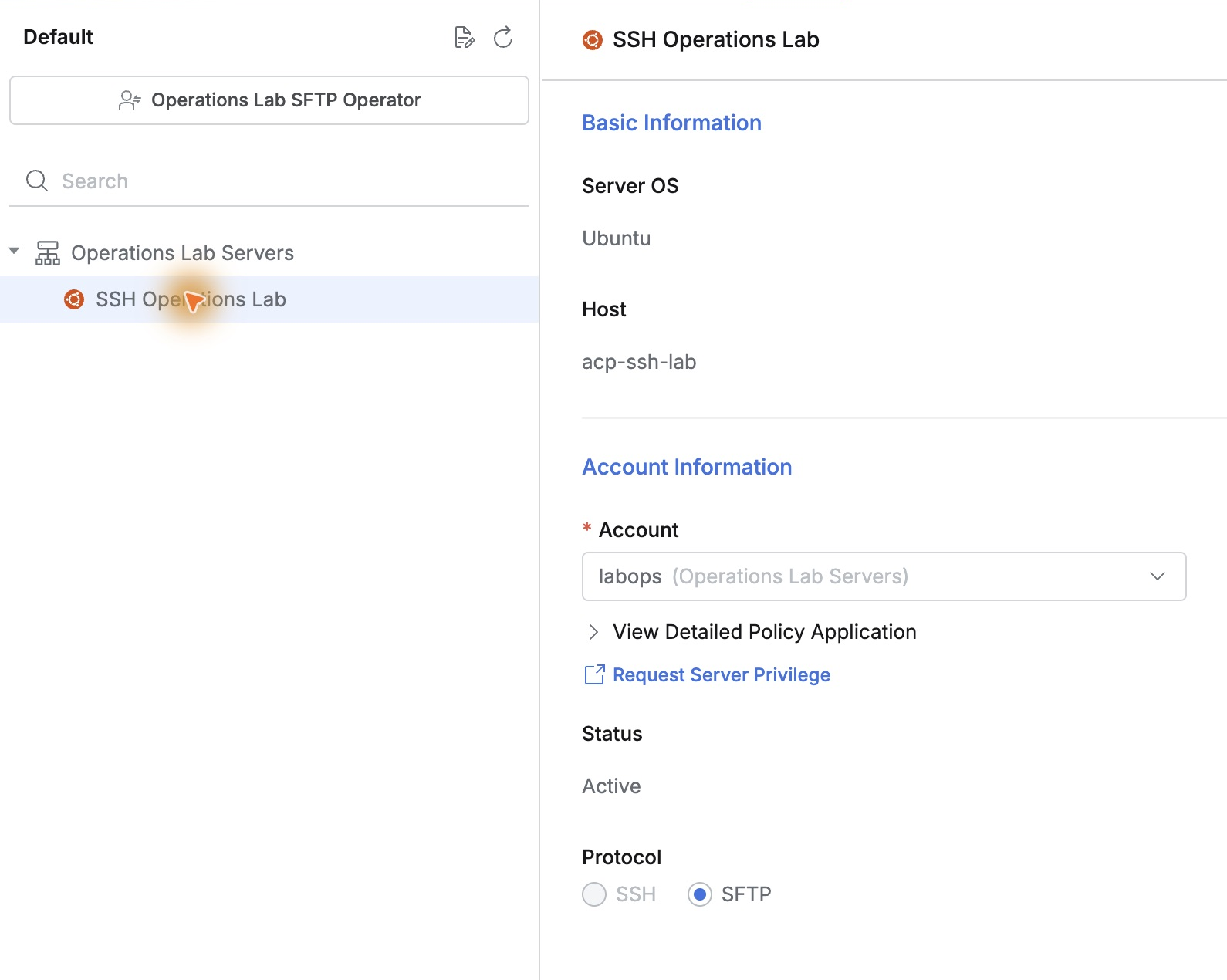
I reused SSH Operations Lab, selected Operations Lab SFTP Operator, account labops, and protocol SFTP.
Connect opened the file list without requiring the registered server password. Entering a path navigated folders with names, sizes, owners, and permissions visible.
Testing Download and Upload First
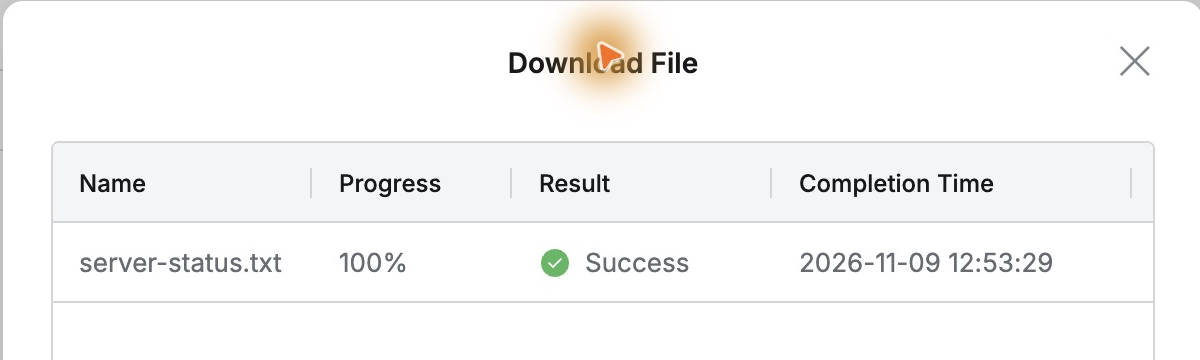
server-status.txt was a small fictional service-status file. Download returned Success, and the content matched the server original.
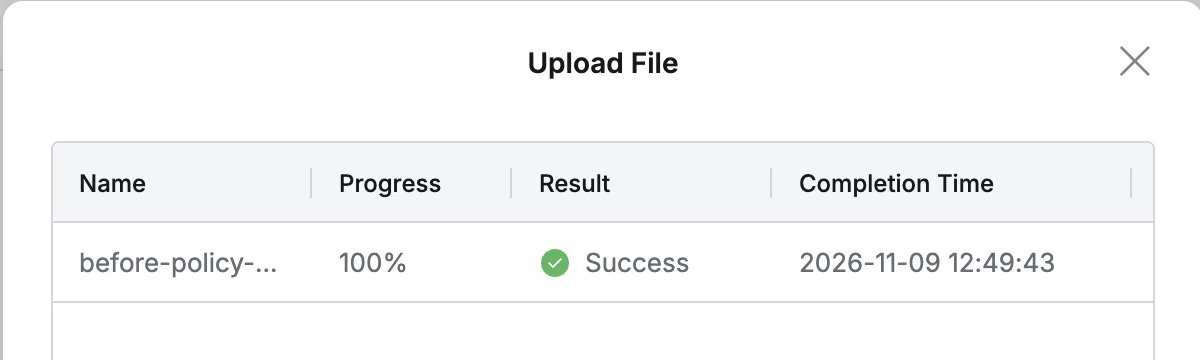
before-policy-upload.txt also uploaded successfully and appeared on the server. After verifying content, I closed the connection.
Restricting Only Upload Permission
In Command Templates, I created a Deny template selecting only Functions(SFTP) → Upload File. Download was not restricted.
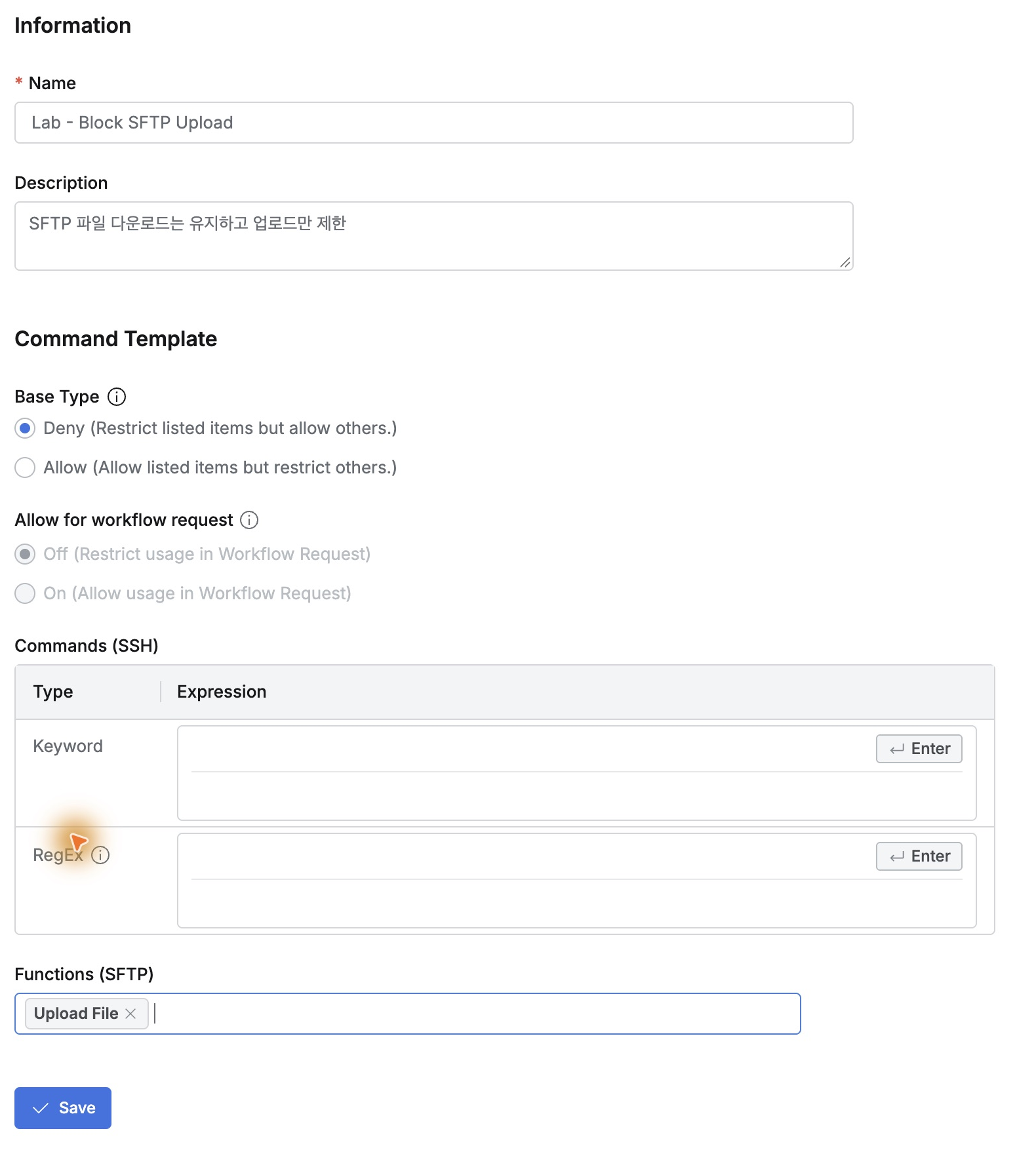
I linked it to the transfer policy, leaving server/account unchanged, validated without errors, and saved.
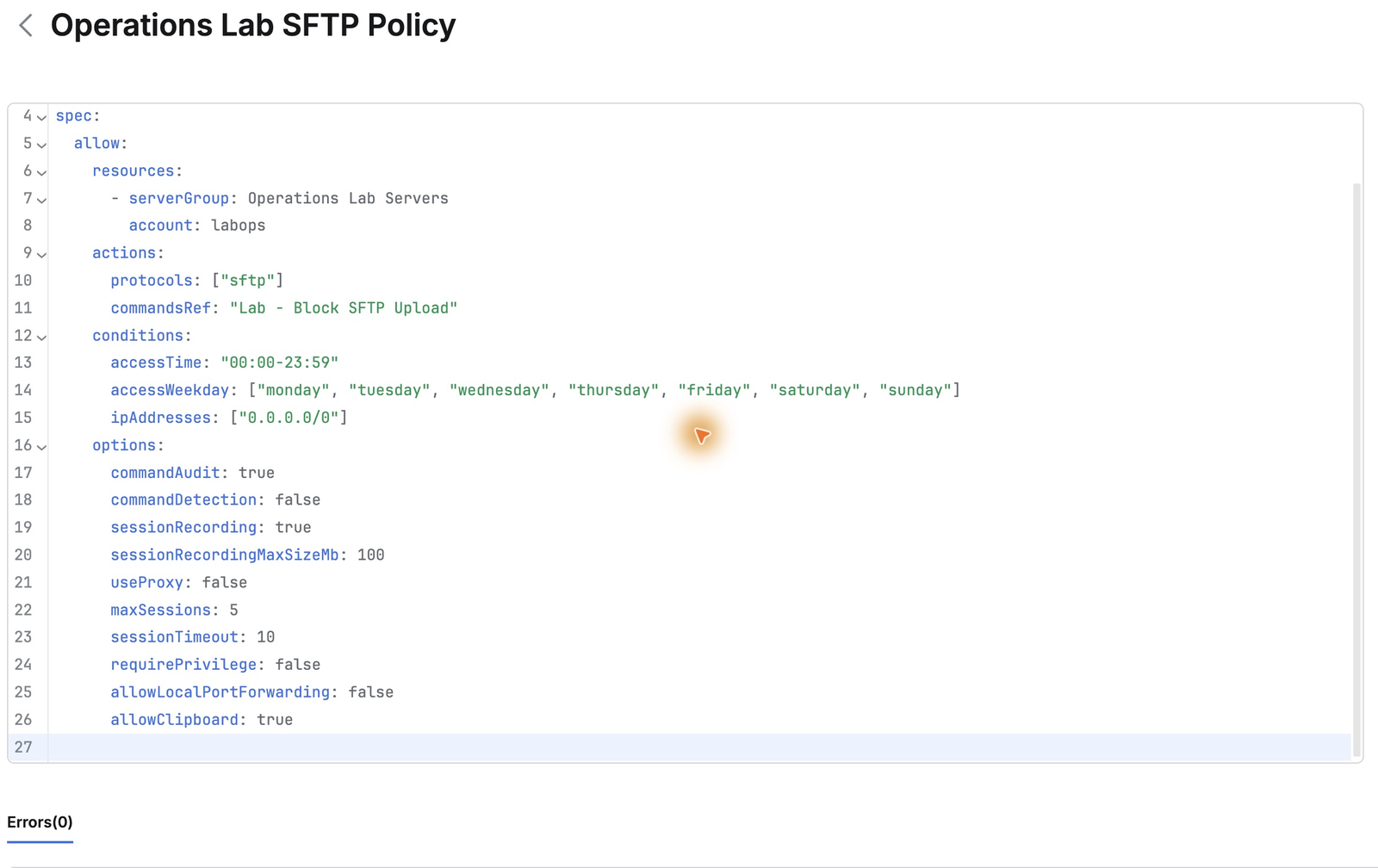
Downloads Continue, New Uploads Are Blocked
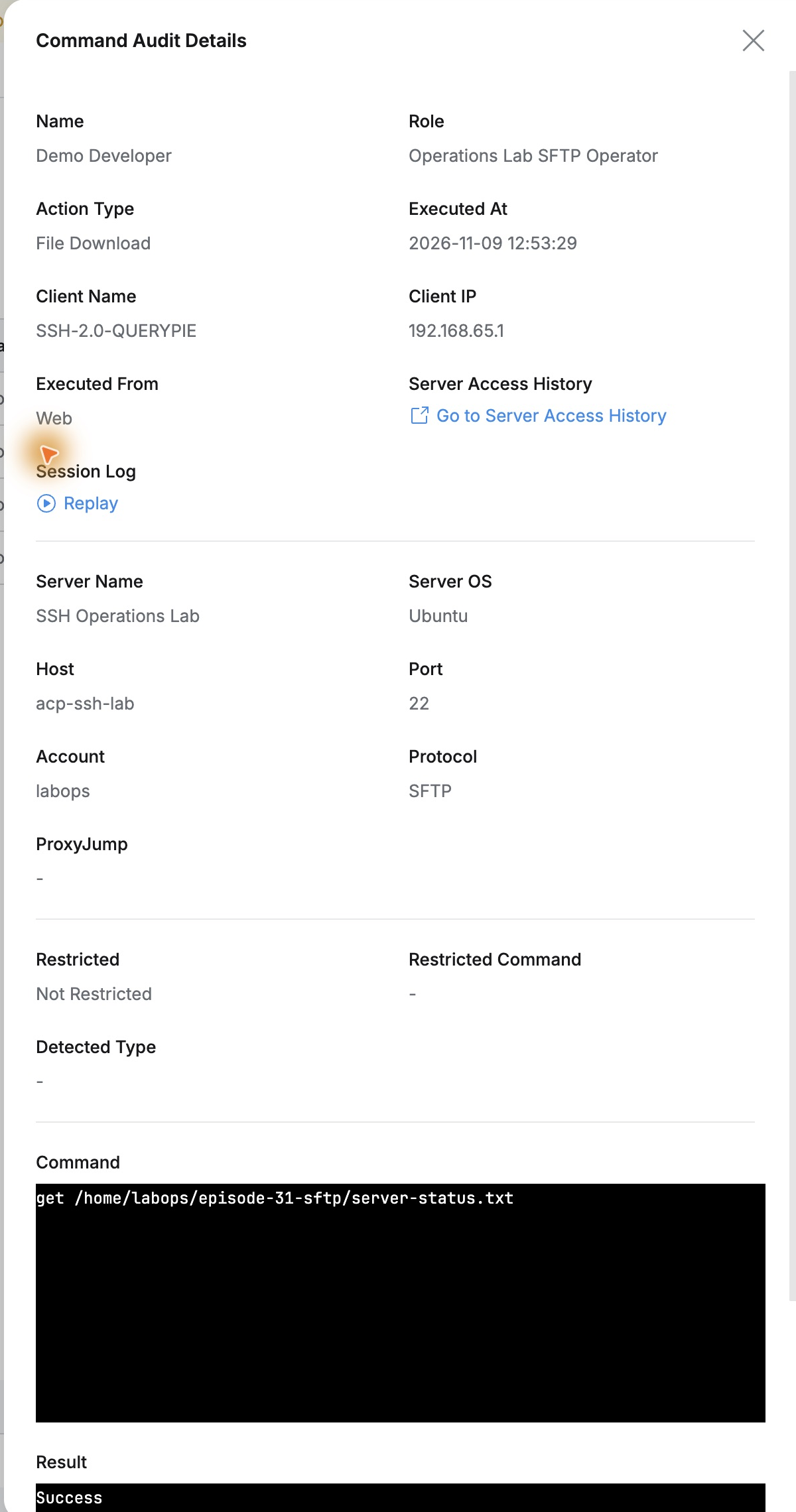
Demo Developer opened a new connection with the same role and labops. Downloading server-status.txt again succeeded with identical contents.
after-policy-upload.txt had the same test content under a new name. Upload returned Failure and no file was created on the server.
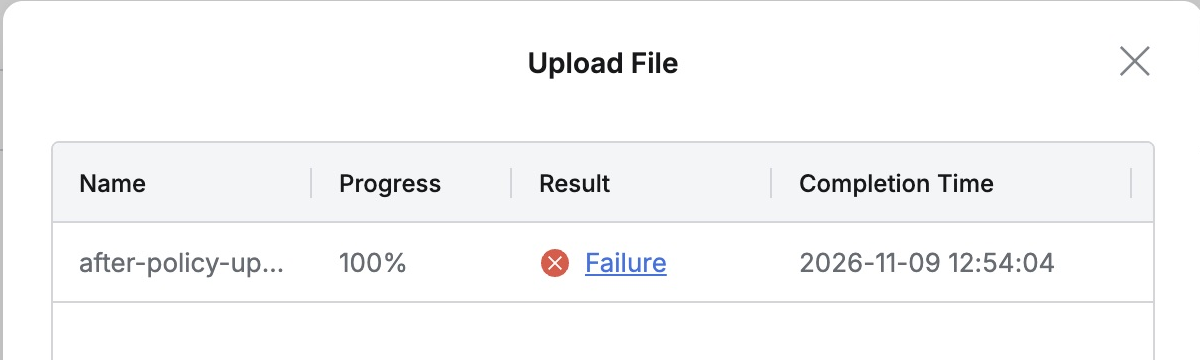
Inspection downloads continued while adding files was restricted in the same environment.
Recording Downloads and Blocked Uploads
Searching the lab path in Command Audit returned four records: two downloads and uploads before/after. Each identified Demo Developer, role, labops, and server.
The post-policy download was File Download, Not Restricted, with path and time in details.
The failed upload was Restricted / UPLOAD_FILE; matching path and time confirmed the policy block.
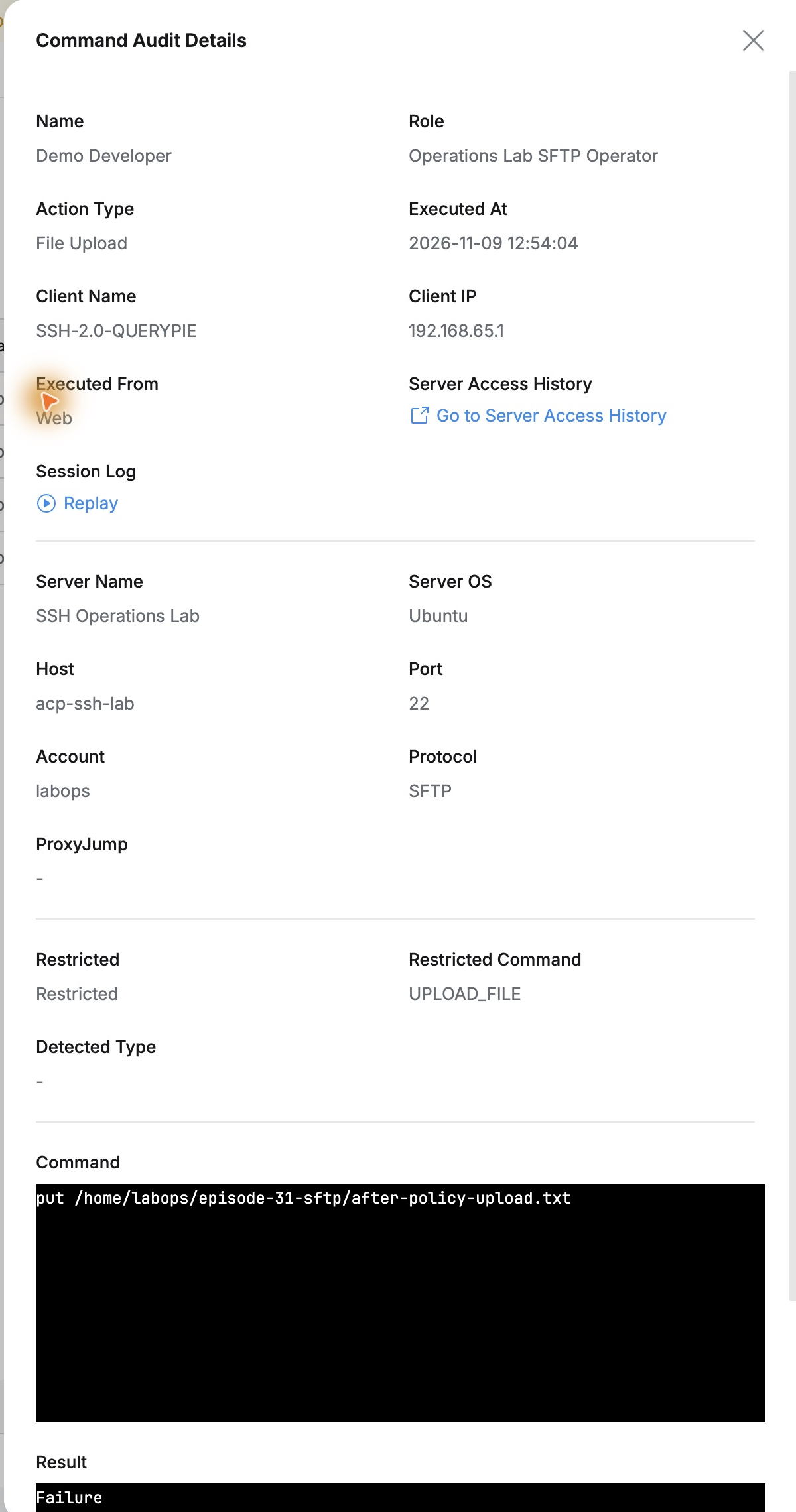
The same administration view provides controls and evidence of who attempted which transfer. Needed downloads can remain open while uploads are governed and outcomes recorded.
This lab used QueryPie Community 11.6.7 web SFTP and Ubuntu; users and files were for testing.
Reference: Web SFTP · Command Templates · Command Audit