[Part 24] Replaying Work Done on a Server — QueryPie Session Recording
November 9, 2026
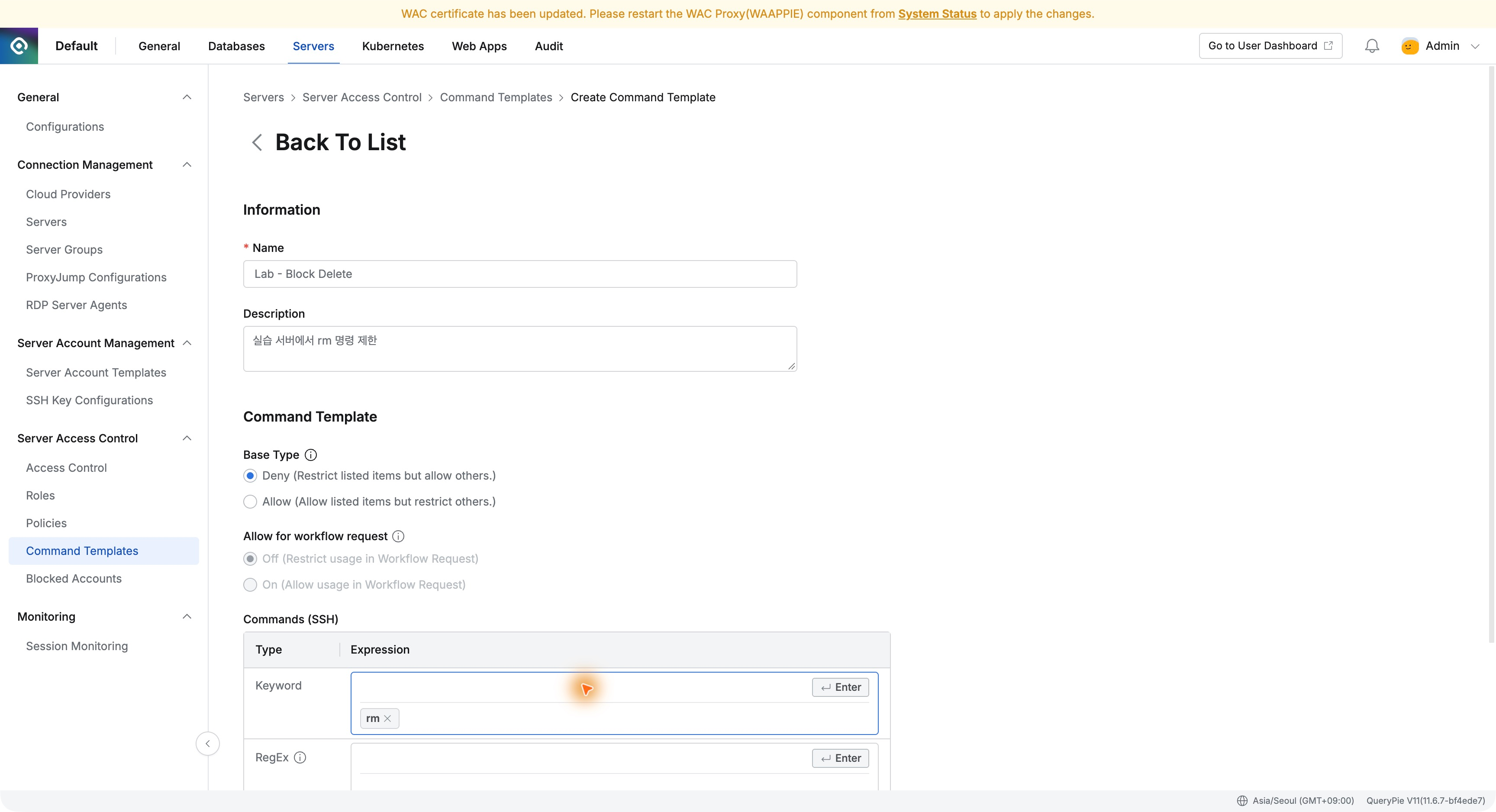
Previously, I restricted rm and checked who entered commands and whether they were blocked. This time I reopened the terminal screen from that work.
Selecting a session in Session Logs replayed the connection screen and output. I could jump to the blocked deletion and later file checks. Command Audit’s direct link to the relevant recording time was particularly useful.
Finding the Completed Session
In Audit → Servers → Session Logs, Demo Developer returned the two earlier SSH sessions with user, role, account, and server.
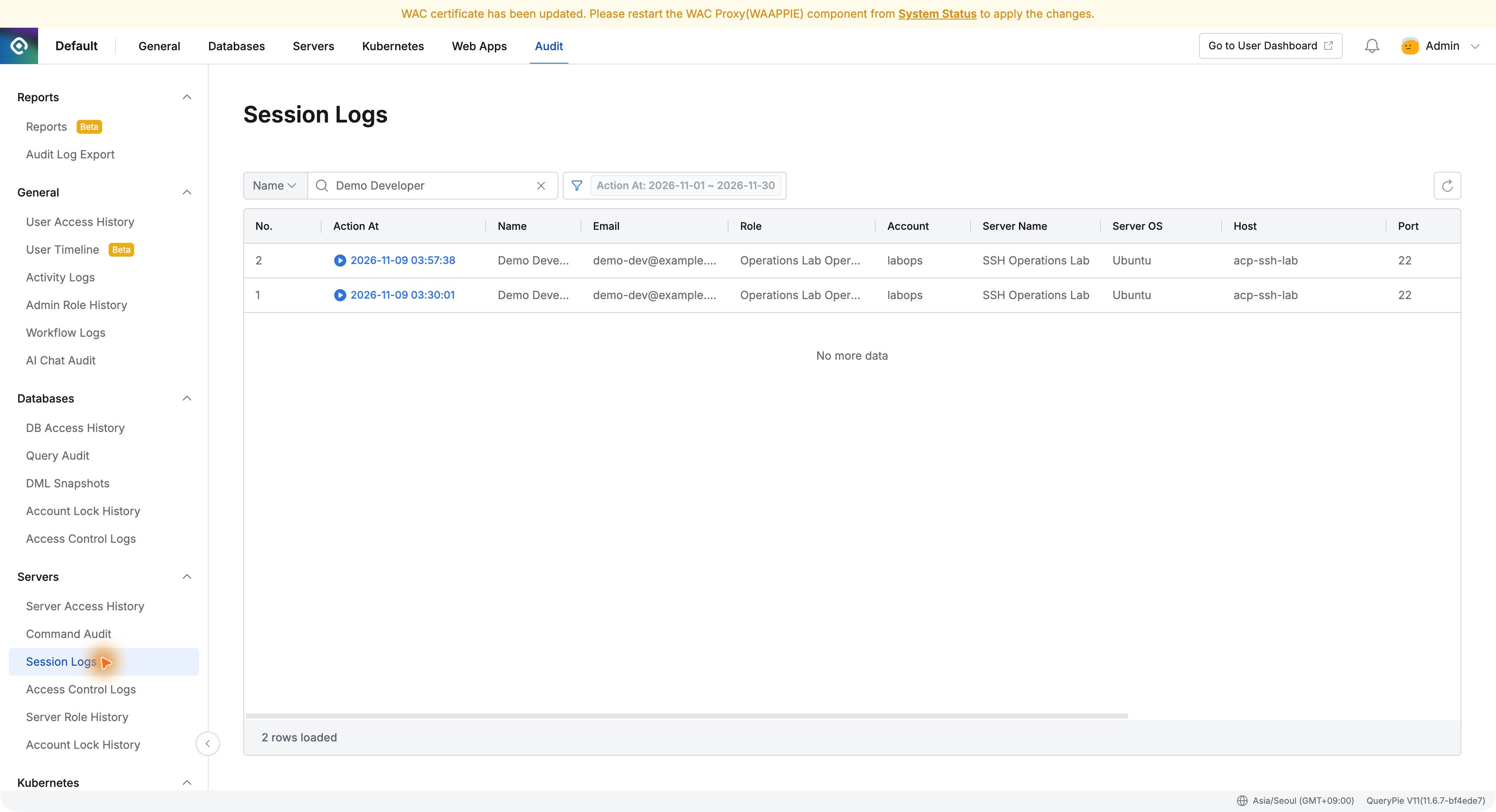
I chose the session starting 03:57:38: Operations Lab Operator, SSH Operations Lab, labops. The sessionRecording setting enabled in Part 22 was retained in Part 23.
Replay Restores the Original Terminal View
Clicking the start time opened Session Record for Demo Developer, recording labops_20261109_035738, duration 2 minutes 34 seconds.
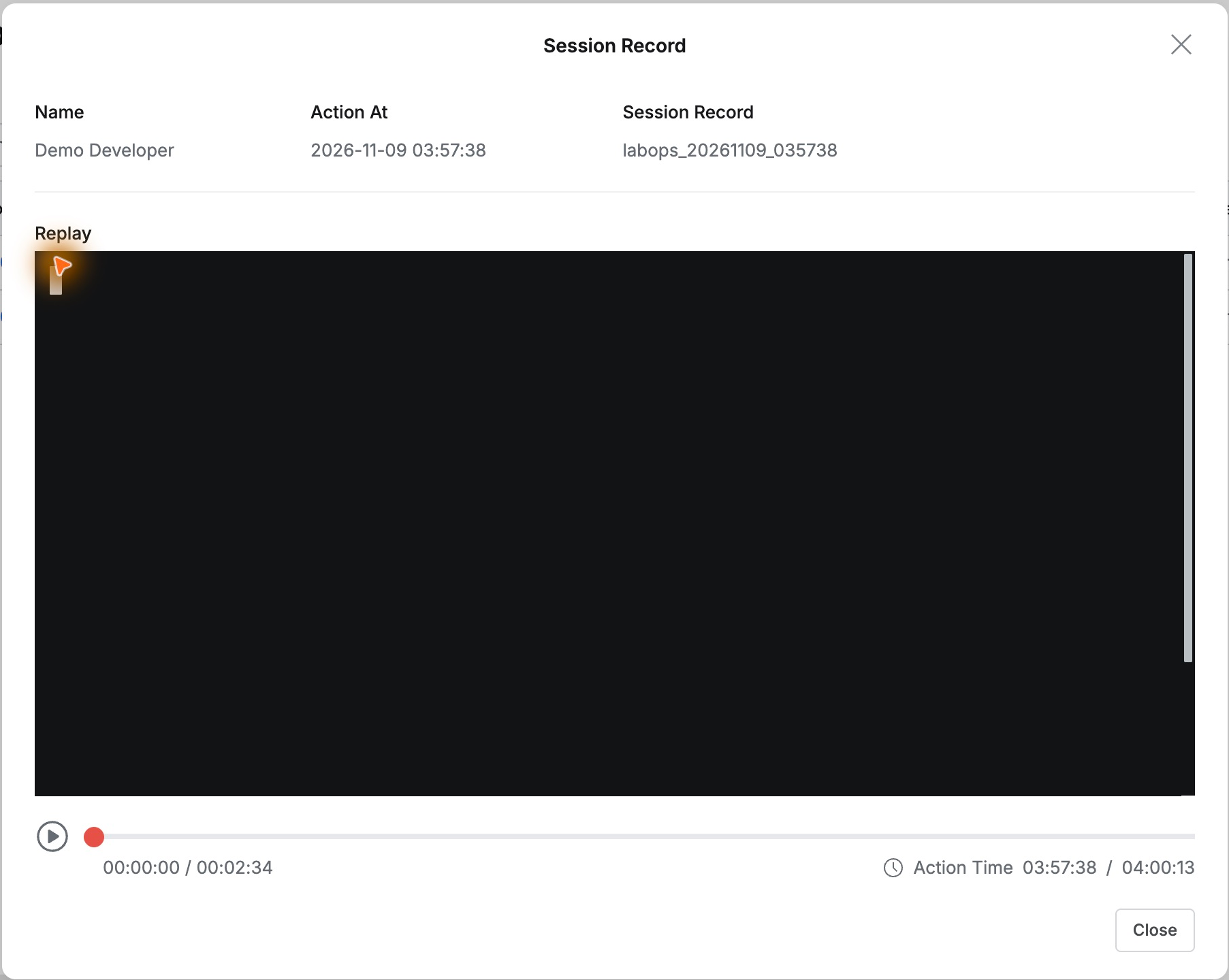
Play showed the Ubuntu welcome text and labops prompt as time advanced. Playback position and actual Action Time appeared separately below.
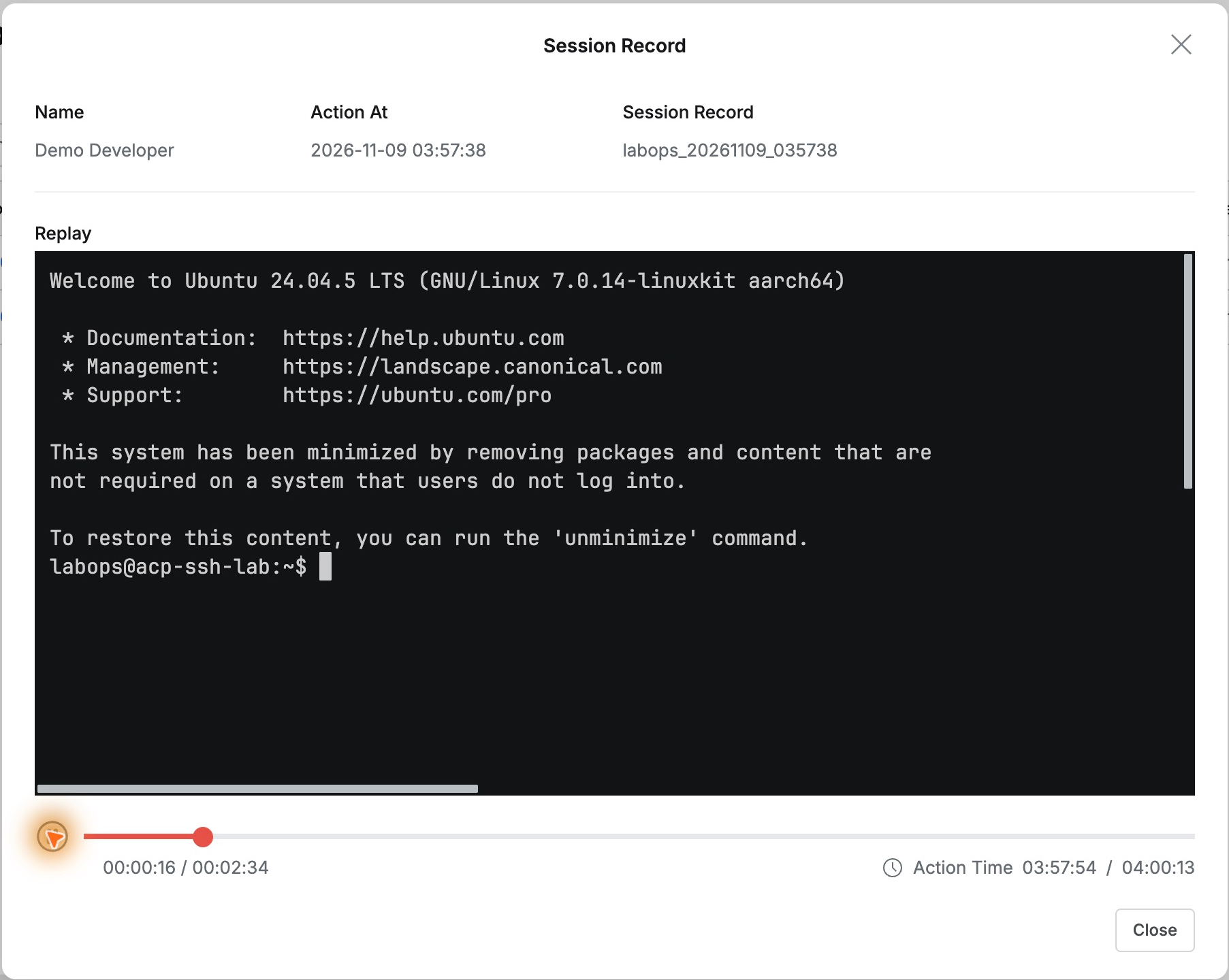
I could inspect completed work without rerunning commands. The actual timestamp made comparison with audits easy.
Jumping to the Blocked Deletion
I sought to about 1:51 and paused. Beneath whoami, pwd, and file results were rm and [QueryPie] Restricted.
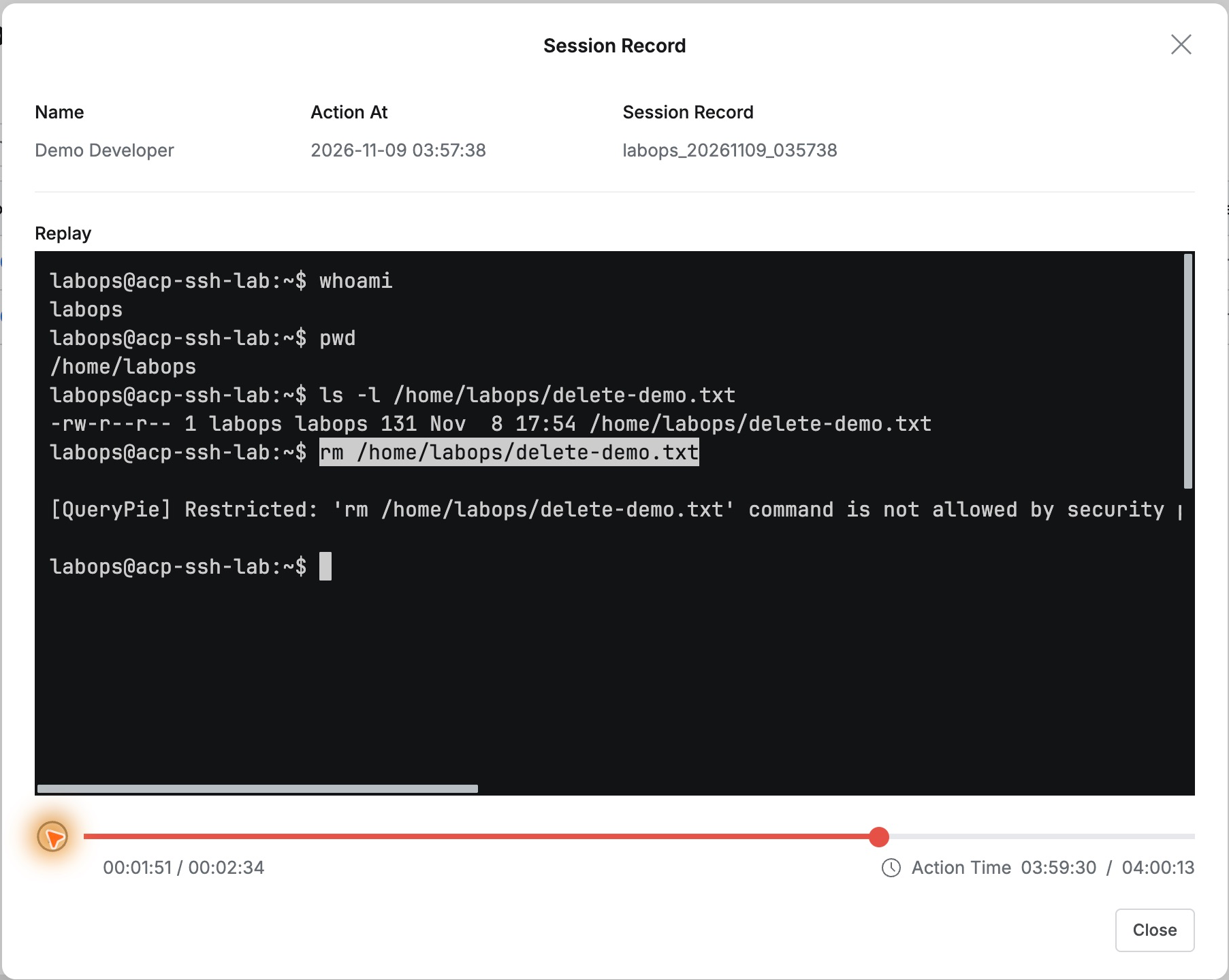
Pause held the view still. Seeking backward and forward let me find the relevant moment without waiting through the entire recording.
Seeing the Work After the Block
Later, ls checked the same 131-byte file and cat displayed its two lines of lab text.
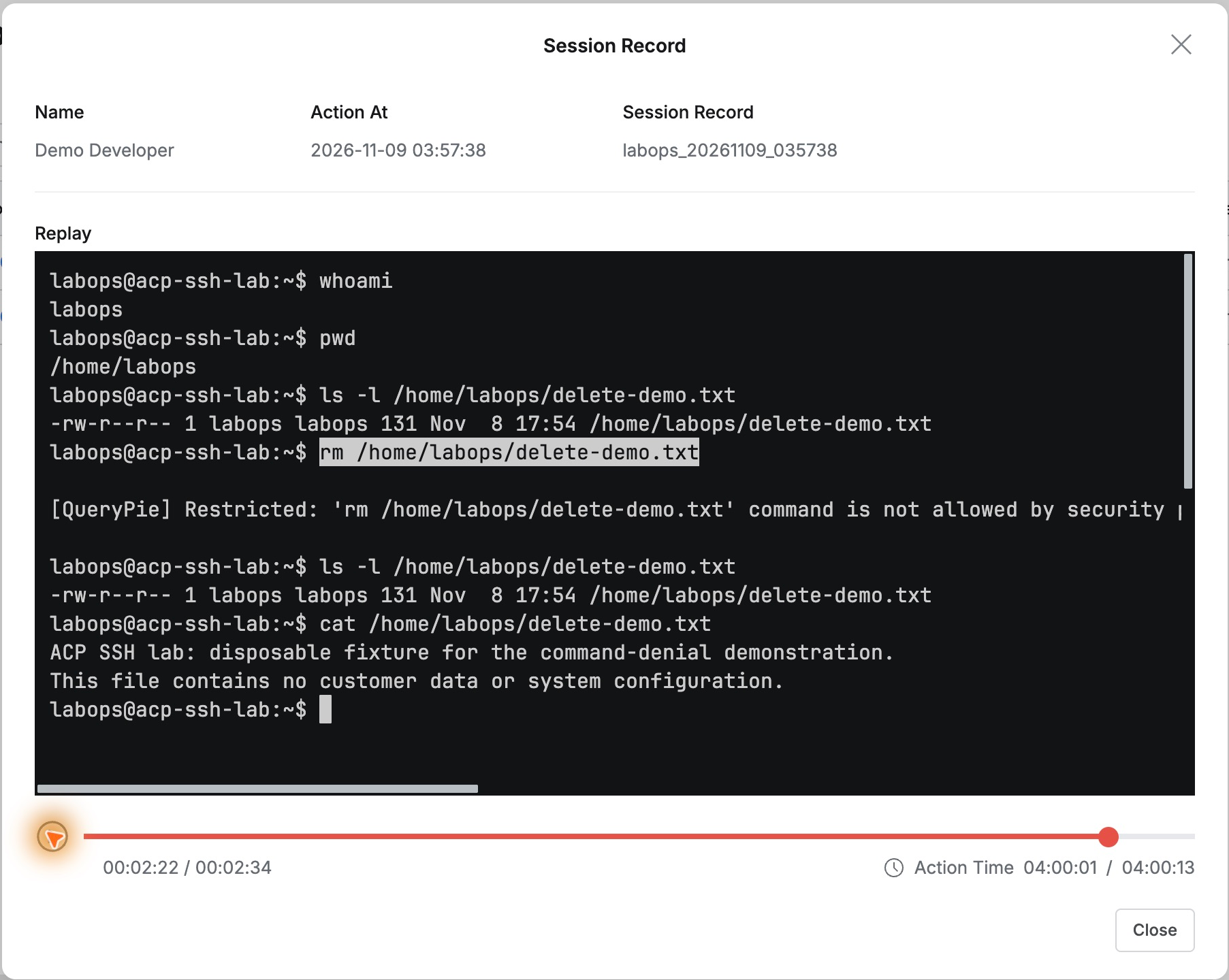
The command list says rm was blocked; replay adds the context that the user stayed connected and inspected the file afterward. That helps explain the outcome.
Opening the Relevant Moment from Command Audit
I opened the blocked rm in Command Audit and clicked Replay under Session Log.
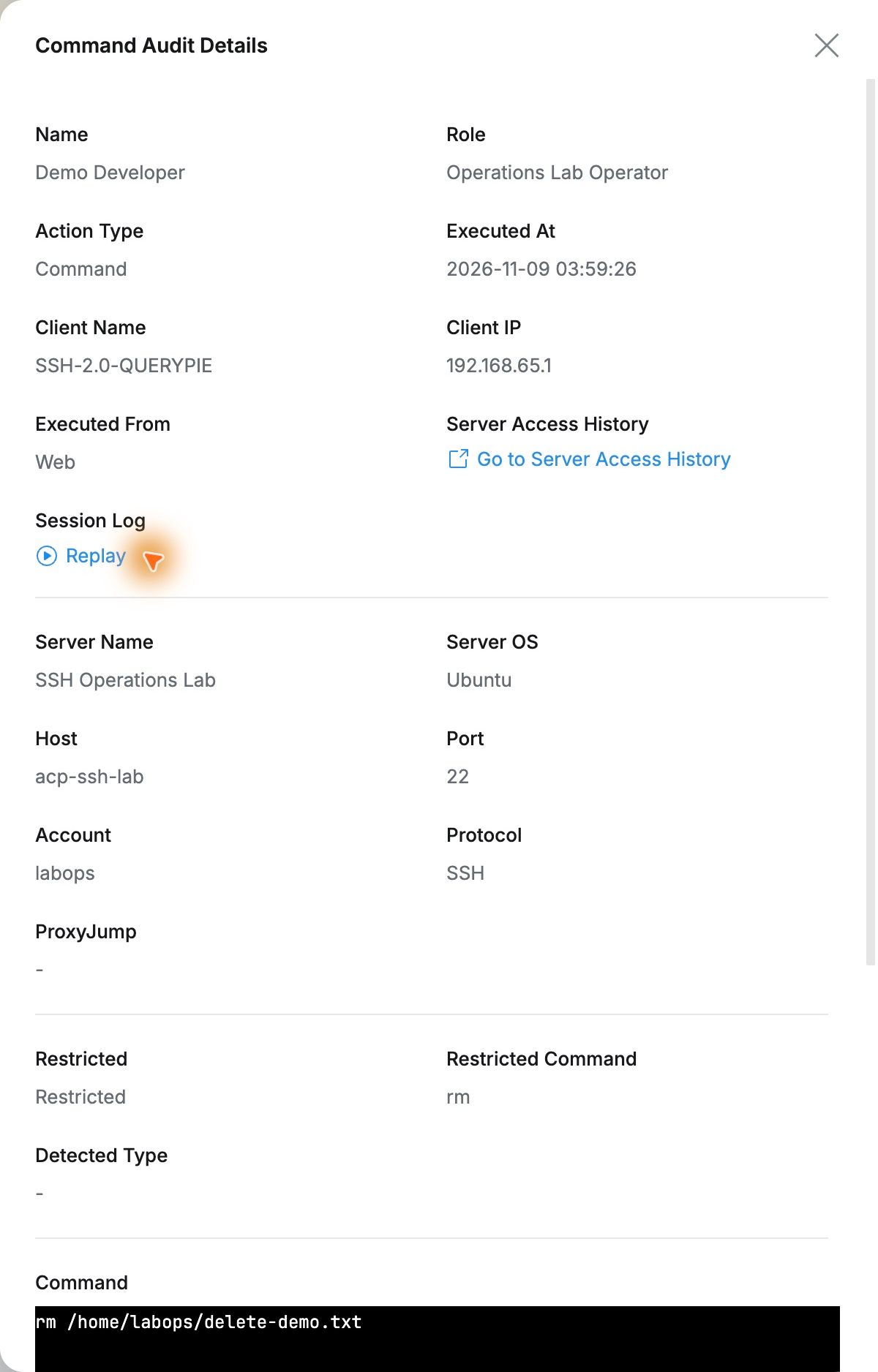
It did not start at zero. Position 1:47 was selected with Action Time 03:59:26, matching the command audit. Playing immediately showed the blocked deletion.
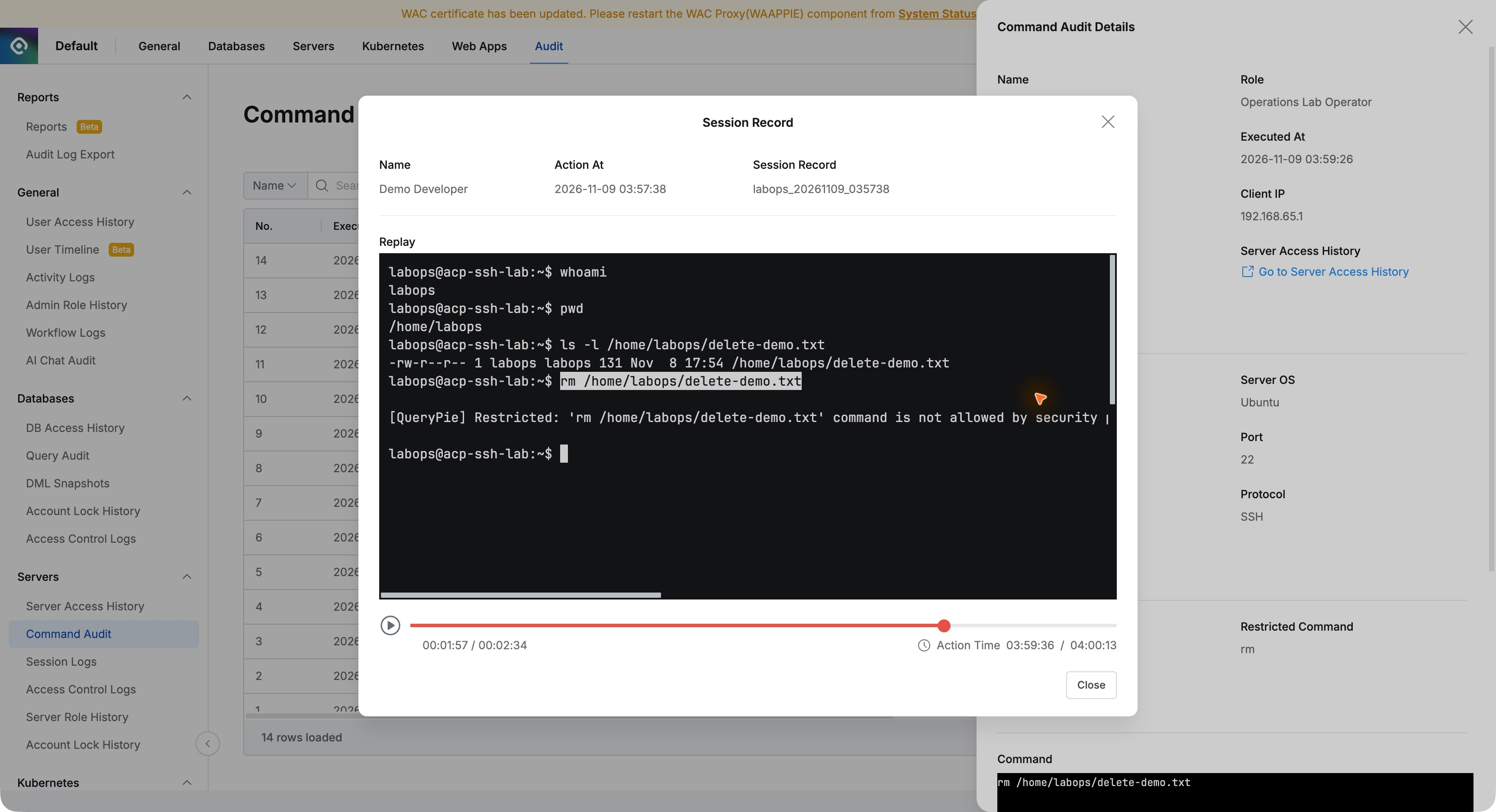
Find the command, open details, and click Replay: no separate session search or manual alignment within a long recording was needed. Records and screen context made events easier to understand.
This exercise focused on reviewing completed work. Within QueryPie I could follow the person, commands, and output, using recorded screens rather than relying only on memory for later questions or audits.
This lab used web SSH with command audits and session recording enabled in QueryPie Community 11.6.7.
Reference: Session Logs · Command Audit