[Part 12] Exporting Database Data with Approval — QueryPie SQL Export in Practice
November 8, 2026
Query results sometimes need to become a report. Files help summarize shipping or compare amounts, while evaluators also want to manage who downloaded which data for what purpose.
This time I used QueryPie’s SQL Export Request to export an order summary. The developer submitted SQL and a reason, obtained approval, then downloaded the file. Workflow connected the request, approval, and execution result.
The database contains fictional lab orders connected to Community Edition. No actual customer data was used.
1. Selecting Only the Report’s Required Fields
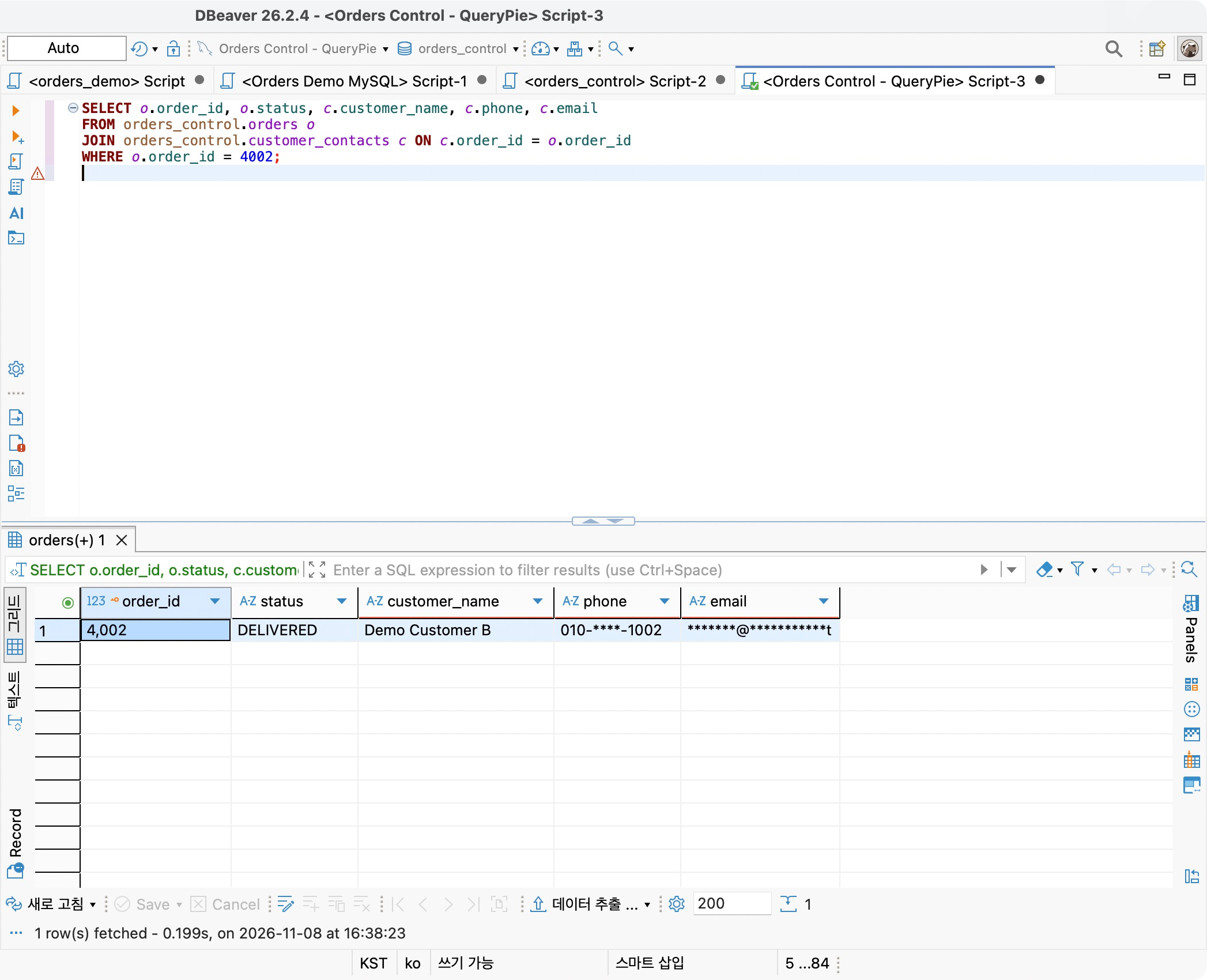
The task was a shipping report for three orders. It needed ID, status, and amount, not customer names or contacts, so those fields were excluded.
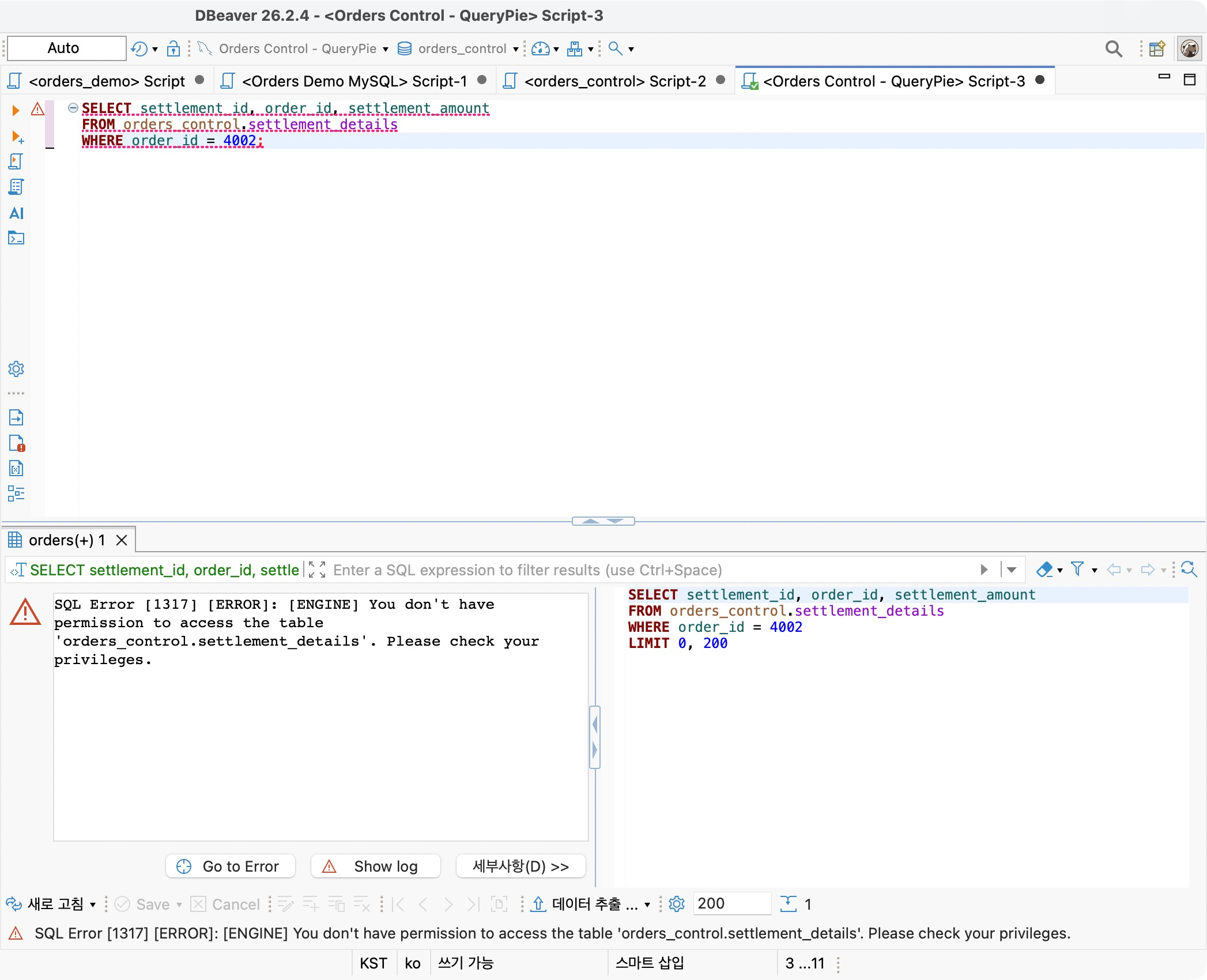
The SQL selected only order_id, status, and total_amount from orders, restricted to IDs 4001–4003.
SELECT order_id, status, total_amountFROM orders_control.ordersWHERE order_id BETWEEN 4001 AND 4003ORDER BY order_id;
Expressing the export scope in SQL lets approvers inspect precisely what is requested, rather than relying on ‘I need order data.’
2. Defining the Approver and Recipient
In Approval Rules, I created Orders Lab - Export Approval with type SQL Export Request.
Demo Approver approves; Demo Developer executes. The developer requests data, then exports it after review. Self-approval was disabled.
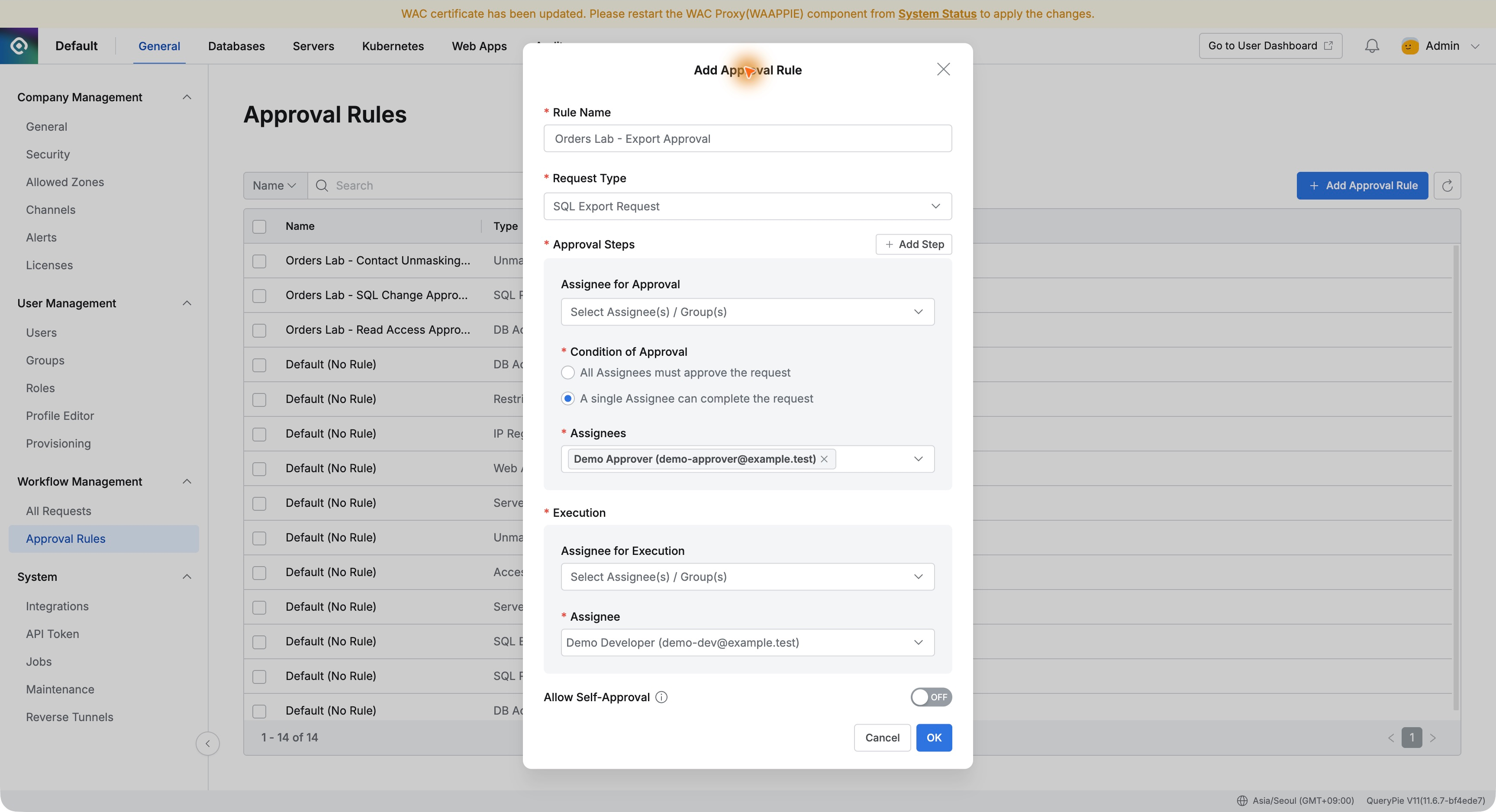
Roles can also govern downloading: the reviewer and the person using the file can be assigned to match the task.
3. Submitting SQL and Purpose Together
I opened Workflow → SQL Export Request as the developer. The rule populated the designated approver and executor.
I titled it ‘Export order summary for shipping report,’ selected Orders Control Lab and orders_control, and entered the SQL using Query Result. Both approval and execution deadlines were the lab day.
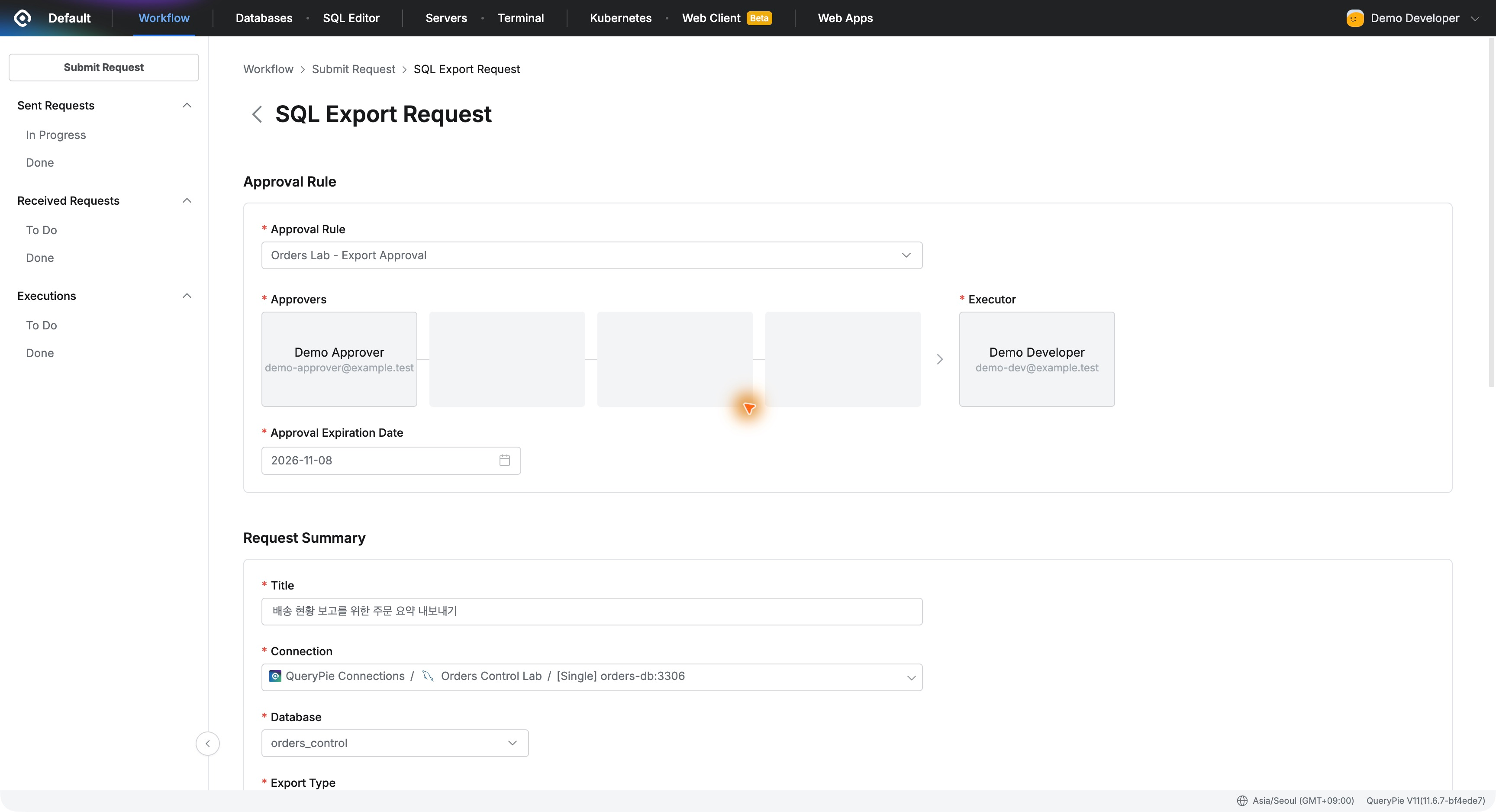
The reason specified IDs, statuses, and amounts only, excluding names, phone numbers, and emails. After submission, In Progress showed both approval and execution as Pending.
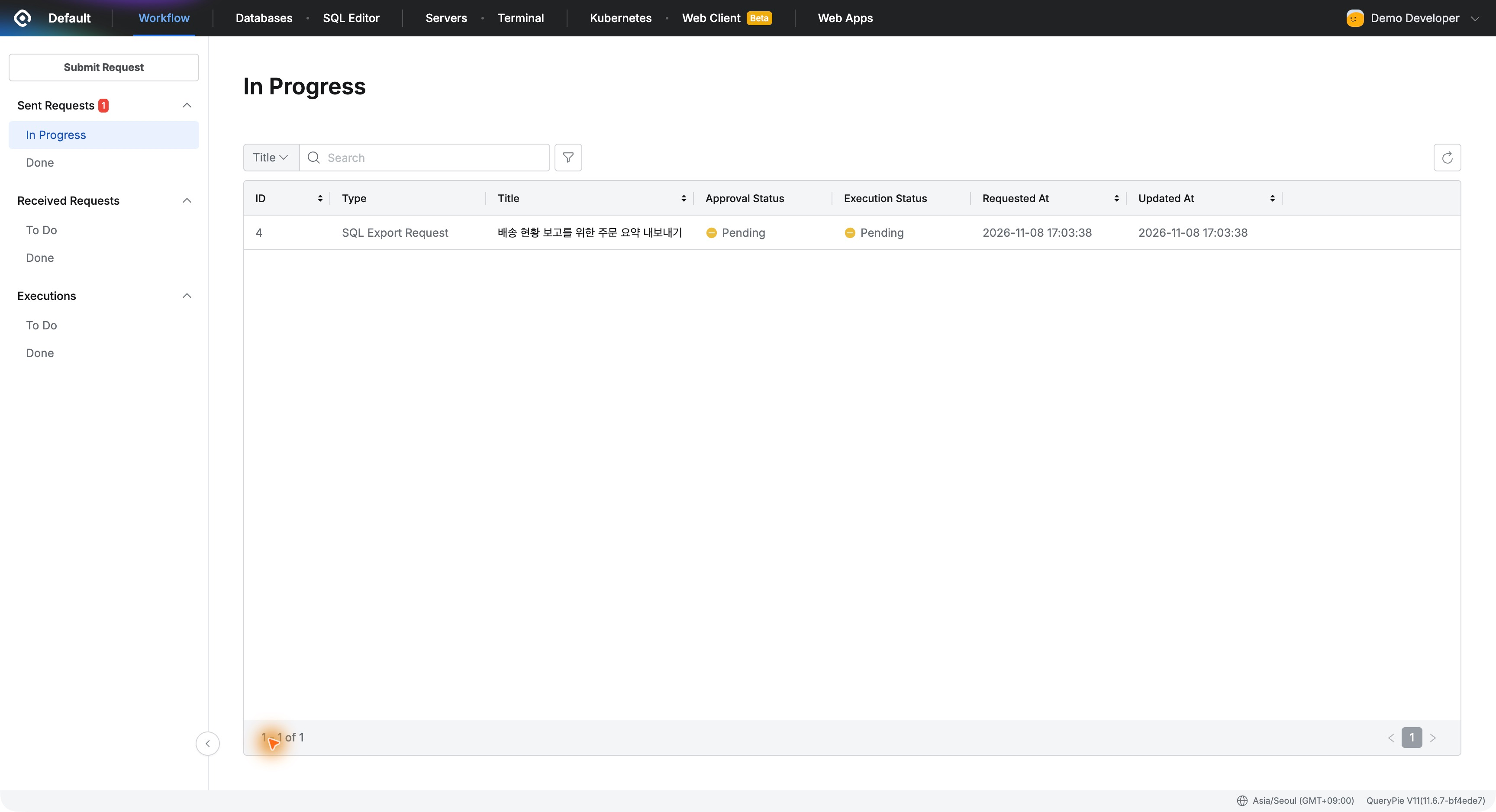
4. The Approver Checks the Actual Export SQL
Demo Approver opened Received Requests and reviewed the SQL, business reason, and execution deadline.
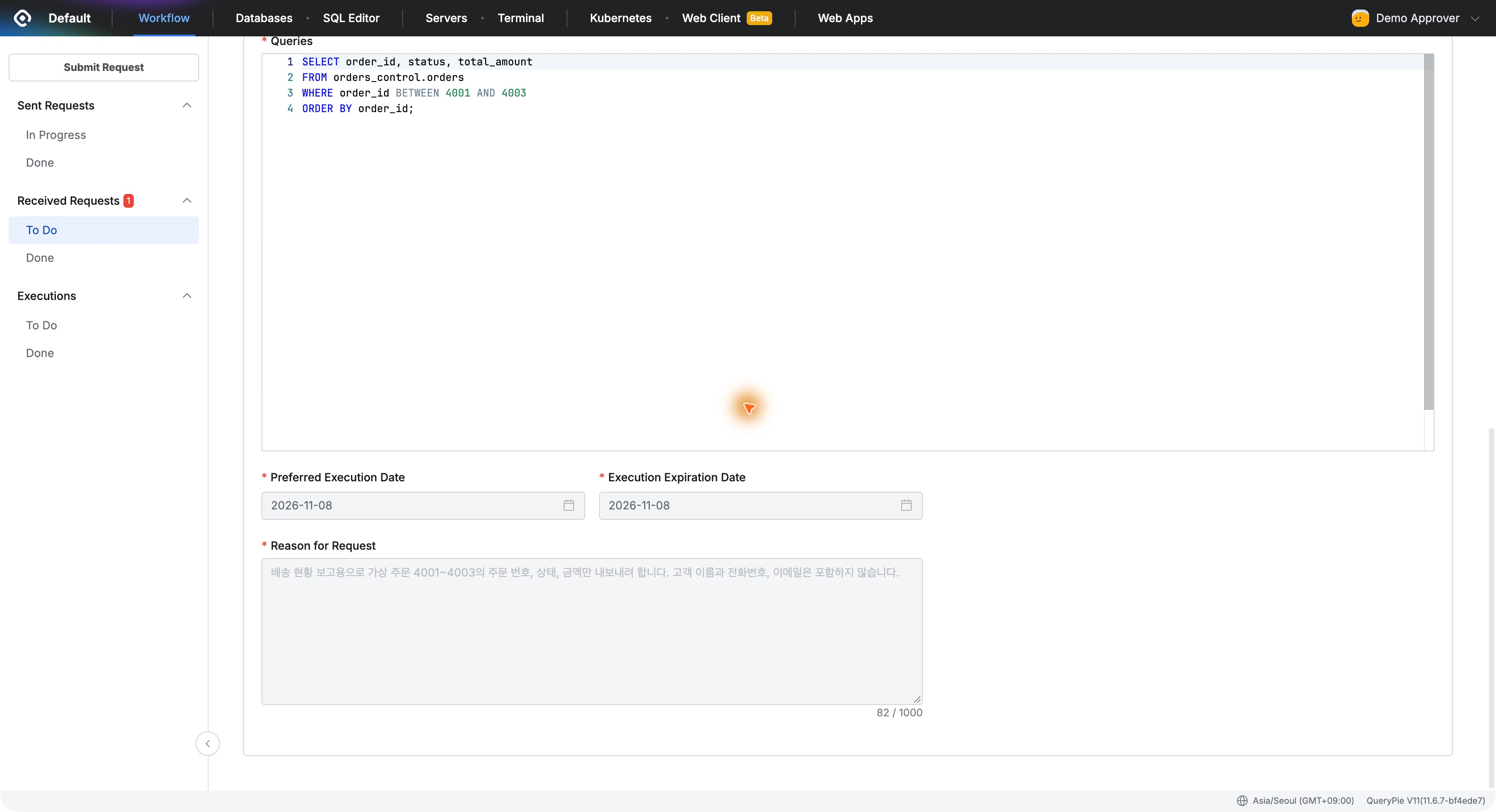
I verified contacts were absent from the SQL, approved, and noted that the shipping-report export was allowed without contact details.
Business purpose and SQL remained together in the approval record, giving a starting point for later questions about why data was exported.
5. The Download Contains the Three Requested Orders
As the developer, I opened the approved request under Executions → To Do, clicked Execute, and chose CSV with column names in the first row.
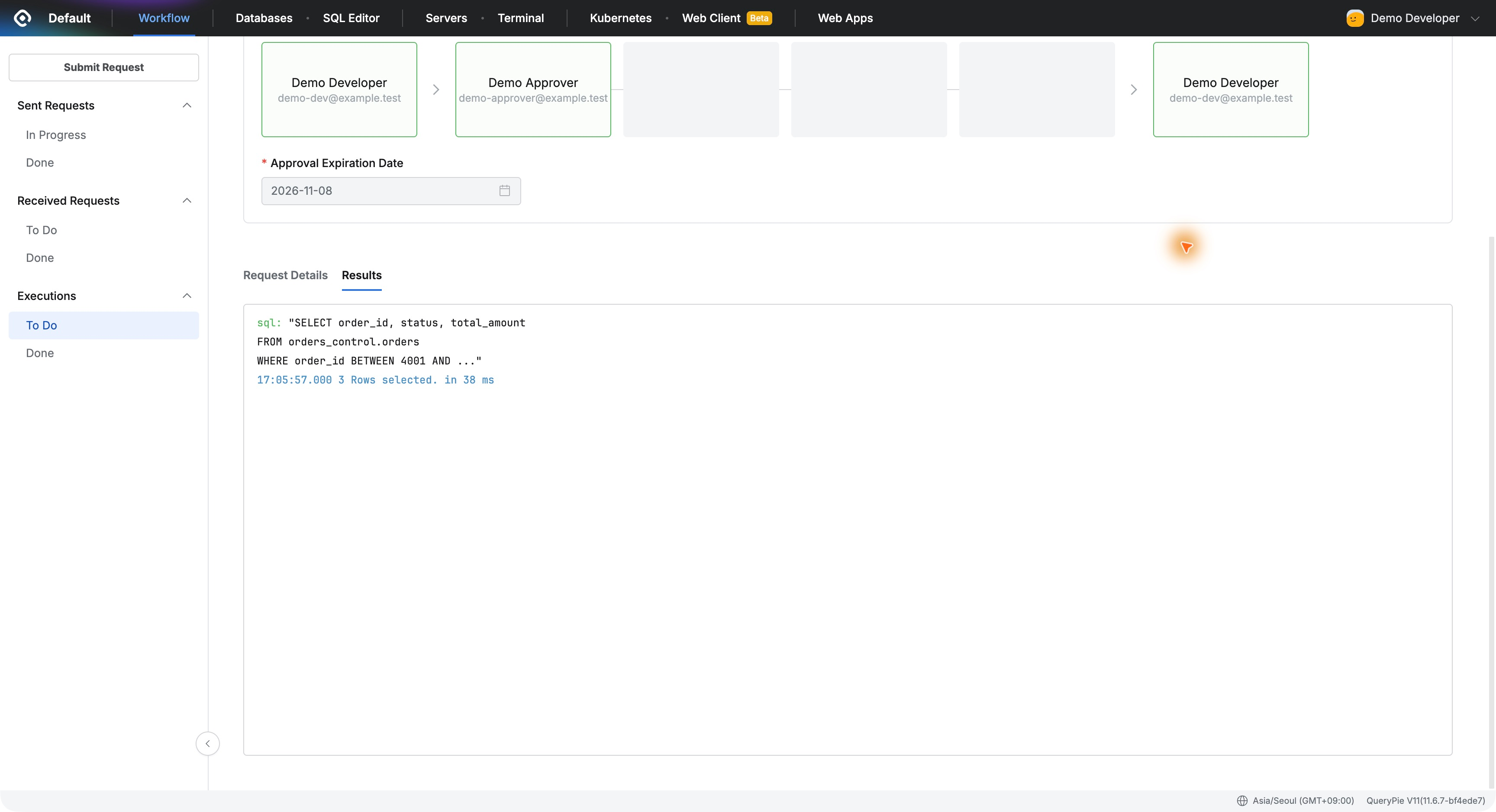
The download completed, and Results retained 3 Rows selected as the execution result.
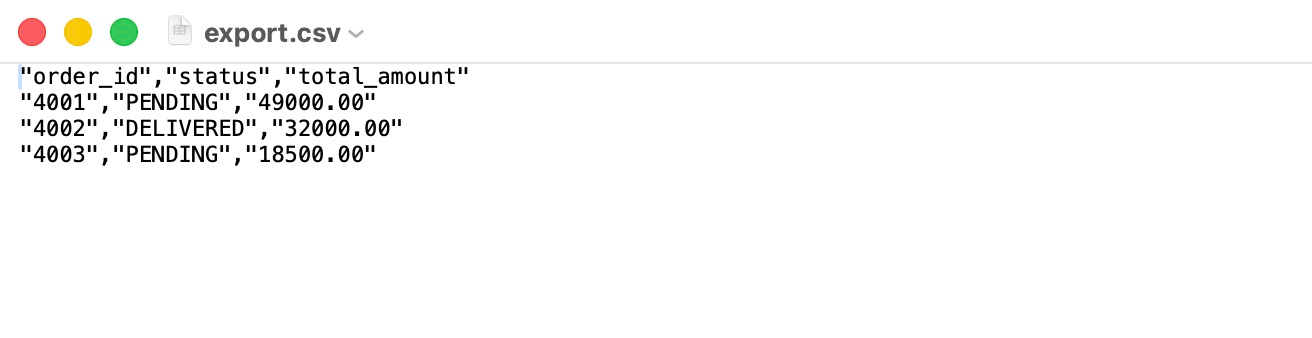
I opened export.csv inside the ZIP. Its header was order_id, status, total_amount, followed by orders 4001, 4002, and 4003 with statuses and amounts: exactly the three requested columns and rows.
The completed request moved to Executions → Done with status Success, together with requester, request time, and update time.
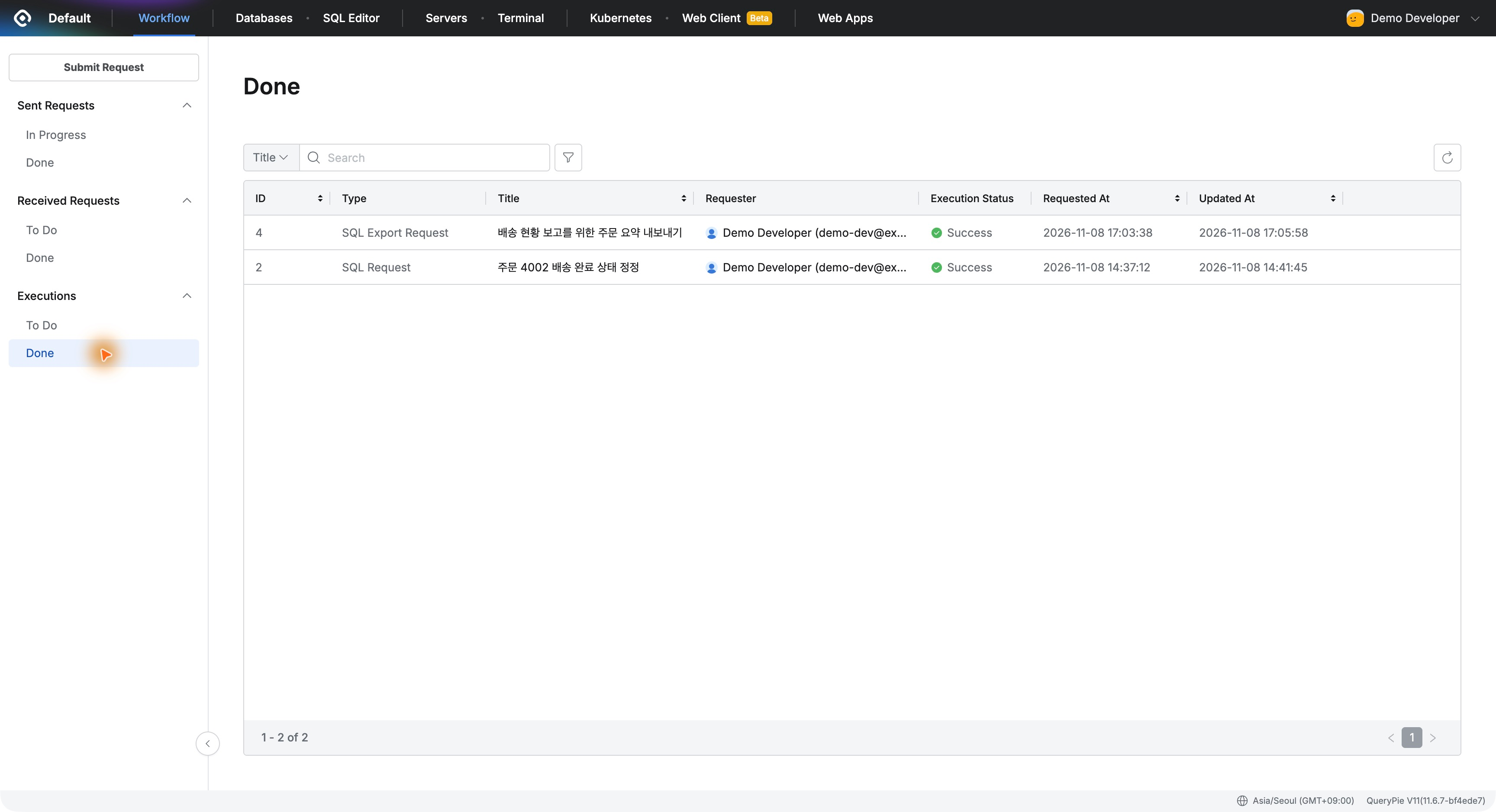
6. Evidence for the Work of Obtaining Data
SQL Export Request connects the work before and after file creation: the user submits SQL and reason, the approver reviews the contents, and the executor downloads from the approved request.
It is easy to demonstrate its value to evaluators: who requested what, who approved it, and whether execution succeeded can all be followed through request and result screens.
Three orders to CSV was a small task, but it verified approval and execution records for data exports. It showed how everyday database work, such as report preparation, can be managed within QueryPie.