[Part 22] Connecting to SSH Without Entering the Server Password — QueryPie Web Terminal
November 9, 2026
So far, I had explored database connections, reads, and changes. Now I wanted to grant server access through QueryPie rather than sharing passwords whenever another person needed to connect.
I registered a lab Ubuntu server and assigned the developer an SSH role. After signing in to QueryPie, selecting server and account opened a browser terminal without a server-password prompt.
Registering the SSH Server
In Servers, I registered SSH Operations Lab at acp-ssh-lab, OS Ubuntu, protocol SSH, port 22.
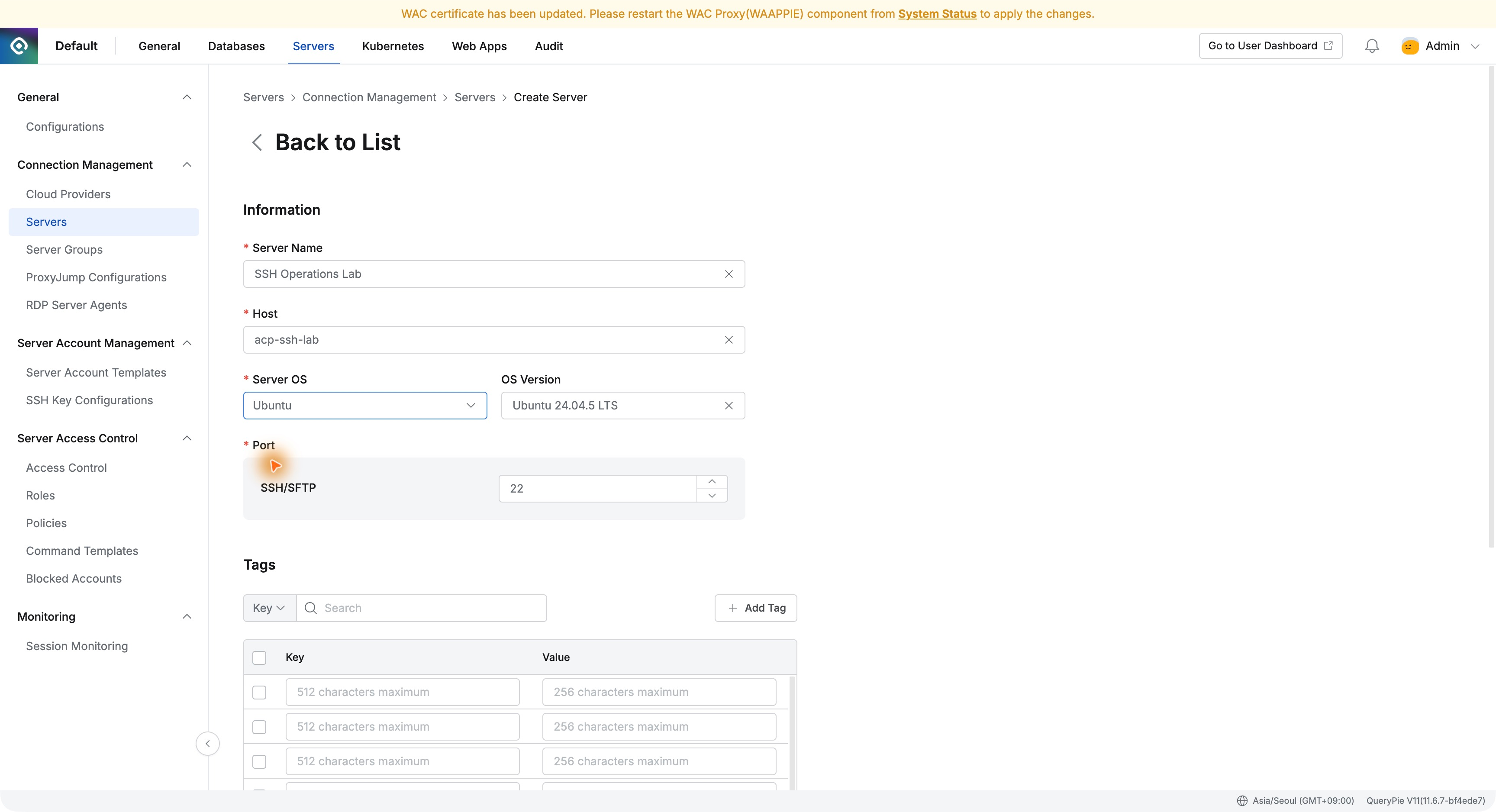
A clear name lets users choose targets without memorizing addresses. I added it to Operations Lab Servers.
Registering the Server Password in QueryPie
I added labops to the group using QueryPie - Password. The administrator stores the connection password here, avoiding separate delivery to the developer.
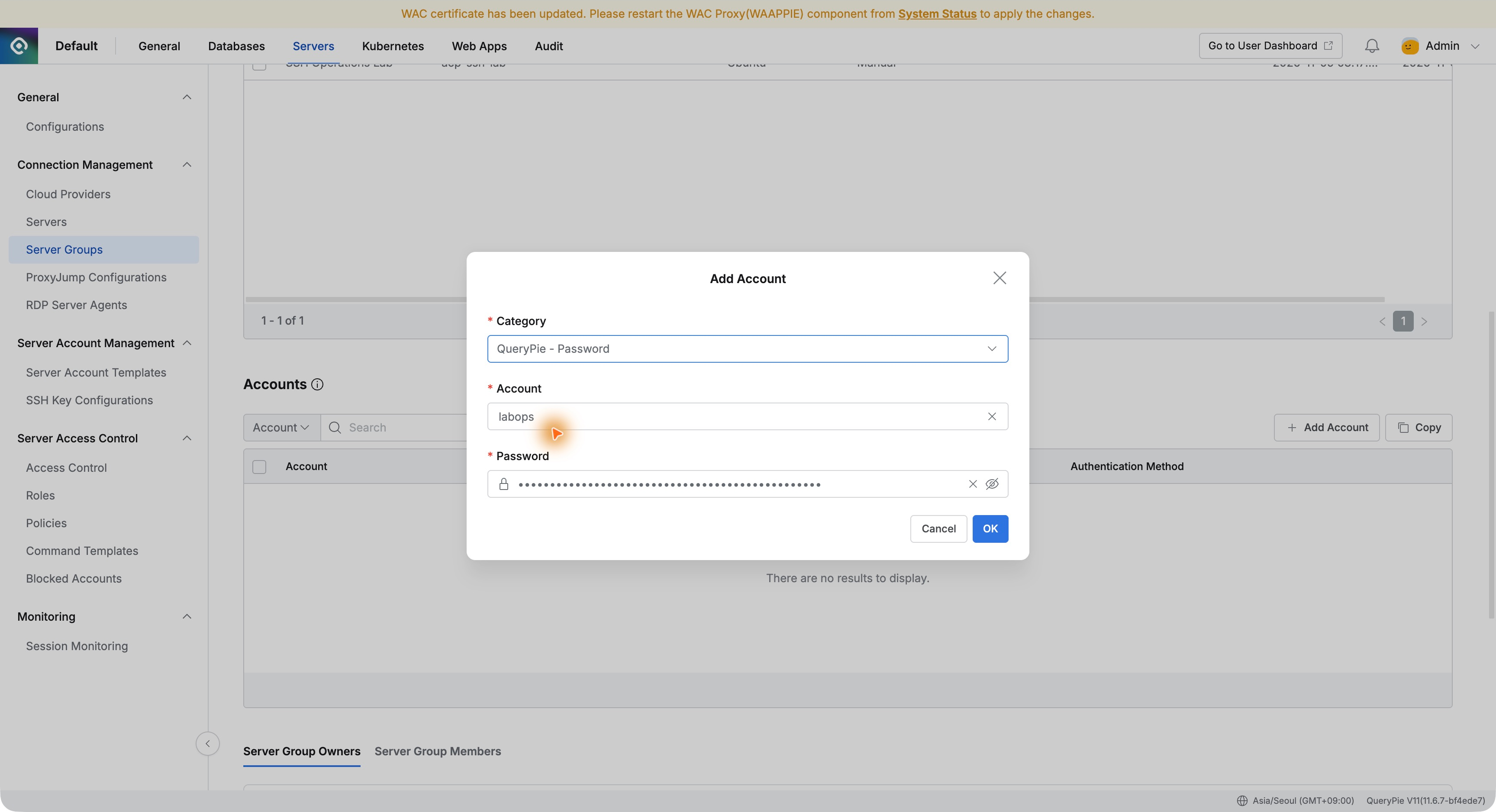
Test Connection returned Success for SSH Operations Lab via SSH as labops.
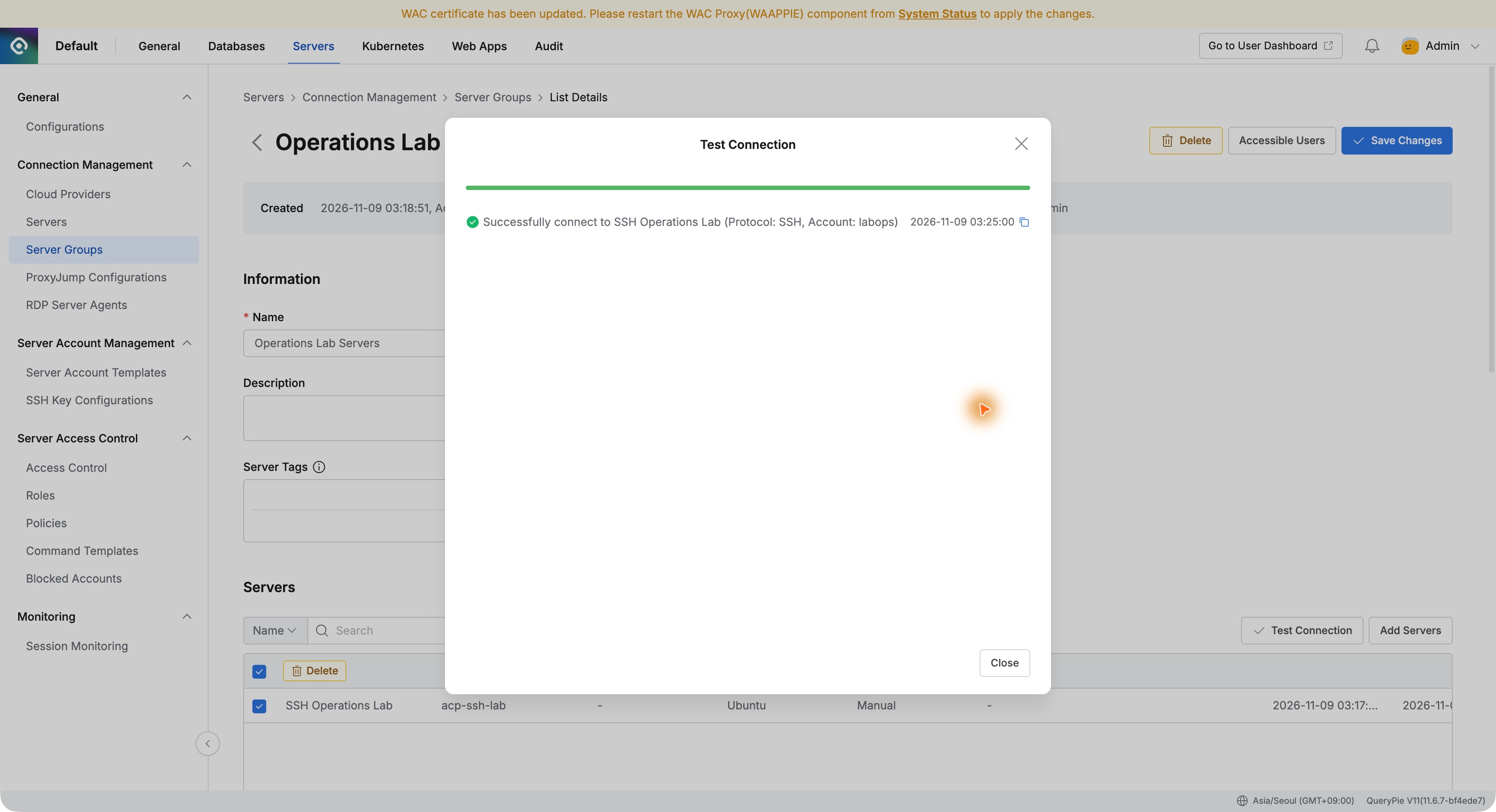
Administrators can verify connectivity before granting access. Server address and credentials were now ready.
Creating Access Policy with Activity Recording
Operations Lab SSH Policy allows SSH to labops in Operations Lab Servers, defining server, account, and protocol together.
I set commandAudit and sessionRecording true to capture commands and terminal activity. Validation showed Errors(0), then I saved.
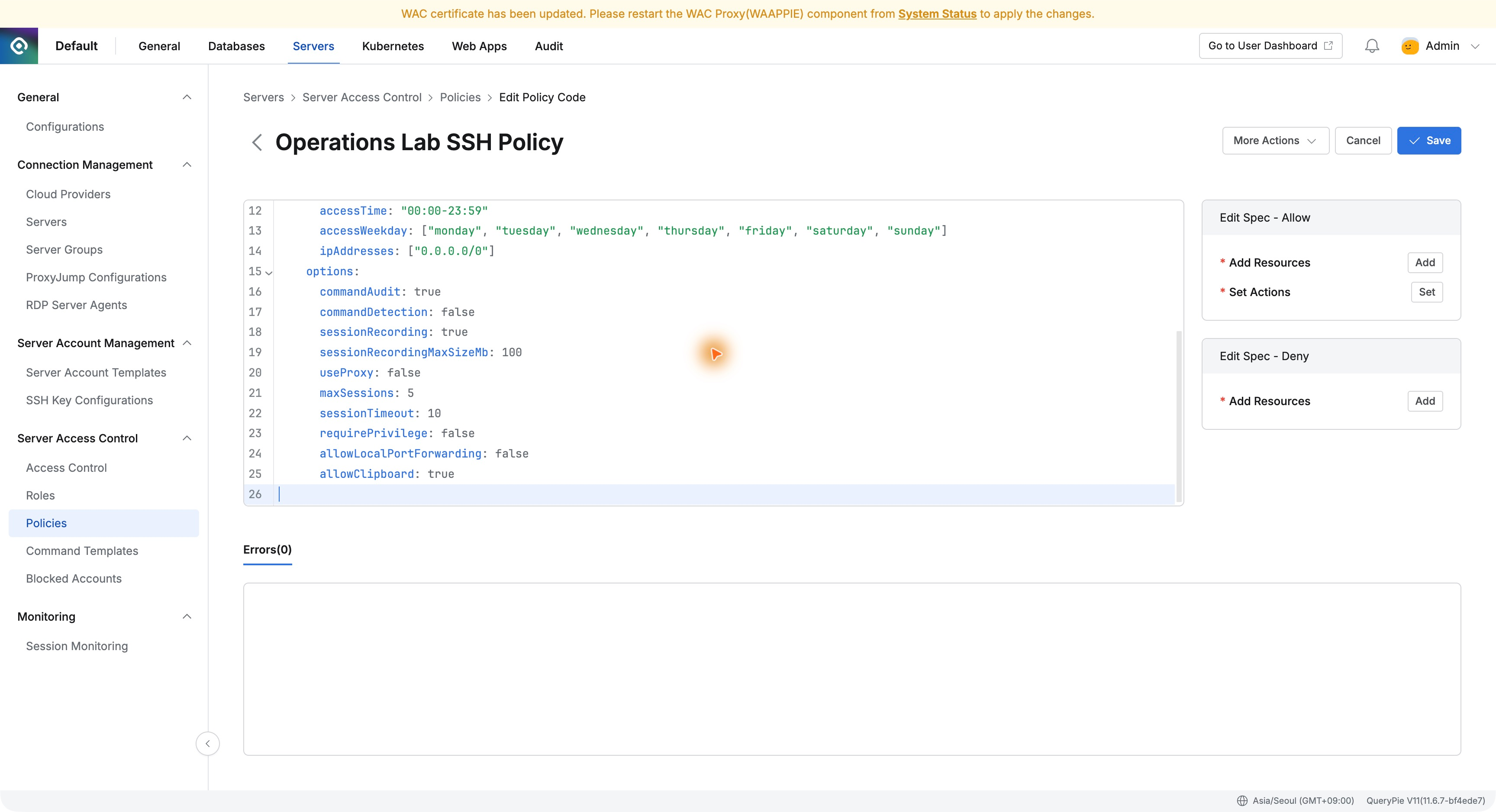
I attached the policy to Operations Lab Operator. Assigning that role grants its defined servers and accounts.
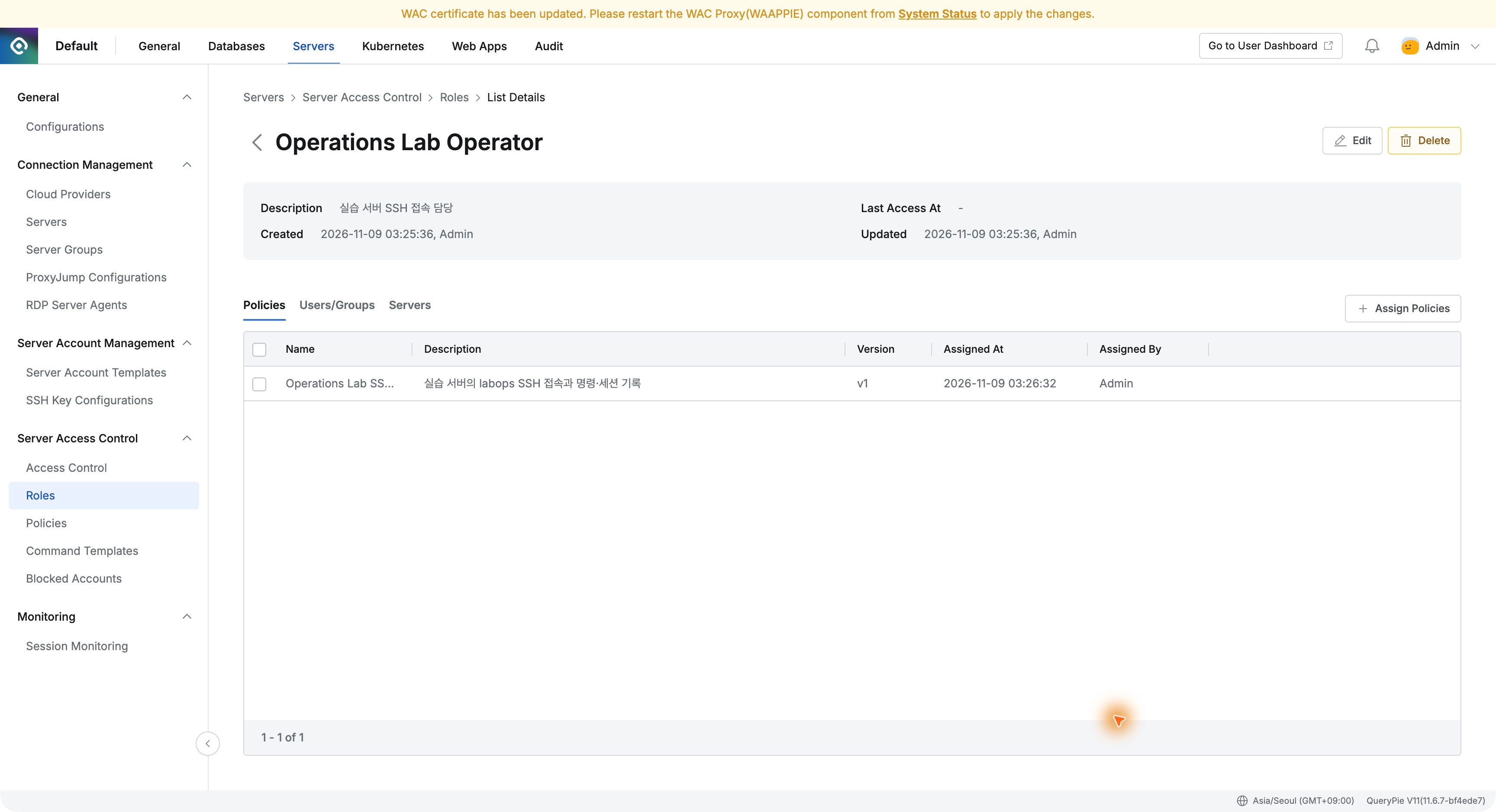
Assigning the Server Role to the Developer
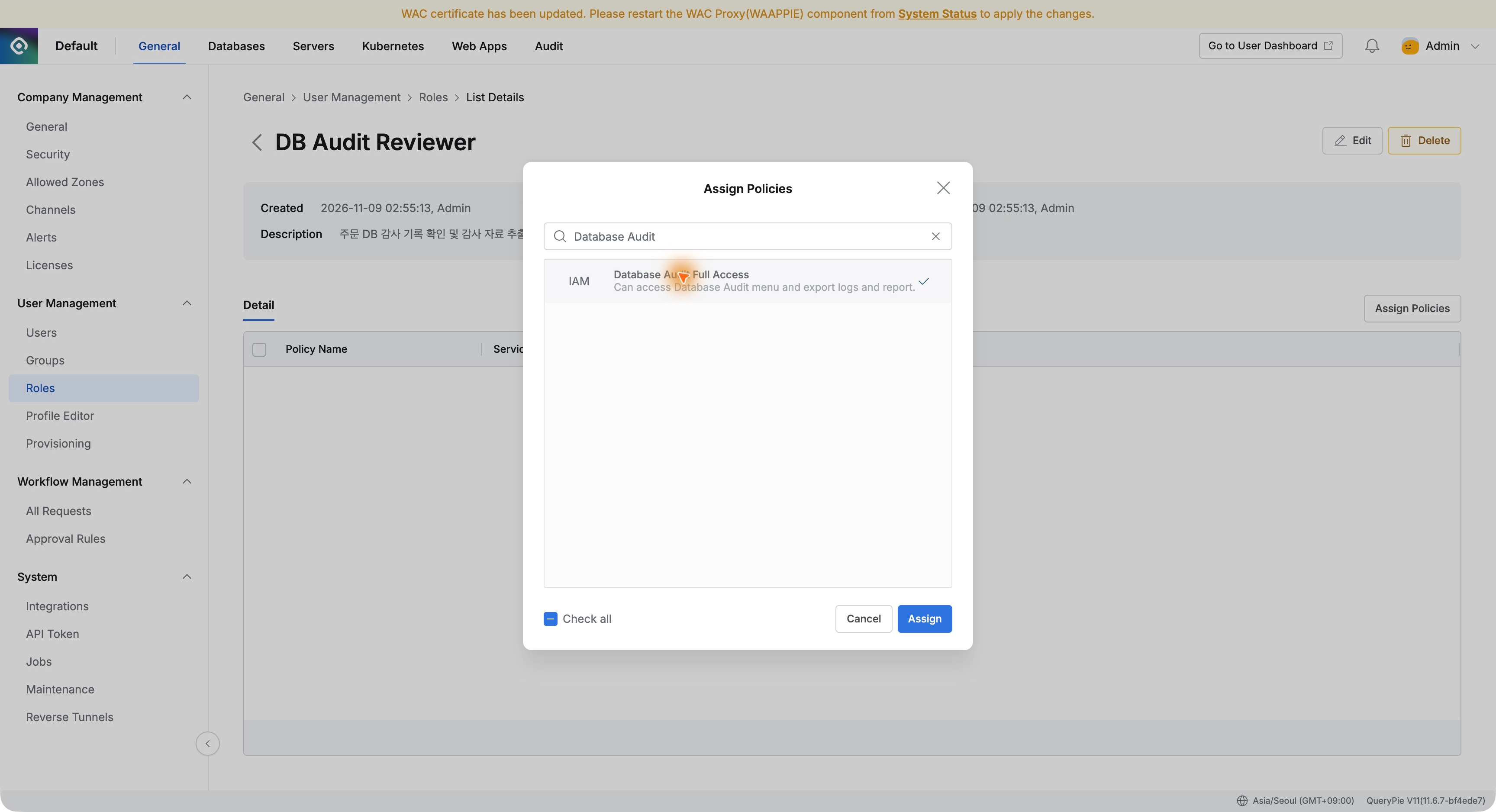
In Access Control, I assigned Operations Lab Operator to Demo Developer, adding server access to the same QueryPie account used for database exercises.
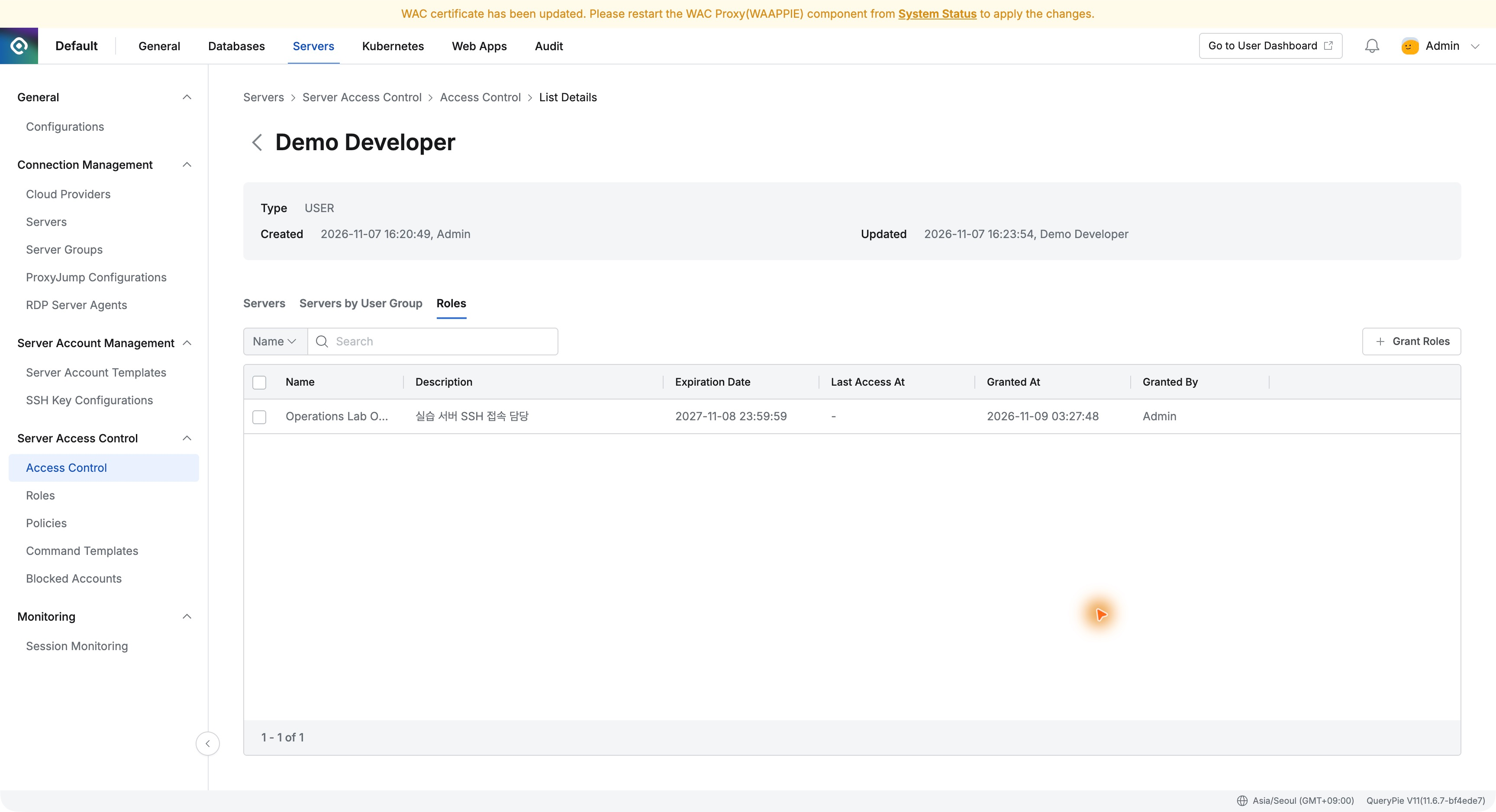
Instead of distributing server credentials, I linked users and roles. This view can manage responsibilities as people or servers change.
The Developer Selects Server and Account
As Demo Developer, selecting Operations Lab Operator in Servers displayed Operations Lab Servers and SSH Operations Lab.
Selecting the server showed labops and SSH, with no password field. Connect opened a web terminal in a new tab.
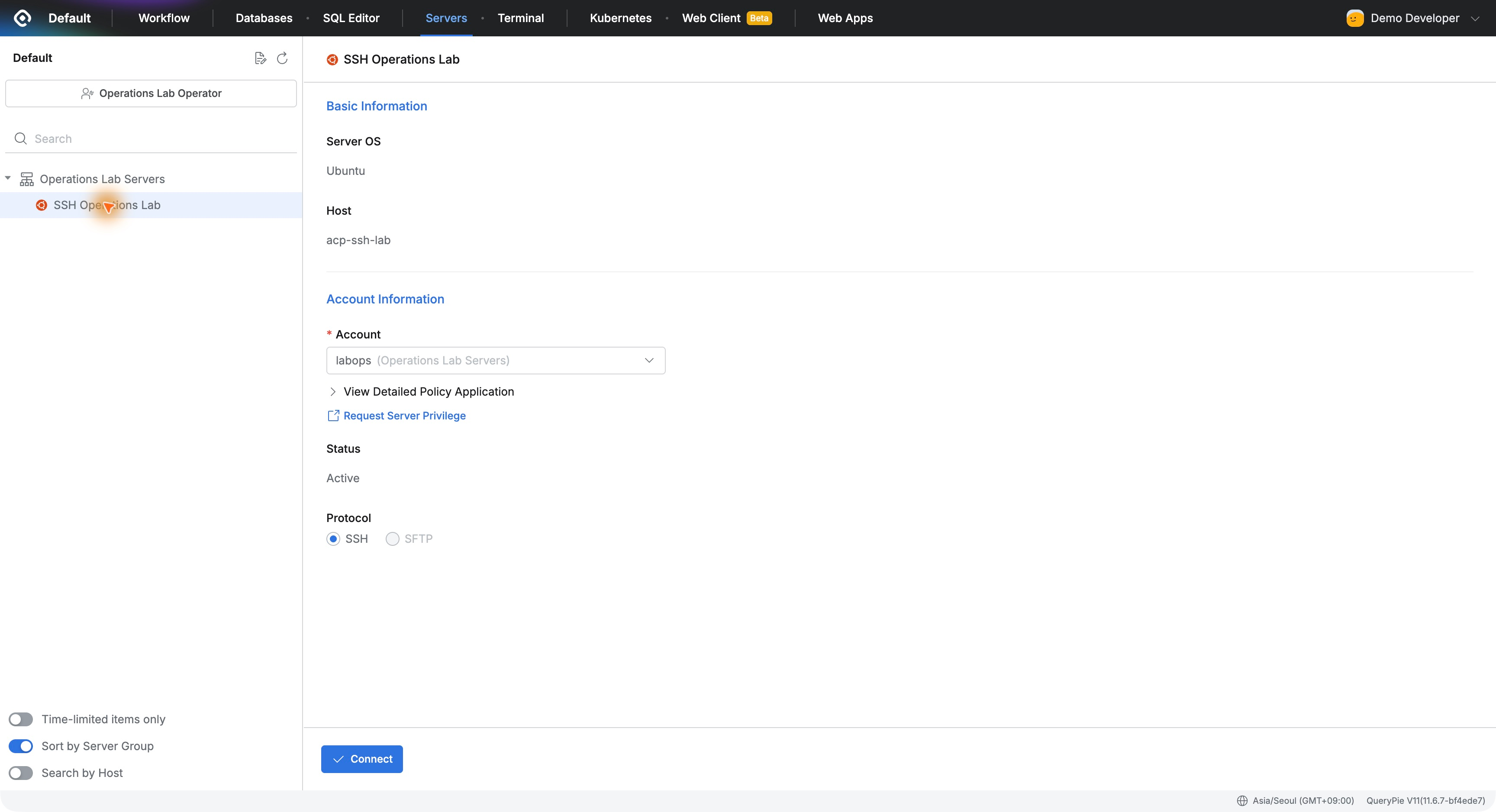
QueryPie uses the administrator-registered credentials. The developer signs in with a personal QueryPie account, without receiving or storing the server password.
Verifying the Server in the Browser Terminal
whoami returned labops, hostname acp-ssh-lab, and pwd /home/labops. I also listed the lab files with ls.
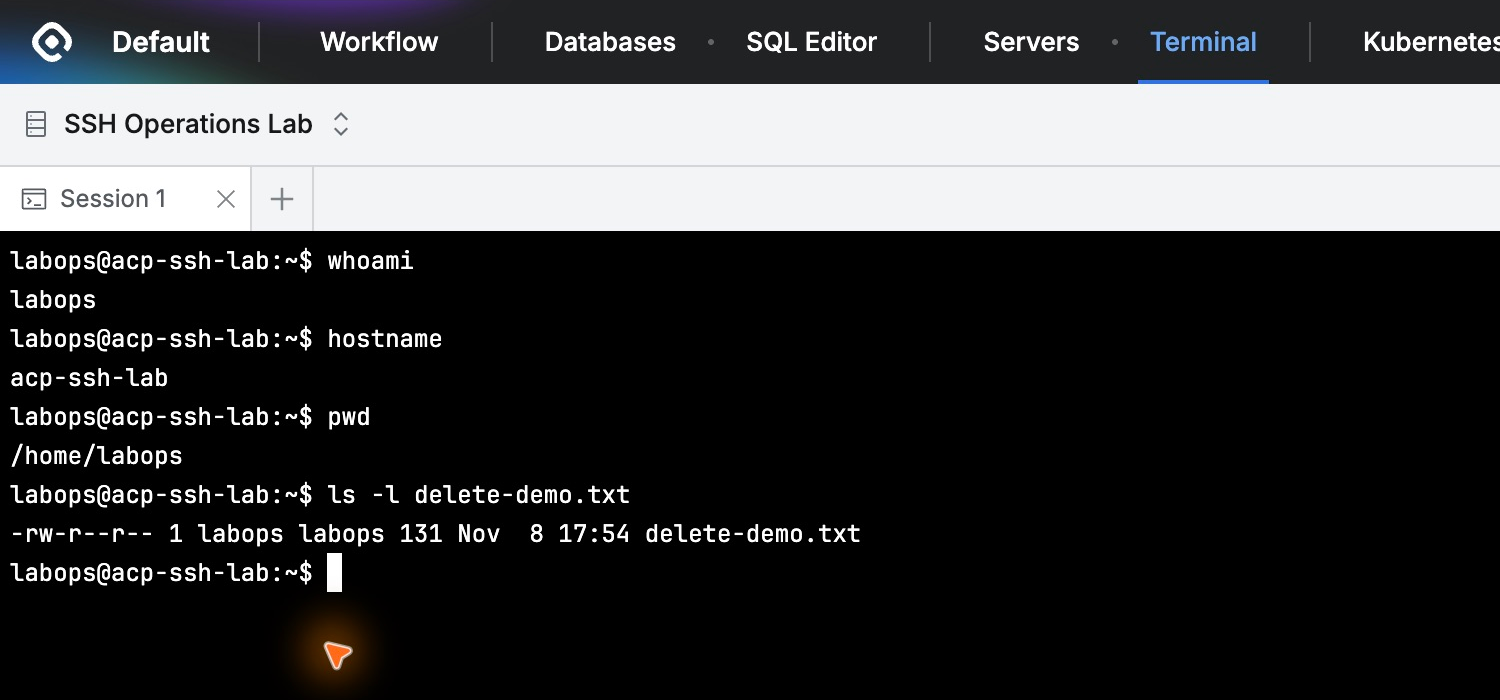
No separate SSH application was needed. The UI lists available servers and accounts, and Connect opens a terminal directly.
Recording Both the Person and the Server Account
After exit, I searched Demo Developer in Server Access History. Both connection and disconnection were Success.
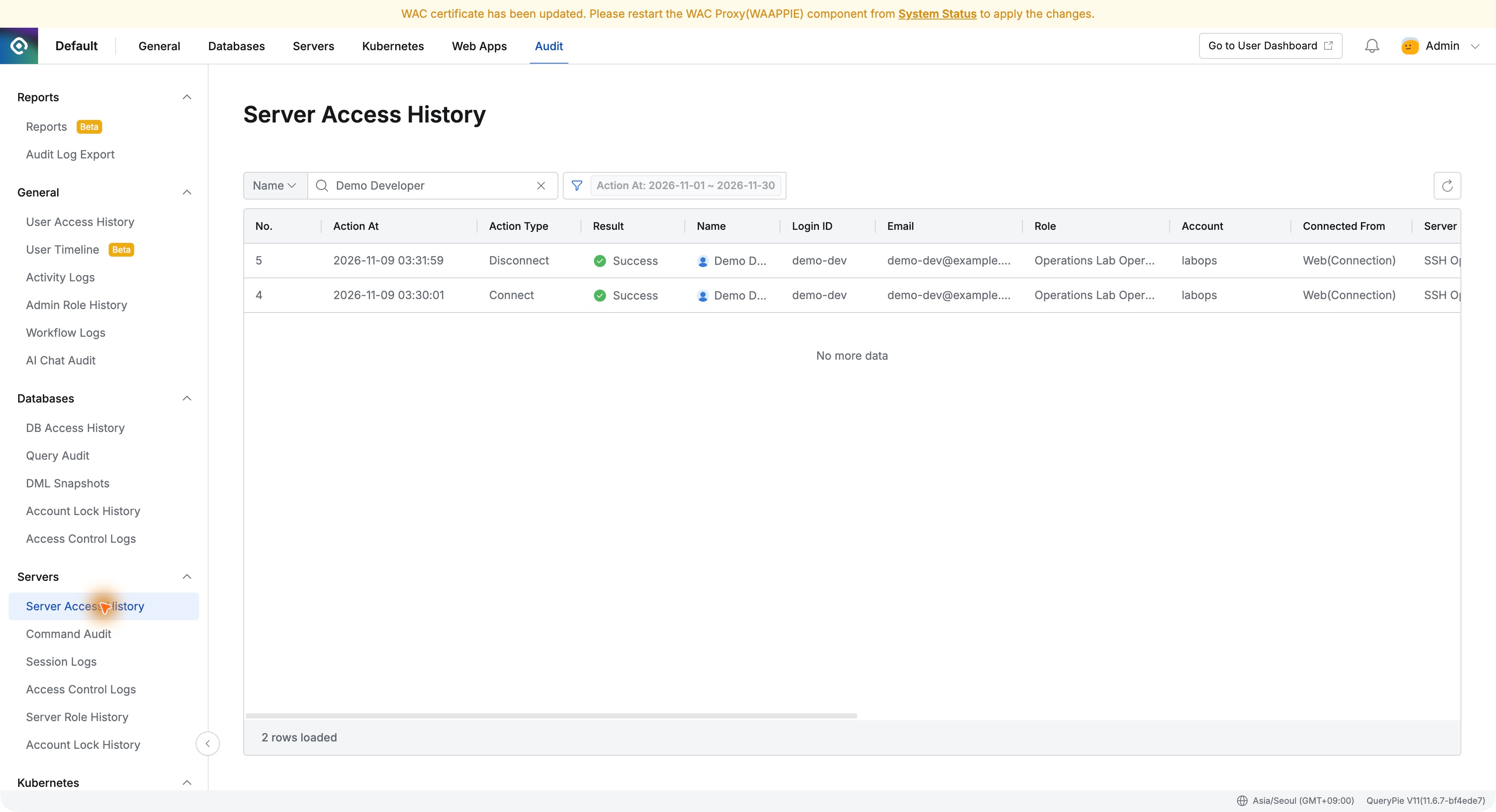
The session ran from 03:30:01 to 03:31:59. It identified Demo Developer, Operations Lab Operator, labops, and route Web(Connection).
The server saw labops, but QueryPie also retained the actual person, reducing work to trace an operator from a server account.
The key benefit was useful server access without sharing its password. Administrators registered resources and roles; the developer used a personal login and web terminal; history later linked the person to the server account.
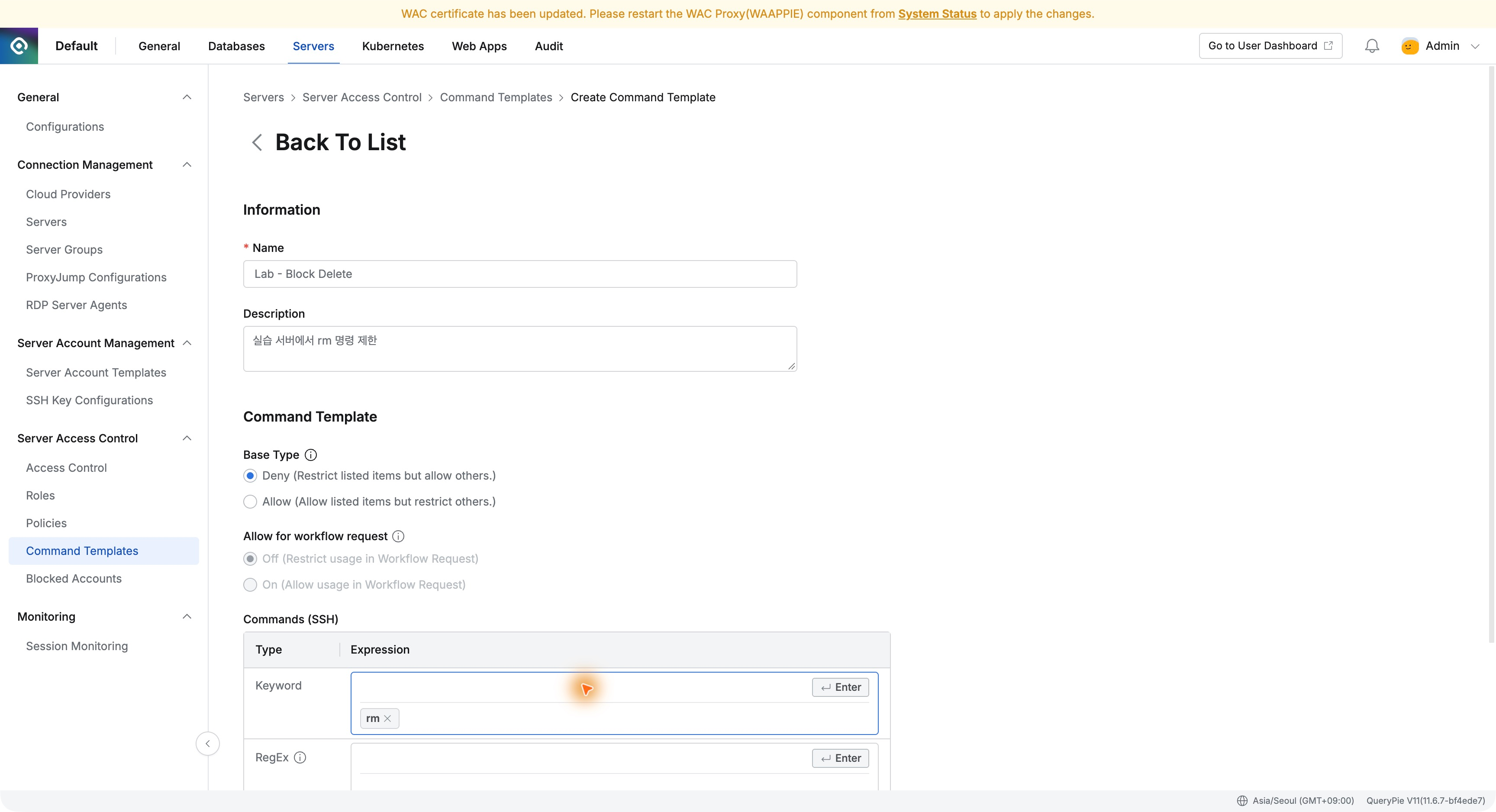
Next, I will keep inspection commands available while restricting selected commands on the same server—controlling what happens after connection too.
This lab used QueryPie Community 11.6.7 and a separate Ubuntu 24.04 server.
References: Manually registering servers · Managing server groups and accounts · Connecting to authorized servers